How To Choose A Monitor For Work Without Paying For Gaming Features
Choose a work monitor by focusing on screen size, resolution, panel quality, ports and ergonomics. Skip costly gaming extras such as ultra-high refresh rates, RGB lighting and one-millisecond response times.

Easy tips to choose a monitor you actually need
Buying a monitor for work sounds simple until the product pages begin throwing around terms such as 165Hz, adaptive sync, one-millisecond response time and RGB lighting. Suddenly, a screen meant for emails and presentations starts sounding like equipment for an e-sports arena. Most office users do not need those extras. A chartered accountant reviewing ledgers, a designer preparing social posts, a teacher conducting online classes and a manager living inside spreadsheets all need slightly different things. Yet they share one concern: comfort and clarity matter far more than gaming power.
Tips to choose a gaming monitor without paying for unwanted features
Photo Credit: Unsplash
The right monitor can reduce eye strain, make multitasking smoother and turn a cramped desk into a calmer workspace. The wrong one may look impressive in a showroom but bring glare, awkward posture and a painfully empty wallet.
Also Read: Top 8 Monitors For Work, Editing And Gaming Based On What You Actually Need From Samsung To LG
The sensible approach is to pay for features that improve daily work. Everything else is decoration, clever marketing or technology built for another audience.
What Really Matters In A Work Monitor
Start With The Work, Not The Specification Sheet
The best monitor is not always the one with the longest feature list. It is the one that suits the work sitting in front of it every day.
Someone who spends eight hours reading documents needs sharp text and comfortable brightness. A professional working with large spreadsheets benefits from a wider screen and more horizontal space. A photographer or visual designer should pay closer attention to colour accuracy. Meanwhile, a customer support executive may value a built-in webcam or easy height adjustment more than anything else.
Before comparing models, consider the usual routine. Count the number of windows kept open, the software used most often, and the hours spent at the desk. A monitor for occasional evening use can be fairly basic. A screen used through long shifts deserves better ergonomics and a clearer panel.
This simple exercise prevents expensive distractions. A monitor offering a 240Hz refresh rate may sound powerful, but it will not make a quarterly report more accurate. Work requirements should lead the purchase. Specifications should merely support the decision.
Choose The Right Screen Size For The Desk
Large screens look tempting in shops, where desks appear endless, and cables vanish like magic. Real homes are less forgiving. A 32-inch monitor may feel luxurious until it takes over the dining table and leaves no room for a notebook or cup of chai.
For most work setups, a 24-inch monitor offers a comfortable balance between size, price and desk space. It works well for email, browsing, writing and basic office applications. A 27-inch model gives more room for multitasking and suits users who frequently place two windows side by side.
Bigger is useful only when viewing distance supports it. Sitting too close to a huge display can lead to constant head movement and tired eyes. Measure the desk depth before buying. A shallow table may suit a smaller monitor, while a deeper desk can handle a larger screen without making it feel overwhelming.
Screen size should make work easier, not turn the desk into the control room of a satellite launch. Comfort beats spectacle every time.
Match Resolution To Screen Size
Resolution determines how much detail appears on the screen. It also affects the sharpness of text, icons and images. Paying attention here makes more sense than spending extra on gaming-oriented speed.
Full HD, or 1920 × 1080, remains suitable for a 22-inch or 24-inch monitor. It keeps text reasonably sharp and usually falls within an affordable range. On a 27-inch screen, however, Full HD may appear slightly less crisp, especially when reading small text for long periods.
A 27-inch monitor with QHD resolution, or 2560 × 1440, often provides the sweet spot for professional use. It offers more working space and clearer detail without demanding an extravagant budget. Two documents can sit side by side without feeling squeezed, and spreadsheets reveal more columns at once.
A 4K monitor brings impressive sharpness, but many office users do not need it. It makes more sense for video editing, detailed design or very large displays. Otherwise, the higher price may deliver little practical benefit. Choose resolution according to screen size and actual tasks, not showroom excitement.
Prefer An IPS Panel For Everyday Work
The panel type influences colour, viewing angles and overall image quality. For most work users, an IPS panel is the safest and most versatile choice.
IPS monitors usually display consistent colours and remain clear when viewed from the side. This helps during shared presentations, collaborative reviews or those familiar moments when a colleague leans over and says, “Just show that one slide.” Text also tends to look clean, while photographs and graphics appear more natural.
VA panels offer stronger contrast and deeper blacks. They can work well for media consumption, dashboards and general office use. However, some cheaper VA screens may show slight smearing during fast movement. TN panels often provide quick response times at low prices, which explains their popularity among gamers, but their weaker viewing angles and colour performance make them less attractive for regular professional work.
A standard 60Hz or 75Hz IPS monitor is usually enough for documents, meetings, research and content creation. There is little value in paying extra for a lightning-fast gaming panel when the fastest-moving object on screen is a blinking email notification.
Do Not Overpay For Refresh Rate
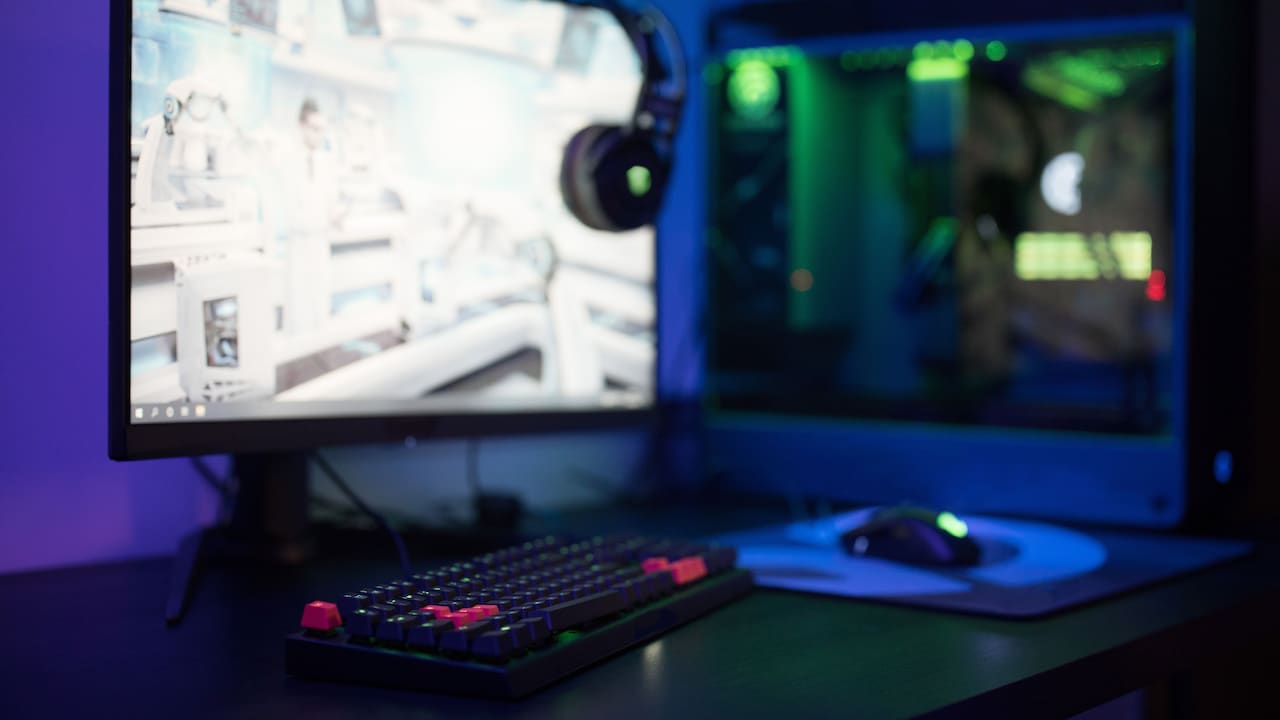
Refresh rate tells how many times the display updates each second. Gaming monitors proudly advertise 144Hz, 165Hz or even higher figures because rapid motion appears smoother during fast-paced games.
For office work, 60Hz remains perfectly usable. A 75Hz or 100Hz monitor can make scrolling and cursor movement feel slightly smoother, but the improvement should come at a modest price. Beyond that point, the returns become difficult to justify for most users.
A higher refresh rate will not improve colour accuracy, reduce spreadsheet errors or make a video call more productive. It may make animations feel more polished, but that benefit rarely deserves a large premium.
The same caution applies to response time. Claims such as one millisecond sound impressive, yet they matter mainly when quick reactions affect gameplay. For writing, coding, accounting or browsing, a response time of four to eight milliseconds is generally fine.
Think of refresh rate like a sports car engine in city traffic. Extra power may feel exciting on paper, but the daily commute still involves red lights, speed breakers and someone crossing the road with complete confidence.
Do not overpay for the monitor refresh rate; Photo Credit: Pexels
Focus On Brightness, Contrast And A Matte Finish
Brightness matters, but more is not always better. A monitor that shines like a floodlight can feel impressive for five minutes and exhausting after five hours.
For most indoor workspaces, brightness between 250 and 300 nits is sufficient. Rooms with strong sunlight may benefit from a brighter panel, especially when the desk sits near a window. Yet glare control often matters more than raw brightness.
A matte or anti-glare screen finish helps reduce reflections from tube lights, windows and overhead lamps. Glossy screens can make colours look rich, but they may also turn the display into a mirror. Seeing a spreadsheet alongside one's own tired reflection is rarely the productivity boost anyone needs.
Contrast affects the difference between dark and light areas. Standard office monitors usually offer enough contrast for documents, websites and presentations. Extremely high contrast figures should not distract from more important qualities such as uniform brightness and comfortable viewing.
When possible, check whether text remains clear at moderate brightness. A monitor should work comfortably without forcing the eyes to wrestle with glare or excessive light throughout the day.
Look For Useful Ports, Not A Decorative Collection
Ports determine how easily the monitor connects to a laptop, desktop or other devices. A sensible selection can simplify the desk. A flashy row of rarely used ports only adds to the price.
HDMI is the most common and practical connection for everyday use. DisplayPort is useful for desktops and high-resolution setups. USB-C deserves attention because it can carry video, data and power through a single cable. For laptop users, a USB-C monitor with power delivery can reduce clutter and remove the need for a separate charger at the desk.
However, convenience comes at a cost. A USB-C monitor may cost several thousand rupees more than a similar HDMI model. The upgrade makes sense only when the laptop supports display output and charging through USB-C.
Built-in USB hubs can help connect a keyboard, mouse or pen drive. Audio output is useful when external speakers are involved. Before paying for extra connectivity, inspect the devices already in use. A monitor should solve a cable problem, not create a new collection of adapters.
Prioritise Height Adjustment And Comfortable Viewing
Ergonomics may sound less exciting than colour depth or refresh rate, but it has a greater effect on daily comfort. A poorly positioned monitor can cause neck pain, shoulder tension and the familiar evening headache that arrives just as work finally ends.
The top of the screen should sit roughly at or slightly below eye level. The monitor should also allow a comfortable viewing distance, usually around an arm's length. A height-adjustable stand makes this much easier. Tilt adjustment helps reduce glare, while swivel and pivot functions support shared screens and vertical documents.
Many budget monitors include only basic tilt control. That may be acceptable for light use, but full-time workers should consider a model with height adjustment or VESA mounting support. A separate monitor arm can free desk space and improve positioning.
A stack of old textbooks can raise a low screen, but it is hardly an elegant long-term solution. Spending a little more on a flexible stand often provides greater benefit than paying for gaming modes, dramatic rear lighting or aggressive design accents.
Treat Eye-Care Features With Sensible Caution
Manufacturers often promote eye-care modes, low blue light settings and flicker-free technology. Some of these features can improve comfort, but marketing language deserves a calm reading.
Flicker-free backlighting is worth seeking, particularly for long work sessions. Poor-quality flicker may contribute to discomfort or fatigue, even when it is not immediately visible. Low blue light modes can make the display appear warmer, which many users find more comfortable in the evening.
However, no monitor setting can replace sensible habits. Regular breaks, proper room lighting and a reasonable viewing distance remain essential. The 20-20-20 approach is simple: every 20 minutes, look at something around 20 feet away for 20 seconds. It gives the eyes a brief chance to relax.
Avoid working in a dark room with a bright screen blazing in the centre. The monitor should match the surrounding light rather than compete with it. Eye-care features are useful helpers, not magical shields against endless screen time and midnight deadlines.
Skip Gaming Extras That Add Little To Office Work
Gaming monitors often include adaptive sync, crosshair overlays, black equaliser modes, motion blur reduction and RGB lighting. These features have clear uses for players, but they rarely improve professional work.
Adaptive sync technologies such as FreeSync and G-Sync reduce screen tearing during games. For documents, presentations and video meetings, their value is limited. One-millisecond response modes may also reduce image quality or introduce unwanted visual effects when pushed aggressively.
Curved screens deserve a more balanced view. A gentle curve can feel comfortable on an ultrawide monitor, where it keeps the edges within view. On a standard 24-inch or 27-inch work monitor, the benefit is usually small. The curve may also distort straight lines slightly, which can bother users working with layouts, architecture or detailed graphics.
Gaming designs may feature sharp stands, bold colours and glowing panels. They can look striking, but appearance should not take priority over adjustability, warranty or colour quality. A quieter office monitor often costs less and fits more naturally into a home workspace.
Set A Budget Around Value And Warranty
A practical budget keeps the search focused. Basic 24-inch Full HD IPS monitors often begin around ₹8,000 to ₹12,000. Better stands, stronger brightness and improved connectivity may push the price towards ₹15,000 or more. A 27-inch QHD IPS model commonly sits in a higher bracket, often around ₹18,000 to ₹28,000 depending on features and brand.
Prices change during sales, but the cheapest deal is not always the best value. Warranty coverage, service availability and dead-pixel policies deserve attention. A monitor is usually kept for several years, so reliable support matters more than saving ₹500 on an unfamiliar model.
Check whether the stand feels stable and whether the power adapter is external or built in. Read user feedback for recurring issues such as backlight bleeding, loose ports or inconsistent brightness. One complaint means little; a pattern tells a story.
The strongest purchase is often a balanced mid-range model. It may not dominate specification charts, but it should deliver clear text, dependable performance and comfortable use every working day.
Products Related To This Article
1. LG 24G411A 60.4 cm(24 Inch) Ultragear FHD
2. ViewSonic VA3208-4K-MHD (81.28cm) 32 Inch 4K
3. Acer Vero B277 G 27 Inch IPS FHD Monitor
4. Samsung 27" Odyssey QD-OLED G5 Gaming Monitor
5. Lenovo Legion 27-10 | 27" (68.58cm) FHD IPS 240Hz Gaming Monitor
6. LG 34G600A Smartchoice 86.36cm(34 Inch) Ultragear Curved
7. Lenovo L27-4C| 27 Inch (68.58 cm) Ultraslim Monitor
Choosing a work monitor becomes much easier once gaming language stops controlling the conversation. Most professionals need clear text, a suitable screen size, sensible resolution, an IPS panel, useful ports and a comfortable stand. Those qualities directly affect productivity and wellbeing.
High refresh rates, ultra-fast response times and colourful lighting may look impressive, but they rarely help with reports, emails, coding, teaching or online meetings. Paying for them simply turns a practical purchase into an expensive detour.
A well-chosen monitor should disappear into the routine. It should not demand attention. It should make documents easier to read, windows simpler to organise and long workdays slightly kinder on the eyes and neck.
The best screen is not the fastest or flashiest one on the shelf. It is the one that does the job quietly, fits the desk properly and leaves enough money in the budget for something more useful, perhaps a supportive chair, a better keyboard or at least a decent cup of coffee.
(Disclaimer: This article may include references to or features of products and services made available through affiliate marketing campaigns. NDTV Convergence Limited (“NDTV”) strives to maintain editorial independence while participating in such campaigns. NDTV does not assume responsibility for the performance or claims of any featured products or services.)