10 Reasons A Laptop Feels Fast When New But Slows Down Within Months
A laptop that once opened apps instantly can start feeling sluggish within months. From crowded storage and background apps to heat and browser overload, here are 10 common reasons performance drops and what can help restore speed.
What affects the performance of new laptops
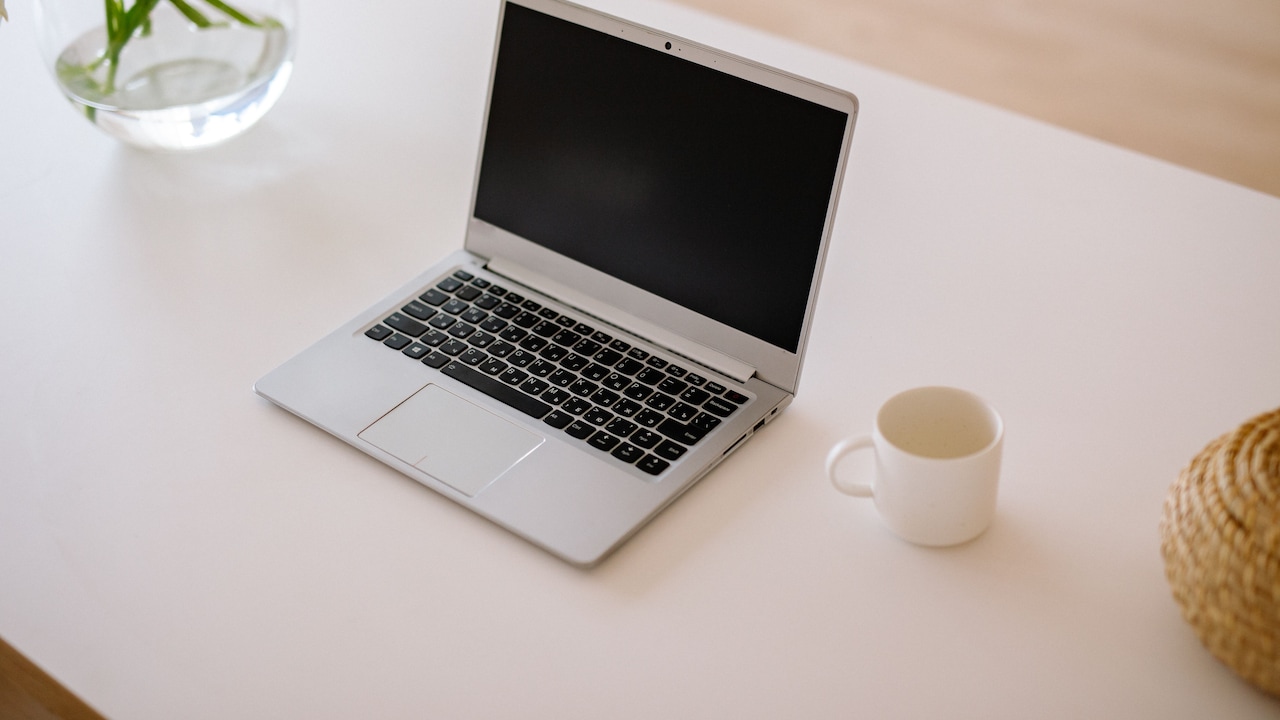
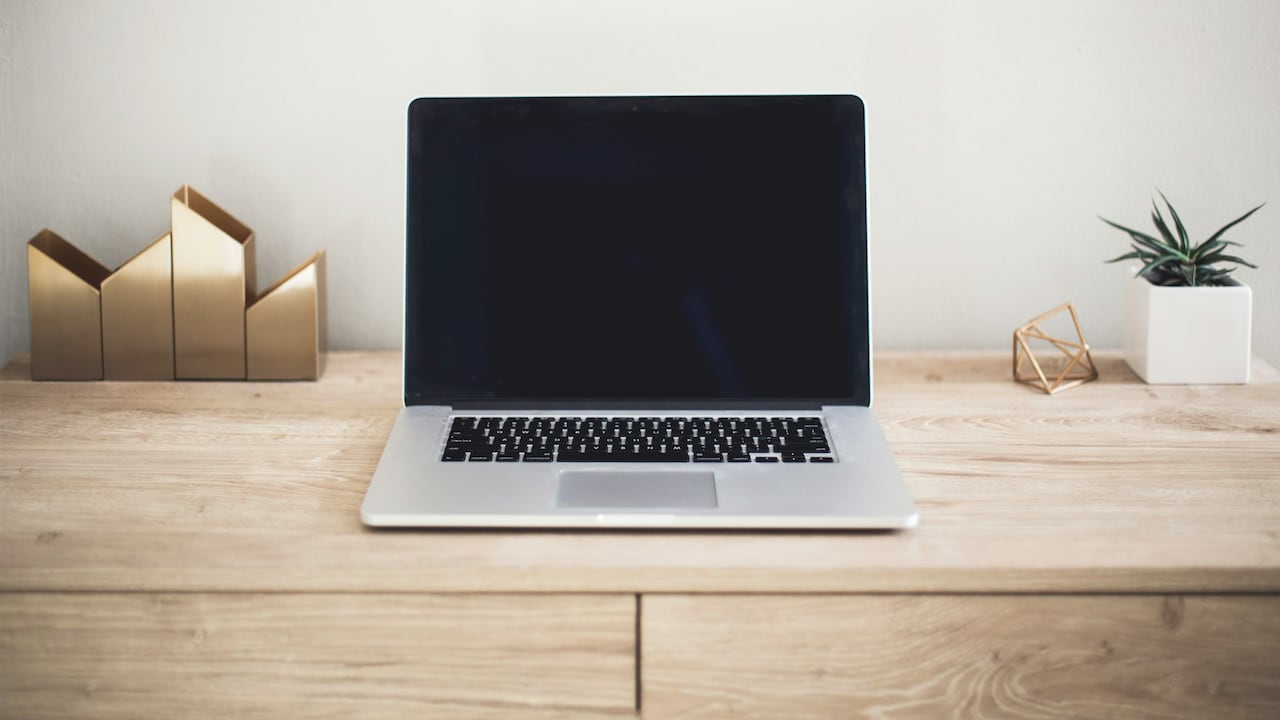
Few things feel quite as satisfying as switching on a brand-new laptop. The desktop appears almost instantly, applications open before there's time to reach for the coffee, and ten browser tabs barely seem to bother it. Fast-forward a few months and the same machine may take noticeably longer to boot, hesitate while switching windows or turn a simple video call into a test of patience. That change doesn't always mean the laptop has suddenly become outdated. Everyday use gradually changes what the machine has to handle. Software accumulates, storage fills up, browsers become crowded, updates demand more resources and heat can affect performance. Even seemingly harmless habits, such as leaving applications running for weeks, can make a laptop feel much older than it actually is.
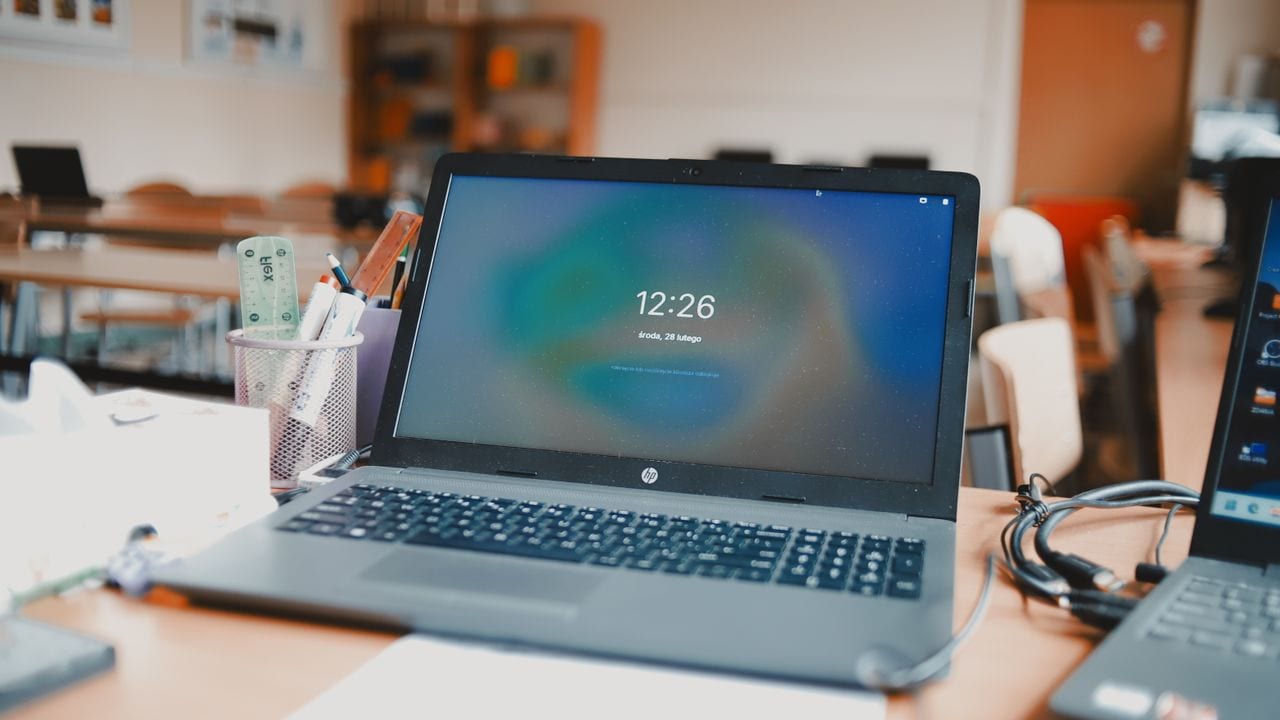
Why do new laptops slow down gradually
Photo Credit: Pexels
The good news is that many performance problems have fairly ordinary explanations. Understanding what has changed since the laptop left its box can make troubleshooting much easier. Here are ten common reasons laptops lose that fresh-out-of-the-box speed and what can help bring some of it back.
What Slowly Changes Inside A Laptop After You Start Using It
1. Too Many Programs Start Automatically
A new laptop usually has relatively little to do when it starts. A few months later, several programs may have quietly invited themselves to the morning roll call. Cloud storage apps, messaging platforms, gaming launchers, printer utilities, security software and update managers can all start automatically when Windows or macOS loads.
Individually, these applications might not seem demanding. Together, they can consume a noticeable amount of memory and processing power before you have even opened a document.
This often explains why a laptop that originally reached the desktop in seconds starts taking considerably longer. The machine isn't necessarily struggling with one heavy program. It is juggling several small ones at once.
Check which applications actually need permission to launch at startup. A work messaging app might deserve a place there, while a game launcher used twice a month probably doesn't.
Reducing unnecessary startup programs won't transform an ageing processor, but it can make boot times and everyday responsiveness noticeably better. Think of it as clearing unnecessary passengers before asking the laptop to accelerate.
2. Storage Has Become Too Full
Storage tends to disappear quietly. A few downloaded films here, dozens of PDFs there, smartphone backups, screenshots, installation files and several forgotten folders can gradually consume hundreds of gigabytes.
The problem becomes more noticeable when the main drive approaches its capacity. Your operating system needs spare storage for temporary files, updates, caches and other everyday processes. When there isn't enough breathing room, basic tasks can take longer.
Solid-state drives don't suffer from the same mechanical limitations as old hard drives, but keeping them almost completely full can still hurt performance and make updates troublesome.
The Downloads folder often makes a good starting point for a clean-up. Old installers, duplicate photographs and large video files can sit there unnoticed for months. Unused applications deserve attention too.
Moving rarely accessed files to an external drive or trusted cloud storage can also help.
You don't need to treat your laptop like an empty hotel room. It simply benefits from some spare space. A little digital housekeeping can prevent storage from turning into a cupboard that refuses to close.
3. Your Browser Has Become A Memory Hog
Modern browsers are remarkably capable. They are also remarkably good at consuming memory.
A laptop may start the day with email, a spreadsheet and six useful tabs. By lunchtime, that number can somehow become 32. Add music streaming, social media, shopping pages and several extensions, and the browser may become one of the heaviest applications running on the machine.
Each open tab can use memory. Some continue running scripts, refreshing information or playing media even when you aren't looking at them. Browser extensions can add another layer of demand.
This becomes particularly noticeable on laptops with modest amounts of RAM. Switching between applications begins to feel slower because the system constantly has to manage limited memory.
Closing tabs you genuinely aren't using can make a surprising difference. So can removing unnecessary browser extensions.
Bookmarking a page takes seconds. Keeping it open for three weeks because you might need it someday isn't always the most efficient strategy.
Browsers are effectively mini operating systems now. Treating them like lightweight applications can underestimate how much work they're actually asking your laptop to perform.
4. Software Updates Demand More Resources
Software rarely stays exactly as it was when you bought your laptop.
Operating systems gain new security features, interface changes and background services. Browsers receive updates. Applications introduce additional tools. Even programs that appear visually unchanged may become more demanding behind the scenes.
This doesn't automatically mean developers are making software unnecessarily bloated. New features and security improvements often require additional processing power, storage or memory. The problem arises when hardware remains the same while software expectations steadily increase.
A laptop with 8GB of RAM, for instance, may have handled its original workload comfortably. Several years of heavier browser versions, productivity tools and background applications can make that same memory capacity feel much tighter.
Don't avoid important security updates just to preserve speed. Instead, review whether every installed application still deserves space on the machine.
Removing software you no longer use can reduce background activity and free storage.
A laptop doesn't necessarily become physically slower every month. Sometimes the workload around it simply becomes heavier, rather like asking the same scooter to carry increasingly larger bags of groceries.
5. Background Processes Keep Piling Up
Not everything slowing a laptop appears on the screen.
Many programs continue doing work in the background. Cloud services synchronise files. Antivirus software scans storage. Search tools index documents. Photo applications organise libraries. Messaging apps check for notifications. Operating systems download updates.
Most of these processes serve legitimate purposes. Trouble starts when several decide to become busy at the same time.
You might notice the effect when opening a simple spreadsheet suddenly takes longer or the cooling fan begins spinning even though nothing demanding appears to be running.
Windows Task Manager or macOS Activity Monitor can reveal which applications are consuming processor power, memory and storage resources. An unfamiliar process doesn't automatically mean something is wrong, so avoid deleting or disabling system services randomly.
Instead, look for recognisable applications consuming resources continuously.
Sometimes the culprit is something wonderfully ordinary: a cloud service synchronising thousands of photographs or a video editor generating previews.
Finding the background workload can explain why a laptop occasionally feels slow despite an almost empty desktop.
Background processes can pile up and cause laptops to slow down; Photo Credit: Pexels
6. Heat Is Forcing The Processor To Slow Down
Laptops generate heat whenever their processors and graphics hardware work hard. Their cooling systems try to move that heat away using fans, heat pipes and vents.
Over time, dust can collect around ventilation areas. Using the laptop repeatedly on a bed, sofa or cushion can also restrict airflow. Once internal temperatures rise too far, the system may deliberately reduce processor speed to protect its components.
This behaviour, often called thermal throttling, can make performance drop even though nothing has technically failed.
You may notice the laptop becoming unusually warm, fans running constantly or performance falling during longer workloads such as gaming, editing or video calls.
Place the laptop on a firm surface where vents remain unobstructed. Keep visible air openings clean and avoid covering the underside with blankets or cushions.
If an older laptop runs extremely hot despite clear vents, professional internal cleaning may help.
A processor can be wonderfully quick, but not when it spends half its time trying to avoid cooking itself. Cooling is part of performance, not merely a comfort feature.
7. RAM Is No Longer Enough For Your Workload
Memory requirements can creep upwards without you noticing.
Perhaps the laptop originally handled email, browsing and word processing. Months later, the daily routine includes large spreadsheets, Canva, video meetings, dozens of browser tabs, photo editing and several messaging applications.
The laptop hasn't changed. The workload has.
When available RAM runs low, the operating system starts relying more heavily on storage as temporary memory. Modern SSDs are fast, but they still can't match RAM. The result can be lag when switching between programs, delayed responses and applications that briefly freeze.
Closing unused programs can help immediately. Restarting the laptop occasionally also clears memory that long-running applications may have occupied.
For machines that allow memory upgrades, adding RAM can provide one of the most noticeable improvements when insufficient memory causes the slowdown. However, many thin laptops now have soldered memory that cannot be upgraded.
Before buying anything, check actual memory usage during your normal routine.
Sometimes a laptop needs better hardware. Sometimes it simply needs 24 forgotten browser tabs to finally receive the farewell they deserve.
8. Temporary Files And Caches Have Grown
Temporary files sound harmless because, well, they're supposed to be temporary.
Unfortunately, computers can be surprisingly sentimental about them.
Browsers store cached website data. Applications retain installation leftovers. Operating systems keep temporary update files. Editing software may save previews, recovery files and caches. Over months of regular use, these bits and pieces can occupy significant storage.
Caches serve a useful purpose. They often make frequently used applications faster by storing information locally. Problems arise when they grow excessively large, become corrupted or remain long after the associated application has stopped needing them.
Built-in storage-cleaning tools can safely remove many unnecessary temporary files. Browsers also provide options for managing cached data.
Avoid aggressively deleting system folders or using questionable "PC cleaner" applications promising miraculous speed increases. A laptop doesn't need a digital detox involving random registry surgery.
Focus instead on official system tools and application settings.
A sensible clean-up won't suddenly turn a basic laptop into a workstation, but clearing unnecessary temporary data can restore storage space and occasionally solve strange performance problems.
9. Malware Or Unwanted Software Is Consuming Resources
Not every slowdown comes from ordinary clutter.
Unwanted browser extensions, adware and malicious software can consume processor resources, memory and internet bandwidth without making their activity obvious. Some may run processes in the background, display advertisements or alter browser behaviour.
A sudden performance drop deserves particular attention when it comes alongside unexpected pop-ups, unfamiliar applications, browser redirects or unusual battery drain.
Keep the operating system and security software updated. Run a trusted security scan if something feels suspicious. Also review recently installed applications, especially software downloaded from unfamiliar websites.
Prevention matters here. Downloading programs from official sources reduces the chances of bringing unwanted extras along for the ride.
Be cautious with free utilities promising extraordinary optimisation as well. Some create more problems than they solve.
Most slowing laptops don't have malware, so there is no need to assume the worst every time an application takes three seconds longer to open. Still, unexplained and sudden performance changes deserve investigation, particularly when other unusual behaviour appears at the same time.
10. The Laptop Rarely Gets A Proper Restart
Closing the lid isn't always the same as starting fresh.
Many people keep laptops running for days or even weeks, relying on sleep mode whenever they finish working. That's convenient, but long sessions can allow temporary glitches, memory-hungry applications and unfinished background processes to accumulate.
A proper restart gives the operating system an opportunity to reset running processes, complete certain updates and clear temporary memory.
This explains the slightly irritating truth behind the classic advice, "Have you tried turning it off and on again?" It works often enough to survive decades of jokes.
If the laptop suddenly feels sluggish after days of continuous use, restarting it can be one of the quickest troubleshooting steps. Save open work first, then choose the actual restart option rather than simply closing the lid.
Restarting won't fix insufficient RAM, failing hardware or consistently high temperatures. It can, however, resolve many temporary performance problems.
Sometimes the machine isn't ageing dramatically. It has simply been awake through more meetings, spreadsheets and late-night streaming sessions than anyone should reasonably expect.
Products Related To This Article
1. Apple 2026 MacBook Neo 13″ Laptop with A18 Pro chip
2. Dell 15 SmartChoice (Previously Inspiron)
3. Lenovo V15 G4 AMD Ryzen 5 7520U 15.6 inch FHD Laptop
4. HP 15, AMD Ryzen 3 7320U (8GB LPDDR4, 512GB SSD)
5. Dell 15 (Previously Inspiron) Laptop
6. Acer Smartchoice Aspire One, AMD Ryzen 3-7320U
7. Apple 2026 MacBook Neo 13″ Laptop with A18 Pro chip
A laptop slowing down within months doesn't automatically mean it's faulty or ready for replacement. In many cases, everyday habits gradually increase the workload: more startup programs, fuller storage, busier browsers, heavier software and longer periods without restarting.
Start with the simple fixes. Clear unnecessary files, close unused tabs, review startup applications, check background activity and keep ventilation areas unobstructed. If performance remains poor, look at memory usage, storage health and hardware limitations.
That brand-new feeling may never return completely, especially as software becomes more demanding. Still, a little maintenance can often make a laptop feel considerably quicker. Computers, much like crowded desks, tend to work better when they aren't carrying months of unnecessary baggage.
(Disclaimer: This article may include references to or features of products and services made available through affiliate marketing campaigns. NDTV Convergence Limited (“NDTV”) strives to maintain editorial independence while participating in such campaigns. NDTV does not assume responsibility for the performance or claims of any featured products or services.)