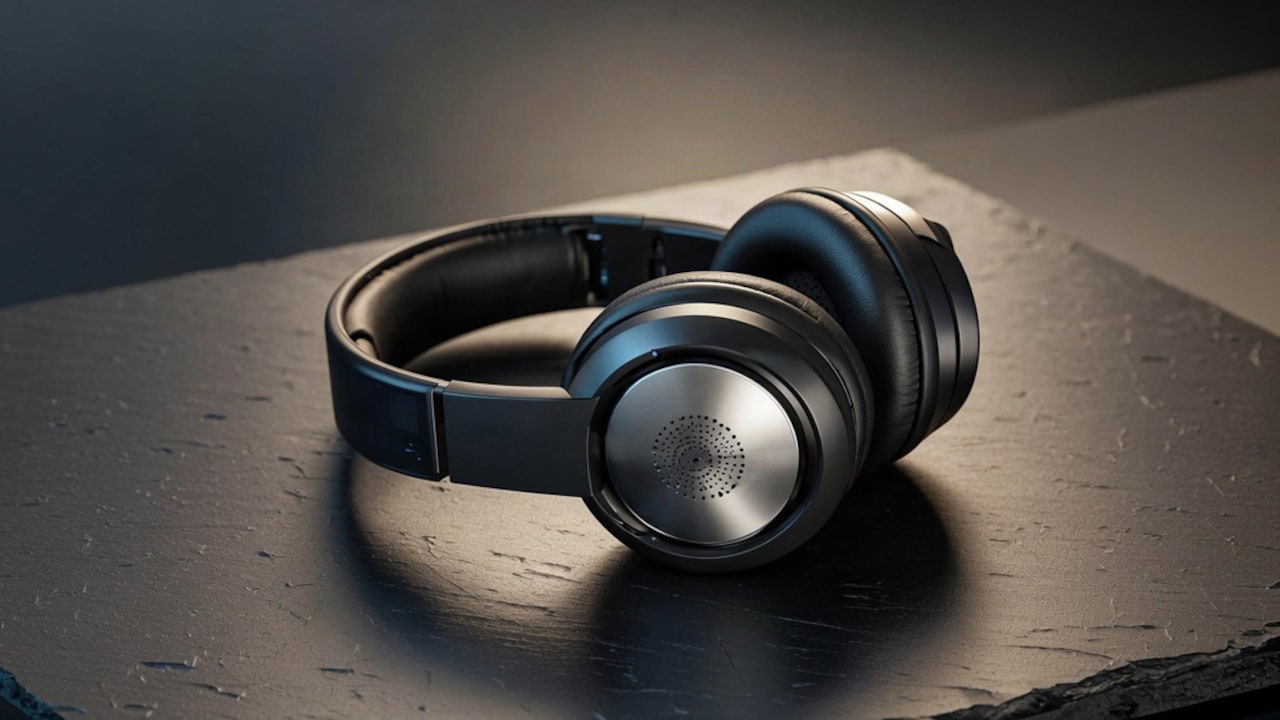
How To Pair Wireless Headphones With Two Devices At Once
Want to use wireless headphones with two devices at once? Learn how multipoint Bluetooth works and how to set it up easily on any headphone.
How To Pair Wireless Headphones With Two Devices At Once
Wireless headphones have quietly become one of the most essential gadgets in our daily lives. Whether you are on a work call one moment and streaming music from your phone the next, constantly switching between devices manually is one of those small frustrations that adds up fast. It breaks your flow, it wastes time, and quite frankly, it should not be that complicated. The good news is that most modern headphones now support a feature that lets you stay connected to multiple devices at once. That feature is called multipoint Bluetooth, and once you understand how it works, switching between your laptop and phone mid-session becomes almost effortless. This quick read will guide you through the fundamentals of multipoint connectivity, providing step-by-step instructions for setting it up on various devices.
Discover how to set up Bluetooth multipoint and effortlessly stream audio from two devices concurrently; Photo Credit: iStock
What Is Multipoint Bluetooth And How Does It Work
Multipoint Bluetooth is the technology that allows a pair of wireless headphones to be connected to two different devices at the same time. Your headphones have two open channels at once, so audio can switch between them without having to disconnect and reconnect. You don't have to be paired to one source at a time!
1. How The Connection Is Maintained
When both devices are paired, your headphones will listen for an active audio signal from either of the two sources. Usually, if your phone receives a call while your laptop is playing music, the headphones will automatically switch to the call and pause the laptop audio. And after the call, they go back to the original source. In most cases, it's a fairly seamless handoff, though the experience does vary a bit depending on the brand and model.
2. Which Headphones Support Multipoint
Not all wireless headphones offer this feature, so it's worth checking before you buy. Multipoint support is available on most mid-range to premium models from Sony, Bose, Jabra, Sennheiser, and Apple (AirPods Pro). Some budget headphones don't do this, so check the specs for the terms “multipoint” or “simultaneous connection."
Also Read: From Gym To Commute: Top 5 Wireless Earbuds That Stay Put Under ₹3,000
How To Set Up Your Headphones With Two Devices
Once you know what to look for, setting up multipoint pairing is easy. The process is a little different depending on what headphones you have, but the general steps follow the same pattern.
Step 1: Pair The First Device
Set your headphones into pairing mode, generally by pressing and holding the power button until the LED flashes or you hear a pairing prompt. On your first device, go to Bluetooth settings and tap on your headphones in the list of available devices. Ensure the connection is there before you proceed.
Step 2: Pair The Second Device Without Disconnecting The First
This process is where multipoint pairing differs from regular Bluetooth pairing. When you're connected to your first device, put your headphones back in pairing mode (without turning them off). On the second device, go to the Bluetooth settings and pair it to the headphones. Most multipoint headphones will accept this second connection and leave the first one active in the background.
Step 3: Confirm Both Connections Are Active
When both devices are connected, play audio on each for a moment to make sure your headphones are picking up both sources. Some headphones will announce both connections by name through the earpiece. If you see only one device connected, check the headphone app. Many brands require you to manually enable multipoint via companion software.
Using The Companion App To Enable Or Adjust Multipoint Settings
Most flagship headphones come with a dedicated app, and this is usually where you will find the clearest multipoint controls.
1. Enabling Multipoint Through The App
In apps such as Sony Headphones Connect, Bose Music, or Jabra Sound+, you'll frequently see a toggle specifically for multipoint or multi-device connection. If your headphones did not automatically accept two connections during setup, this toggle is where you enable it. Once switched on, the headphones will remember both devices and reconnect to them automatically the next time they are powered on.
2. Customising Audio Priority And Switching Behaviour
Some apps will even let you set audio priority, so you can tell them which device to prioritise when both are playing at the same time. This is especially useful if you use your headphones for video calls at work and do not want your phone notifications interrupting your meeting audio.
Troubleshooting Common Multipoint Issues
Even with multipoint-enabled headphones, things do not always go perfectly the first time. A few common hiccups are easy to sort out once you know what to look for.
1. Why Audio Is Not Switching Automatically
The most common reason for audio not switching between two connected devices by itself is that the feature is disabled in the companion app. First, look at your app settings. If the process sounds acceptable, disconnect both devices, clear the headphone Bluetooth memory, and then restart the pairing process from the beginning.
2. What To Do If The Second Device Will Not Connect
Compatibility problems make multipoint pairing more difficult on some earlier Bluetooth versions or less expensive devices. Make sure both devices have the most recent software if you are still having problems connecting your second device. Alternatively, try totally unpairing your headphones from both devices and then connecting each one individually in the previously mentioned manner.
Connect your wireless headphones to two devices at once with this easy multipoint setup guide; Photo Credit: iStock
Some Products You May Like
1. boAt Rockerz 411
2. pTron Studio Evo 70hrs Playtime Wireless Over-Ear Headphones
3. Noise Two Wireless On-Ear Headphones
4. ZEBRONICS Thunder Neo (2026 Upgrade) Wireless Headphone
5. Sony WH-CH520 Wireless Bluetooth Headphones (On-Ear)
6. Portronics Muffs M6 Over Ear Wireless Bluetooth Headphone
7. Skullcandy Crusher Wireless Bluetooth Headphones
8. boAt Rockerz 512 ANC
Wireless headphones deliver freedom from tangled cords while offering seamless connectivity across devices. Their lightweight design and long battery life make them ideal for travel, work, and leisure. With options ranging from budget‑friendly to premium noise‑cancelling models, there's a fit for every listener. Ultimately, they combine convenience, style, and performance, redefining how we experience sound. Shop now on Amazon
Frequently Asked Questions
1. Can all wireless headphones connect to two devices at once?
No, only wireless headphones that specifically support multipoint Bluetooth can do this. Check the product specifications or the companion app for confirmation before purchasing.
2. Will audio quality drop when using multipoint?
Multipoint uses a small amount of additional processing, but for most everyday listening and calls, you will not notice any meaningful drop in audio quality.
3. Can I use multipoint with a phone and a laptop?
Yes, that is actually one of the most common use cases. Your phone handles calls and notifications while your laptop streams music or handles video meetings.
4. Do I need to re-pair my headphones every time I switch?
No. Once both devices are saved in your headphones, they reconnect automatically each time the headphones are powered on, provided Bluetooth is active on both devices.
5. What if my headphones only support one connection at a time?
You will need to manually disconnect from one device before connecting to the other. This is less convenient, but still manageable if multipoint is not available on your current pair of headphones.
(Disclaimer: This article may include references to or features of products and services made available through affiliate marketing campaigns. NDTV Convergence Limited (“NDTV”) strives to maintain editorial independence while participating in such campaigns. NDTV does not assume responsibility for the performance or claims of any featured products or services.)