Laptop Performance Drops Quickly And Lags A Lot? Thermal Throttling Explained
Laptop runs fast at startup, but slows down within minutes? Thermal throttling may be the culprit. Learn why overheating reduces performance, what causes it and how to keep your device running smoothly for longer.
Laptop Smooth First 10 Minutes Then Lags? Thermal Throttling Explained
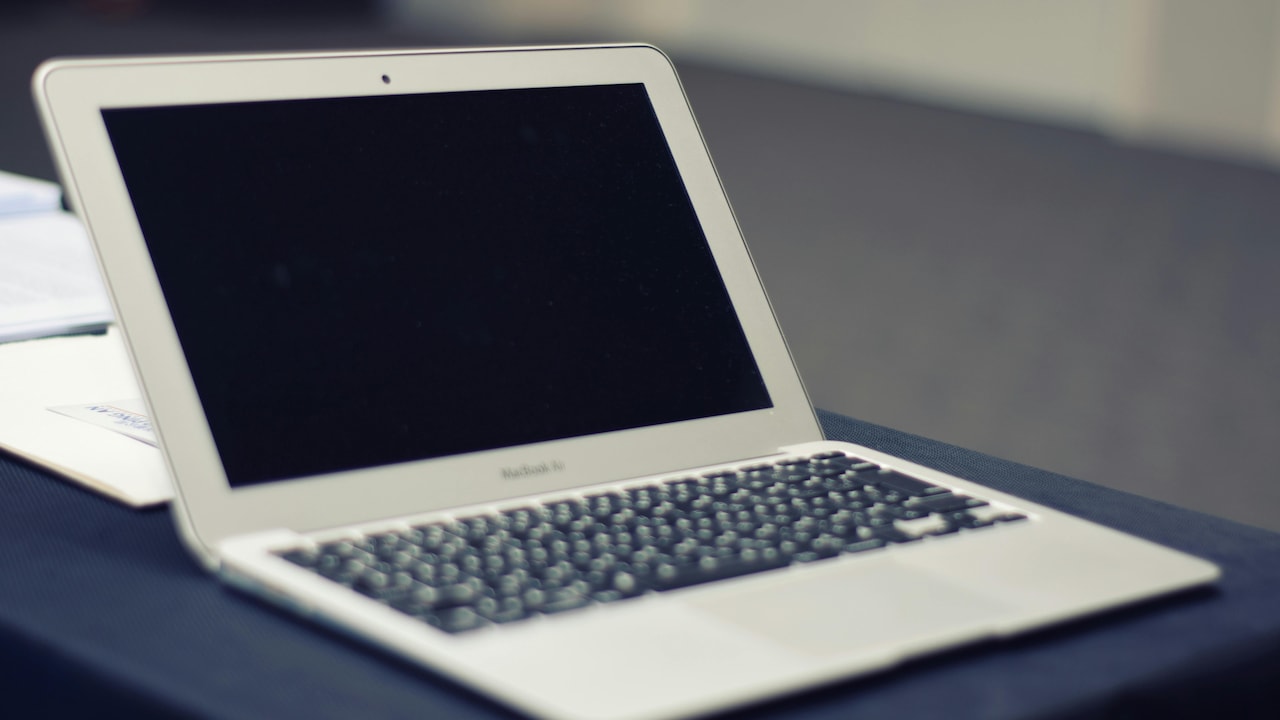
Few things feel more annoying than switching on a laptop, watching it boot with impressive speed, and then seeing performance collapse within ten minutes. Work presentations start stuttering. Games lose frames. Even a simple browser tab can behave as if it carries the weight of the world. This pattern confuses many users because the laptop appears healthy at first. Yet beneath that polished exterior, rising temperatures begin a silent battle. Modern processors generate intense heat, especially during demanding tasks. Once internal temperatures climb too high, the system reduces processing speed to cool itself. This process, known as thermal throttling, acts like a safety valve.
While it protects expensive components, it also disrupts productivity. For students rushing through assignments, professionals handling deadlines, or gamers squeezing in evening sessions, this slowdown can feel brutal. Thankfully, thermal throttling does not always signal permanent damage. In many cases, smart maintenance and practical habits can dramatically improve performance. Understanding thermal throttling can transform a lagging laptop from a mystery into a manageable issue.
Laptop Smooth First 10 Minutes Then Lags? Thermal Throttling Explained
Photo Credit: Pexels
Understanding Why Performance Drops After The First 10 Minutes
What Thermal Throttling Actually Means
Thermal throttling sounds technical, but the concept remains fairly simple. Every processor has a safe temperature range. When heat rises beyond that comfort zone, the CPU or GPU intentionally slows down. This reduction lowers heat generation and prevents serious hardware damage.
Think of it like riding a scooter under harsh summer sun. Push too hard for too long, and the engine overheats. Slowing down becomes essential. Laptops behave similarly.
Manufacturers design this feature as protection, not punishment. Without throttling, excessive heat could fry internal circuits, shorten battery lifespan, or permanently damage crucial components. However, the resulting performance drop often feels dramatic. Editing software may freeze mid-project. Online meetings can lag at the worst moment. Gaming becomes an exercise in patience.
Thin laptops especially struggle because compact designs leave less room for cooling systems. Sleek aesthetics often come at the cost of airflow. So while a laptop may look premium on the outside, poor thermal design can quietly sabotage sustained performance.
Recognising thermal throttling helps separate hardware protection from actual system failure.
Why Laptops Perform Well At Startup
The reason laptops feel lightning-fast during the first ten minutes often comes down to cool temperatures. At startup, internal components sit relatively cold. The processor can comfortably run at turbo boost speeds, delivering maximum performance.
This initial burst creates the illusion of flawless operation. Applications open quickly. Multitasking feels seamless. Heavy programs launch without complaint.
As the workload increases, however, heat accumulates rapidly. Streaming, gaming, video editing, or even too many Chrome tabs can push temperatures upward. Once thermal thresholds approach danger levels, the processor cuts clock speeds.
This shift can feel sudden, almost like a switch flipped behind the scenes. The smooth laptop transforms into a lagging machine.
Environmental factors also play a role. Hot weather, poor ventilation, and dusty surroundings accelerate heating. A room without proper cooling during peak summer can make throttling arrive faster than expected.
So the startup smoothness does not necessarily mean the laptop lacks problems. It simply means the heat battle has not begun yet.
Common Causes Behind Excessive Laptop Heat
Several culprits can push a laptop into overheating territory. Dust often tops the list. Over time, dust clogs fans and air vents, reducing airflow like a blocked AC filter during peak heat.
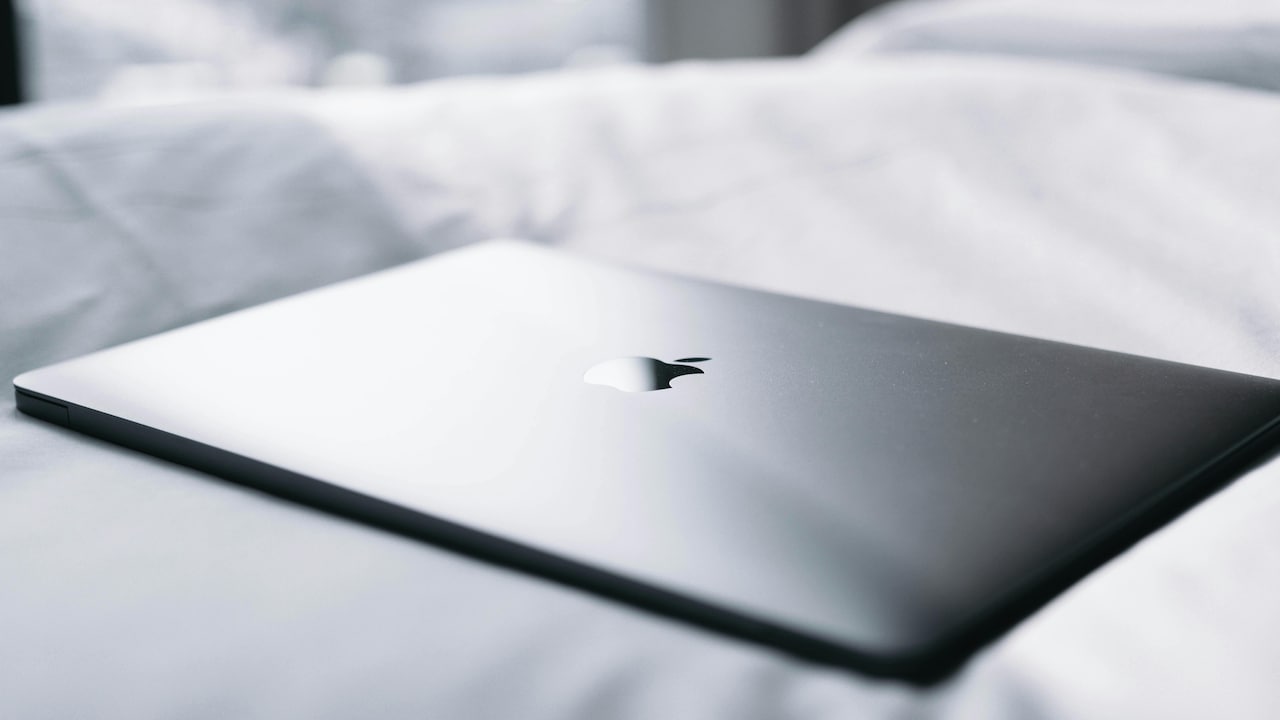
Poor surface placement also matters. Using a laptop on beds, cushions, or laps can block ventilation. Soft surfaces trap heat, forcing internal temperatures higher.
Ageing thermal paste presents another major issue. This paste transfers heat from the processor to the cooling systems. As it dries over the years, heat transfer weakens significantly. The laptop then struggles to cool itself efficiently.
Background software can quietly worsen matters, too. Antivirus scans, updates, or unnecessary startup apps increase CPU load without obvious signs.
High-performance tasks naturally produce more heat, but a flawed design can amplify the problem. Some budget laptops prioritise affordability over robust cooling, while ultra-slim models sacrifice thermal efficiency for style.
Even ambient temperatures matter. During scorching summer afternoons, room heat can compound internal stress.
These combined factors often create the perfect storm for throttling, especially in older or poorly maintained systems.
Signs Your Laptop Is Thermal Throttling
Thermal throttling often reveals itself through clear warning signs. Performance drops after initial smoothness remain the biggest clue. A machine that starts strong but slows significantly under load likely struggles with heat.
Fan noise also offers valuable hints. If fans suddenly sound like a small aircraft preparing for take-off, the cooling system works overtime.
Unexpected frame drops during gaming, sluggish software response, and delayed multitasking often signal temperature-related slowdowns. Video rendering may take longer. Browser tabs can stutter. Even cursor movement may feel less responsive.
External heat provides another clue. A keyboard deck or bottom panel becoming uncomfortably hot suggests excessive thermal buildup.
Battery drain can also worsen, since overheated systems often consume power inefficiently.
In extreme cases, sudden shutdowns may occur to prevent damage.
Free monitoring software can confirm suspicions by showing CPU and GPU temperatures. Readings consistently above safe ranges under moderate workloads often indicate throttling.
Recognising these patterns early can prevent deeper hardware stress and save significant repair costs.
How Dust And Poor Maintenance Worsen Performance
Dust may seem harmless, but inside a laptop, it behaves like an invisible performance thief. Tiny particles gather in vents, fans, and heat sinks over months or years, slowly suffocating airflow.
Imagine trying to breathe through a scarf during peak humidity. Cooling systems face similar strain when clogged.
Reduced airflow means trapped heat, and trapped heat means faster throttling. Fans spin harder but achieve less, creating noise without effective cooling.
Neglected maintenance also allows thermal paste to degrade unnoticed. Once this heat-conducting material dries, processor temperatures rise much faster under pressure.
Regular cleaning can dramatically improve thermal performance. Professional servicing every year or two often costs far less than major repairs, usually ranging between ₹1,500 and ₹4,000, depending on the device.
Simple habits matter too. Keeping vents clear, using laptops on hard surfaces, and avoiding dusty environments can reduce heat buildup significantly.
Many users blame ageing hardware when maintenance alone could restore substantial speed. Sometimes, a proper internal cleaning feels almost like giving an exhausted laptop a second life.
Laptop Smooth First 10 Minutes Then Lags? Thermal Throttling Explained
Photo Credit: Pexels
The Role Of Cooling Pads And External Solutions
Cooling pads often divide opinion, but they can offer practical benefits in certain scenarios. These accessories improve airflow beneath the laptop, especially for devices with bottom-mounted vents.
For users working long hours, gaming, or attending marathon virtual meetings, cooling pads can reduce surface temperatures modestly. While they rarely solve severe thermal design flaws, they can delay throttling.
Good-quality cooling pads generally cost between ₹1,500 and ₹5,000, depending on features and build quality. They provide a relatively affordable performance boost compared to replacing hardware.
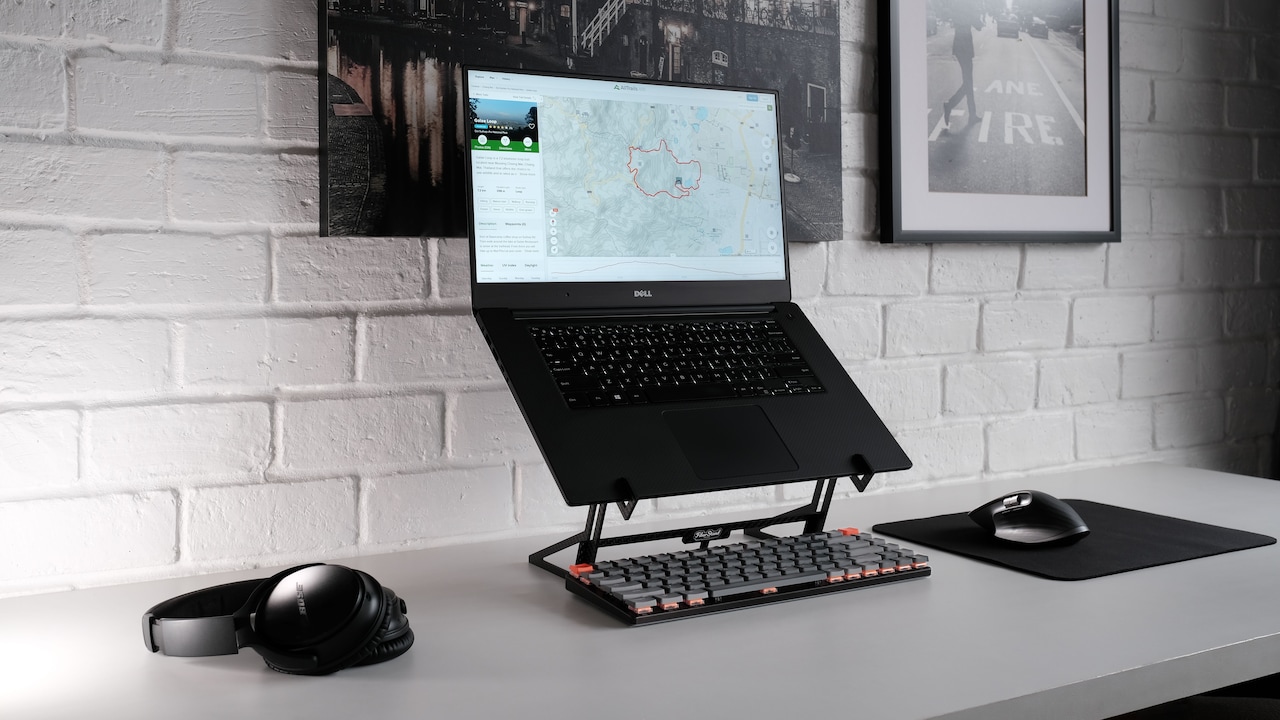
Laptop stands can also help by improving natural airflow. Sometimes, simply raising the base creates noticeable cooling improvements.
Air-conditioned environments further reduce thermal stress. Lower room temperatures directly benefit laptop cooling efficiency.
However, external solutions work best when paired with internal maintenance. A cooling pad cannot compensate for heavily dust-clogged fans or failing thermal paste.
Think of these tools as supportive measures rather than miracle cures. They improve conditions, but genuine thermal health starts inside the machine itself.
Software Tweaks That Can Reduce Throttling
Not every thermal issue demands hardware intervention. Software adjustments can also reduce heat generation.
Power settings offer an easy starting point. Switching from maximum performance mode to balanced mode can lower processor stress while preserving smooth everyday use.
Undervolting, where supported, reduces CPU voltage without sacrificing significant speed. This process lowers temperatures effectively but requires careful setup.
Disabling unnecessary startup programs can also reduce the constant background load. Many laptops waste resources on software that users barely notice.
Updating BIOS and drivers may improve thermal management as manufacturers occasionally release cooling optimisations.
Reducing graphics settings during gaming or lowering screen refresh rates can further control temperatures.
Even browser habits matter. Excessive tabs consume memory and processor power surprisingly fast.
These tweaks may not transform poor cooling design, but they can reduce thermal strain enough to improve sustained performance.
Smart software management often serves as the easiest first step before investing in hardware upgrades.
Also Read: 5 Stylish Work Bags For Men And Women That Actually Fit Your Laptop, Lunch And Life
When Hardware Upgrades Become Necessary
Sometimes, maintenance and software tweaks only go so far. Older laptops or poorly designed systems may require direct upgrades.
Replacing thermal paste often delivers substantial improvements. Fresh, high-quality paste restores efficient heat transfer and can noticeably lower temperatures.
Upgrading storage from HDD to SSD will not directly reduce heat, but it can improve overall responsiveness and reduce workload bottlenecks.
RAM upgrades help multitasking efficiency, reducing unnecessary processor strain from constant memory swapping.
In severe cases, fan replacement may become necessary if cooling systems degrade physically.
For gaming or professional workloads, users may eventually outgrow entry-level cooling designs entirely. Investing in a better-built laptop with superior thermal engineering may save frustration long term.
While upgrades cost money, they often prove cheaper than enduring endless lag or purchasing a completely new device prematurely.
Strategic investment can breathe impressive new life into ageing machines.
Why Thin Laptops Often Struggle More
Modern buyers love slim laptops. They look stylish, feel portable, and fit neatly into backpacks. Yet this sleekness often hides thermal compromises.
Thin designs limit fan size, airflow channels, and heat dissipation space. Powerful processors squeezed into compact frames can generate more heat than cooling systems comfortably manage.
This creates a familiar cycle: excellent short bursts of speed followed by aggressive throttling.
Manufacturers sometimes prioritise visual appeal over sustained performance. For casual users, this may not matter much. But for coders, designers, gamers, or heavy multitaskers, thin devices can become frustrating under prolonged load.
Premium branding does not always guarantee thermal excellence. Some expensive models still struggle with heat due to space constraints.
Choosing portability often means accepting certain performance trade-offs.
Understanding this balance helps buyers make smarter decisions based on real-world needs rather than marketing glamour alone.
Smart Habits To Keep Performance Stable
Preventing thermal throttling often comes down to practical daily habits. Keeping laptops on hard, flat surfaces supports airflow immediately.
Regular cleaning prevents dust accumulation before it becomes problematic. Monitoring temperatures occasionally can catch issues early.
Avoiding direct sunlight or excessively hot environments reduces unnecessary thermal pressure. Closing unused apps lowers processor demand.
Using manufacturer-approved chargers also matters, as poor-quality accessories can create inconsistent power delivery and additional heat.
Scheduled maintenance every year keeps cooling systems healthy.
For power users, balancing performance settings according to workload can preserve speed without pushing temperatures excessively.
These habits may sound simple, but they can dramatically improve laptop longevity and reliability.
Much like regular vehicle servicing prevents breakdowns, consistent laptop care protects performance.
A little prevention often saves a great deal of frustration.

Laptop Smooth First 10 Minutes Then Lags? Thermal Throttling Explained
Photo Credit: Pexels
Products Related To This Article
1. HP 15, 13th Gen Intel Core i3-1315U (12GB DDR4, 512GB SSD) FHD
2. Lenovo Yoga Slim 7 Intel Core Ultra 5 125H
3. Dell 15 (Previously Inspiron) Laptop
4. ASUS Vivobook 15, 13th Gen, Intel Core i3-1315U
5. Apple 2026 MacBook Neo 13" Laptop with A18 Pro chip
A laptop that starts smoothly but slows dramatically after ten minutes often tells a clear story: heat has become the enemy. Thermal throttling, while frustrating, exists to protect valuable hardware from lasting damage.
Rather than viewing lag as a mysterious flaw, understanding the thermal relationship between performance and temperature empowers smarter solutions. Dust removal, better airflow, software optimisation, and occasional upgrades can all make a significant difference.
In many cases, restoring consistent performance does not require spending ₹70,000 on a new machine. Sometimes, practical maintenance and smarter habits deliver impressive results for a fraction of that cost.
Technology works best when treated thoughtfully. And when laptops stay cool, productivity, entertainment, and peace of mind tend to follow suit.
(Disclaimer: This article may include references to or features of products and services made available through affiliate marketing campaigns. NDTV Convergence Limited (“NDTV”) strives to maintain editorial independence while participating in such campaigns. NDTV does not assume responsibility for the performance or claims of any featured products or services.)