Does A Wi-Fi Extender Always Increase Speed? 10 Home-Networking Myths Explained
Wi-Fi extenders can improve coverage, but they do not always increase speed. Discover 10 common home-networking myths about routers, broadband, signal strength, Ethernet and Wi-Fi performance.

Does A Wi-Fi Extender Always Increase Speed? 10 Home-Networking Myths Explained
Few household problems create instant drama quite like unreliable Wi-Fi. A video call freezes just as an important point begins. A cricket stream becomes a slideshow. The bedroom smart TV refuses to load while the phone beside it shows three cheerful signal bars. Suddenly, everyone becomes a network engineer. Home internet has also become more complicated. One connection may now serve laptops, phones, smart televisions, security cameras, speakers, gaming consoles and appliances. Add thick concrete walls, two floors, neighbouring networks and an ageing router, and the simple question, “Why is the Wi-Fi slow?” can have several answers.
Wi-Fi Extenders, Routers And Speed: 10 Home Networking Myths Busted
Photo Credit: Pexels
That confusion has helped a collection of networking myths survive for years. Some sound logical. Others once contained a grain of truth but no longer fit modern routers and devices. A few can even encourage people to spend ₹2,000 or ₹5,000 on equipment that does not solve the actual problem.
Understanding the basics can save money, frustration and many unnecessary router restarts. Here are 10 common home-networking myths, explained without the technical fog.
The Truth Behind Common Home Wi-Fi Beliefs
1. A Wi-Fi Extender Always Makes The Internet Faster
A Wi-Fi extender can improve coverage, but that does not automatically mean faster internet.
An extender works by receiving an existing wireless signal and retransmitting it farther into the house. That makes it useful for areas where Wi-Fi barely reaches, such as a distant bedroom, balcony or upstairs study. The catch is simple: an extender cannot magically improve a weak connection it receives.
Place one in a dead zone and it may simply repeat a poor signal. In some setups, a traditional single-band extender also uses the same wireless channel to receive and send data, which can reduce available throughput.
Think of it like passing a message across a noisy room. Adding another person halfway can help only when that person hears the original message clearly.
Placement matters more than many buyers realise. An extender usually works best somewhere between the router and the troublesome room, where the original signal remains reasonably strong. For larger homes, a mesh system or wired access point may provide a smoother result.
An extender extends reach. Speed depends on what reaches it in the first place.
2. More Wi-Fi Bars Always Mean More Speed
Those little Wi-Fi bars look reassuring, but they tell only part of the story.
A phone showing full signal usually means it has a strong wireless connection to the router or access point. It does not prove that the broadband connection itself is fast. A router can provide an excellent local signal while the internet connection behind it struggles.
Imagine standing beside the router during an internet outage. The phone may still show full Wi-Fi bars because the connection between the phone and router remains strong. Yet websites will refuse to load.
Network congestion creates another twist. In a crowded apartment building, several routers may compete for the same wireless channels. A device can have strong reception and still experience slow speeds because too many neighbouring networks are sharing the airwaves.
Distance, interference, device capability and the router's workload also affect performance.
Signal strength is therefore closer to “How clearly can the device hear the router?” than “How fast is the internet?”
Full bars are useful, but they are not a speedometer. When troubleshooting, test both Wi-Fi strength and actual internet speed rather than treating the signal icon as the final verdict.
3. Buying The Fastest Broadband Plan Fixes Every Wi-Fi Problem
Upgrading from a 100 Mbps plan to a 300 Mbps or 500 Mbps package sounds like an obvious cure for slow internet. Sometimes it helps. Sometimes the household ends up paying more for exactly the same frustration.
Broadband speed and Wi-Fi performance are related, but they are not identical.
Suppose a bedroom receives only a weak wireless signal because three concrete walls sit between it and the router. Increasing the broadband plan will not remove those walls. The connection entering the house may become faster, while the wireless link to that bedroom remains poor.
Older devices can also become bottlenecks. A dated router, limited Wi-Fi standard or congested frequency band may prevent gadgets from making full use of a high-speed plan.
Before paying an extra ₹500 or ₹1,000 each month, check where the slowdown occurs. Test a device close to the router. If possible, compare Wi-Fi performance with a wired Ethernet connection.
If the wired speed is healthy but distant rooms struggle, the problem is probably coverage rather than the broadband package.
More bandwidth helps when the household genuinely needs it. It cannot repair every weak corner of a home network.
4. Restarting The Router Is Just A Pointless Old Trick
“Switch it off and on again” sounds almost too simple to be useful. Yet router restarts have survived decades of technology for a reason.
Routers are small computers. They manage wireless connections, assign local addresses, handle traffic and maintain communication with the internet provider. Like other computing devices, they can occasionally encounter temporary glitches.
A restart clears many short-lived problems. It may release stuck processes, refresh a connection with the provider or force devices to reconnect cleanly. That can explain why Wi-Fi occasionally feels better after the router has been powered down and restarted.
However, restarting should not become a daily ritual.
If a router needs rebooting every evening before dinner, something deeper may be wrong. Overheating, ageing hardware, buggy firmware, poor placement or line problems could be responsible. Constant restarts can hide those issues rather than solve them.
Give the router a little breathing space too. Shoving it behind a television, inside a closed cabinet or beneath a pile of electronics does not help ventilation or wireless performance.
Restarting is not networking superstition. It is a useful troubleshooting step. It simply should not become the permanent solution.
5. The Router Should Be Hidden Because Its Location Does Not Matter
Routers are rarely the most attractive objects in a living room. The temptation to hide one behind a sofa, inside a cabinet or next to the shoe rack is understandable.
Unfortunately, Wi-Fi cares far more about physics than interior decoration.
Wireless signals weaken as they pass through obstacles. Concrete, brick, metal, mirrors and large appliances can all reduce performance. Water also absorbs radio signals, which means putting a router beside a large aquarium is less charming from a networking perspective than it appears.
A central, elevated and reasonably open location usually works better. That could mean placing the router on a shelf rather than on the floor, or positioning it closer to the centre of the home instead of at one extreme end.
Microwave ovens and certain electronic devices can also create interference, particularly around the 2.4 GHz band.
There is no need to display the router like a decorative centrepiece. A little planning goes a long way.
Moving a router by a few metres can sometimes improve coverage more than buying another gadget. Before spending ₹3,000 on an extender, try improving placement. The cheapest network upgrade may simply involve a longer cable and a better shelf.
6. 5 GHz Wi-Fi Is Always Better Than 2.4 GHz
The 5 GHz band often delivers higher speeds and faces less interference than 2.4 GHz, which makes it sound like the obvious winner.
The reality depends on distance.
Higher-frequency 5 GHz signals usually struggle more when travelling through walls and other obstacles. That makes them excellent for fast connections in nearby rooms but less dependable across a large home.
The 2.4 GHz band generally travels farther and penetrates obstacles more effectively, though it offers lower potential speeds and often suffers greater congestion. Bluetooth devices, neighbouring routers and various household electronics also share nearby frequencies.
Consider a router in the living room and a smart plug on a far balcony. The laptop sitting beside the sofa may perform beautifully on 5 GHz. The distant smart plug may remain happier on 2.4 GHz.
Modern dual-band and tri-band systems often manage these choices automatically, although automatic band steering does not always behave perfectly.
Neither frequency is universally superior. One favours speed and cleaner local performance; the other often favours reach.
The better question is not “Which band is best?” but “Which band works best for this device in this location?”
Wi-Fi Extenders, Routers And Speed: 10 Home Networking Myths Busted
Photo Credit: Pexels
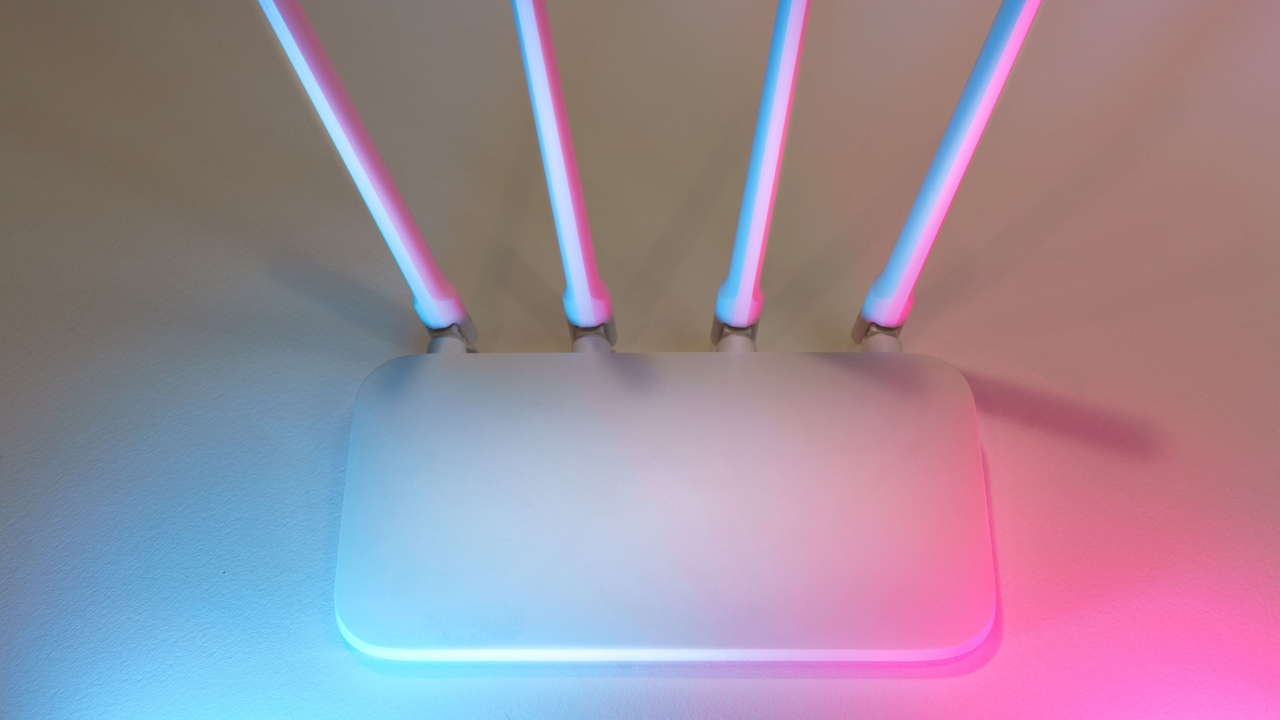
7. More Router Antennas Automatically Mean Better Wi-Fi
A router covered in antennas certainly looks powerful. Some models resemble small electronic hedgehogs, which can make a four-antenna device seem obviously better than one with two.
Antenna count alone tells very little.
Wireless performance depends on several factors, including radio design, supported Wi-Fi standards, antenna quality, channel configuration, processor capability and technologies such as beamforming and multiple spatial streams.
Some routers even hide capable antennas inside a neat casing.
External antennas can still be useful. Their orientation may affect how signals spread, particularly in multi-storey homes. But adding more visible sticks does not automatically increase internet speed.
Marketing photographs often encourage a simple equation: more antennas equals more power. Networking does not work quite so neatly.
A well-designed router with fewer antennas may outperform a cheaper model covered in them. The devices connecting to it also matter. A router may support impressive wireless capabilities that an older phone or laptop cannot use.
When comparing routers, look beyond appearances. Wi-Fi generation, supported bands, Ethernet port speeds, coverage requirements and device capacity provide far more useful clues.
Antennas matter, but counting them is no better than judging a car's performance by counting exhaust pipes.
8. Ethernet Is Outdated Because Wi-Fi Is Fast Enough Now
Modern Wi-Fi can be remarkably quick, which has led to the idea that Ethernet cables belong to another era.
They do not.
A wired Ethernet connection still offers several advantages. It provides consistent performance, low latency and strong resistance to the interference that affects wireless networks.
That matters for gaming, large file transfers, desktop workstations and televisions streaming high-resolution video. A home-office computer connected by cable may also remain more stable during long video meetings.
Wi-Fi, of course, wins on convenience. Nobody wants an Ethernet cable trailing across the dining table every time a phone needs internet access.
The smartest home networks often use both technologies.
Wireless connections handle mobile devices, while Ethernet serves stationary equipment such as desktop computers, smart televisions and gaming consoles. Wired connections can also link mesh nodes or access points, creating what networking enthusiasts call a wired backhaul. That can significantly improve performance around larger homes.
Installing Ethernet everywhere may not be practical, particularly in rented flats. Still, dismissing it as obsolete misses the point.
Wi-Fi is wonderfully convenient. Ethernet is wonderfully predictable. Sometimes boring reliability is exactly what a network needs.
Also Read: 7 Portable 4G Wi-Fi Dongles You Can Grab on Prime Day for Seamless On-the-Go Connectivity
9. Every Device Shares Internet Speed Equally
Imagine a 200 Mbps broadband connection serving ten devices. It may seem natural to assume each device receives 20 Mbps.
Networks are far less democratic.
Devices use bandwidth according to what they are doing. A phone checking messages may consume almost nothing, while a television streaming 4K video uses considerably more. A laptop downloading a huge game update can temporarily grab a large share of available capacity.
Routers also schedule wireless traffic rather than simply slicing the connection into perfectly equal portions. Device quality, signal strength, Wi-Fi generation and network conditions influence what each gadget receives.
Older or weakly connected devices can sometimes create additional inefficiency because the router spends more time communicating with them.
Quality of Service, often shortened to QoS, can help certain routers prioritise important traffic. That may keep a work call smooth while another device downloads a massive file.
Households should therefore think about activity rather than simply counting gadgets. Twenty smart bulbs usually create less traffic than one television streaming ultra-high-definition video.
A busy network behaves more like a road system than a cake. Traffic moves according to demand, congestion and priority, not perfectly equal slices for everyone.
10. A New Router Will Automatically Solve Every Internet Problem
Buying a new router can make a dramatic difference when the existing model is old, underpowered or poorly suited to the home. It is still not a universal cure.
The source of the problem matters.
If the broadband line itself is unstable, replacing the router may achieve very little. The same applies when an internet provider is experiencing an outage or when a damaged cable sits somewhere in the connection.
Home layout can also defeat expensive equipment. A premium router placed in one corner of a large concrete house may still struggle to reach the opposite floor.
Then there are device limitations. A new Wi-Fi 7 router cannot suddenly turn an old laptop into a Wi-Fi 7 machine. The connection falls back to whatever technology both devices support.
Before spending ₹10,000 or more, identify the bottleneck. Check performance near the router, compare wired and wireless speeds and note whether problems affect every device or only one.
Sometimes a new router is exactly the right answer. In other cases, moving the existing router, replacing a cable, adding a mesh node or contacting the broadband provider works better.
Networking problems reward diagnosis far more than impulse shopping.
Wi-Fi Extenders, Routers And Speed: 10 Home Networking Myths Busted
Photo Credit: Pexels
Products Related To This Article
1. TP-Link Deco M4 Whole Home Mesh Wi-Fi System, Seamless Roaming and Speedy
2. D-Link DIR-615 Wi-fi Ethernet-N300 Single_band 300Mbps Router
3. TP-Link TL-WA855RE, Single Band 300Mbps RJ45 Wireless Range Extender
4. WiFi Extender N300, WiFi Extender Signal Booster
5. TP-Link Deco M4 Whole Home Mesh Wi-Fi System
6. WiFi Extender, WiFi Extenders Signal Booster for Home Up to 5000 sq.ft and 50 Devices
7. WiFi Extender, WiFi Signal Booster Up to 5000 Sq.ft & 55+ Devices, WiFi Range Extender
Home Wi-Fi feels mysterious mainly because several different technologies hide behind one familiar symbol on a phone screen. Broadband speed, wireless coverage, interference, router hardware and device capability all affect the final experience.
That is why common fixes can produce such different results. A Wi-Fi extender may rescue one bedroom while slowing another setup. A faster broadband plan may transform a busy household but do nothing for a weak signal behind thick walls. Even the humble Ethernet cable still has plenty of life left in it.
The most useful habit is simple: identify the actual bottleneck before spending money.
Check where the problem appears. Compare rooms. Test different devices. Try a wired connection when possible. Move the router before replacing it. Restart equipment when something behaves strangely, but investigate further when the problem keeps returning.
A reliable home network does not require a cupboard full of expensive gadgets. It usually needs the right equipment in the right place, plus a little understanding of how wireless connections behave.
And when someone confidently announces that adding another antenna will “double the Wi-Fi”, at least the dinner-table debate can now begin with better evidence.
(Disclaimer: This article may include references to or features of products and services made available through affiliate marketing campaigns. NDTV Convergence Limited (“NDTV”) strives to maintain editorial independence while participating in such campaigns. NDTV does not assume responsibility for the performance or claims of any featured products or services.)