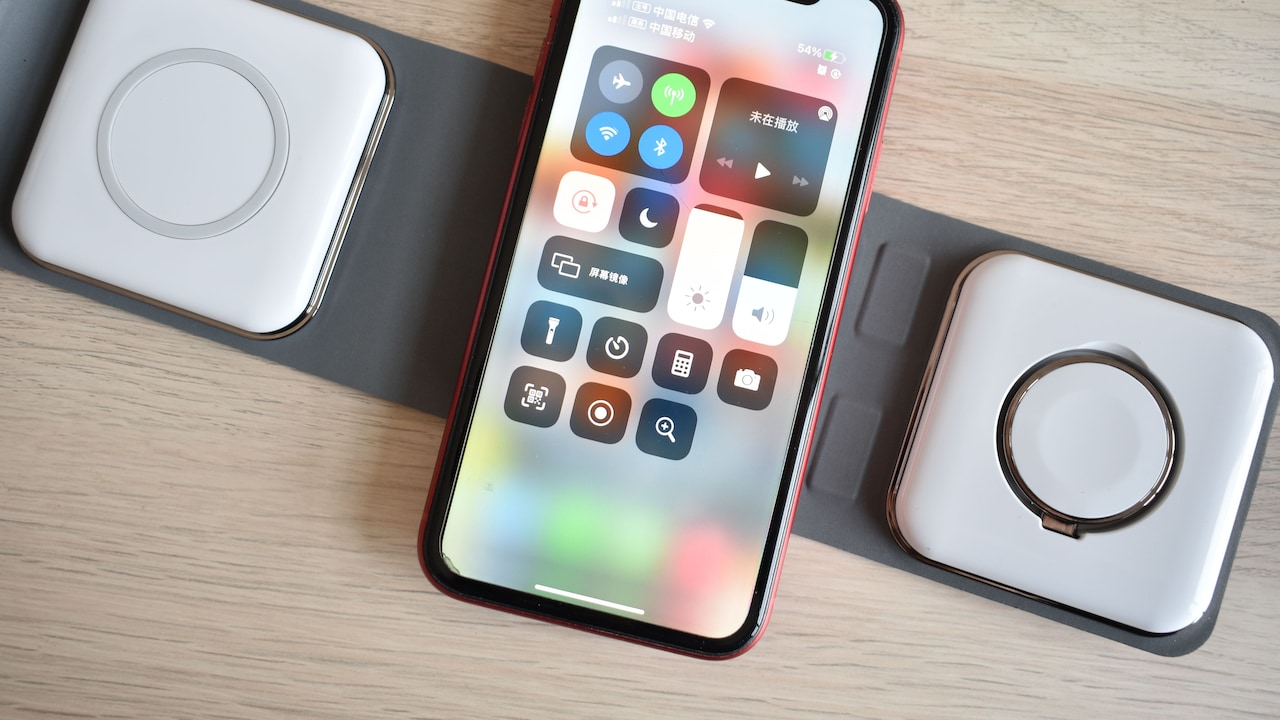
10 Reasons A Wireless Mouse Lags Or Jumps On Glass And Polished Desks
Wireless mouse lag on glass or polished desks often comes down to poor sensor tracking, reflections, interference or weak power. Here are 10 common causes behind cursor jumps and lag, plus practical ways to fix them.
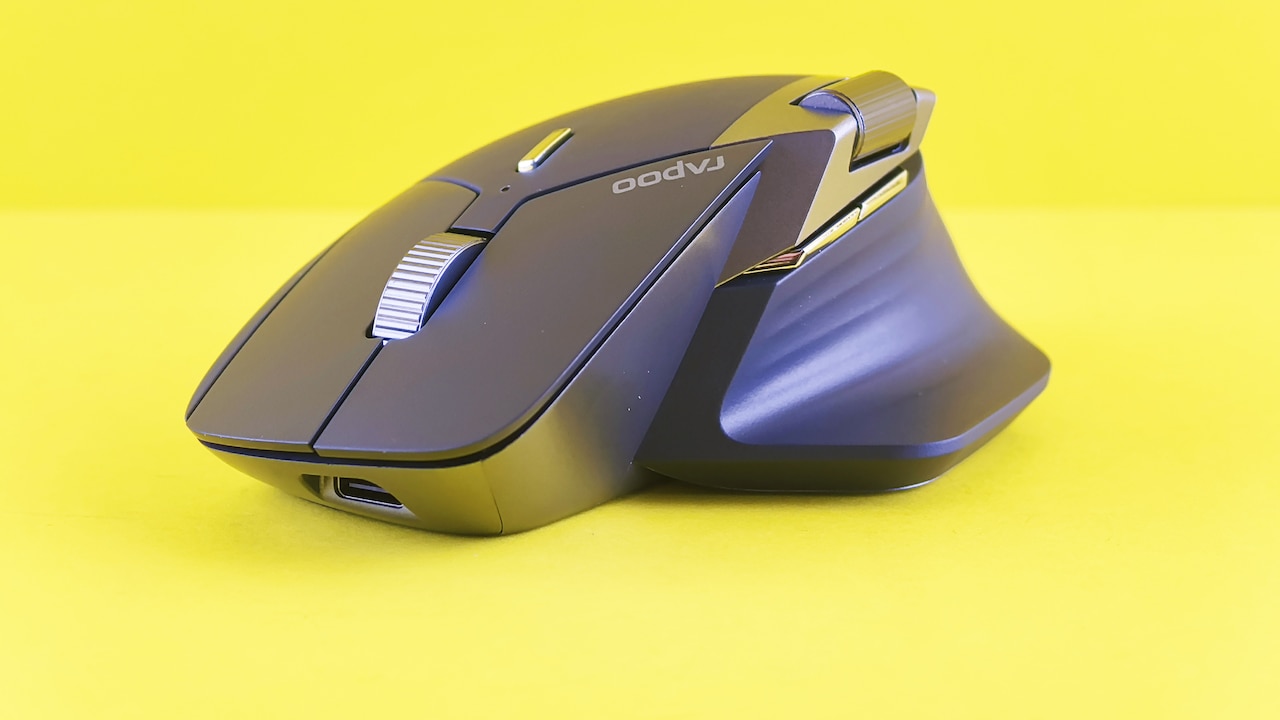
10 Reasons Your Wireless Mouse Lags Or Jumps On Glass Desks
A wireless mouse usually earns its place on a desk by making life simpler. There is no cable dragging against the edge of the table, no knot of wires beside the laptop and no need to rearrange half the workspace just to move comfortably. Then the cursor starts misbehaving. One moment it moves normally. The next, it freezes, jumps several centimetres across the screen or refuses to follow a steady hand movement. On a glass dining table being used as a temporary work desk, the problem can become especially annoying. Even an expensive mouse may suddenly behave like a bargain accessory picked up in a hurry.The trouble often lies less with the mouse itself and more with the surface beneath it. Optical and laser sensors rely on reflected light and tiny surface details to calculate movement. Glass, glossy marble, acrylic and highly polished wood can confuse that process. Wireless connectivity, battery condition and computer settings can add another layer of trouble. Understanding the cause makes the fix much easier. Here are ten reasons a wireless mouse may lag or jump on glass and polished desks.
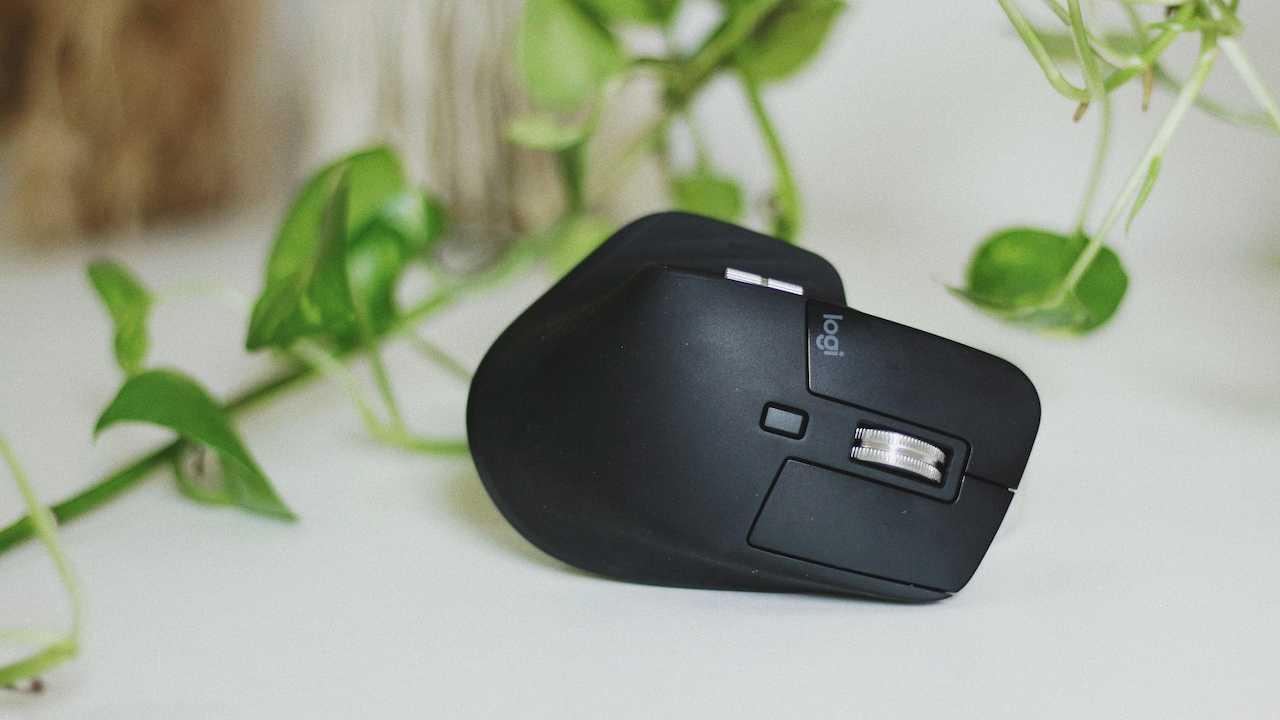
10 Reasons Your Wireless Mouse Lags Or Jumps On Glass Desks; Photo Credit: Pexels
Why Does A Wireless Mouse Lag Or Jump On Glass And Polished Desks?
1. The Sensor Cannot Read Clear Glass Properly
Most wireless mice track movement by shining light onto the desk and analysing the tiny changes in the reflected pattern. Clear glass gives the sensor very little texture to work with, so the mouse may struggle to decide whether it has moved at all.
That confusion can create a familiar pattern. The pointer sits still while the mouse moves, then suddenly shoots across the display after the sensor finds enough information to calculate a position. Anyone trying to select a small spreadsheet cell knows how quickly that becomes irritating.
Some premium mice use tracking technology designed specifically for glass, but many everyday optical models do not. Price alone does not guarantee compatibility either. A ₹2,000 mouse can still struggle on a transparent tabletop if its sensor was designed mainly for conventional surfaces.
A mouse pad offers the quickest solution. Even a notebook, sheet of plain paper or piece of cardboard can help during an urgent video call. The goal is simple: give the sensor a textured, non-transparent surface that it can read consistently.
Also Read: Top 5 Wireless Mice Under ₹1000 For Everyday Office Use
2. Glossy Surfaces Create Too Much Reflection
Glass is not the only troublesome surface. A polished wooden desk, glossy laminate or shiny stone countertop can also confuse a wireless mouse because these materials reflect light in unpredictable ways.
An optical sensor expects reflected light to return in a pattern that helps it recognise movement. A mirror-like desk can bounce that light away from the sensor or scatter it unevenly. The result may be small cursor jumps, uneven tracking or a pointer that seems strangely sensitive in one area of the desk but perfectly normal in another.
The effect becomes noticeable on desks with strong overhead lighting. A bright LED lamp or sunlight from a nearby window can add extra reflections, particularly on dark glossy surfaces. Moving the mouse just a few centimetres may suddenly change how much light reaches the sensor.
Try placing a matte mouse pad beneath the device before changing any computer settings. If the problem disappears immediately, the polished surface is probably responsible. Sometimes the least glamorous office accessory turns out to be the most useful one on the entire desk.
3. The Mouse Battery Is Running Low
A weakening battery can make a wireless mouse behave unpredictably, and the timing often makes the desk surface look guilty.
As battery power drops, some mice may transmit movement data less reliably or reduce performance to conserve energy. The cursor might pause, skip or respond with a slight delay. If the sensor is already struggling with a reflective glass surface, a weak battery can make those tracking problems feel much worse.
Rechargeable mice bring another complication. A battery indicator showing 20 per cent does not always mean the remaining charge will deliver flawless performance for several more hours. Older rechargeable cells may also lose capacity and discharge faster than expected.
Replacing disposable batteries or charging the mouse fully takes only a few minutes and removes one major variable from the investigation. Good-quality alkaline cells may cost a little more, but repeatedly buying the cheapest ₹20 or ₹30 batteries rarely feels like a bargain if they need constant replacement.
If fresh power improves tracking, the desk may have been only half the problem. The mouse simply needed a proper breakfast.
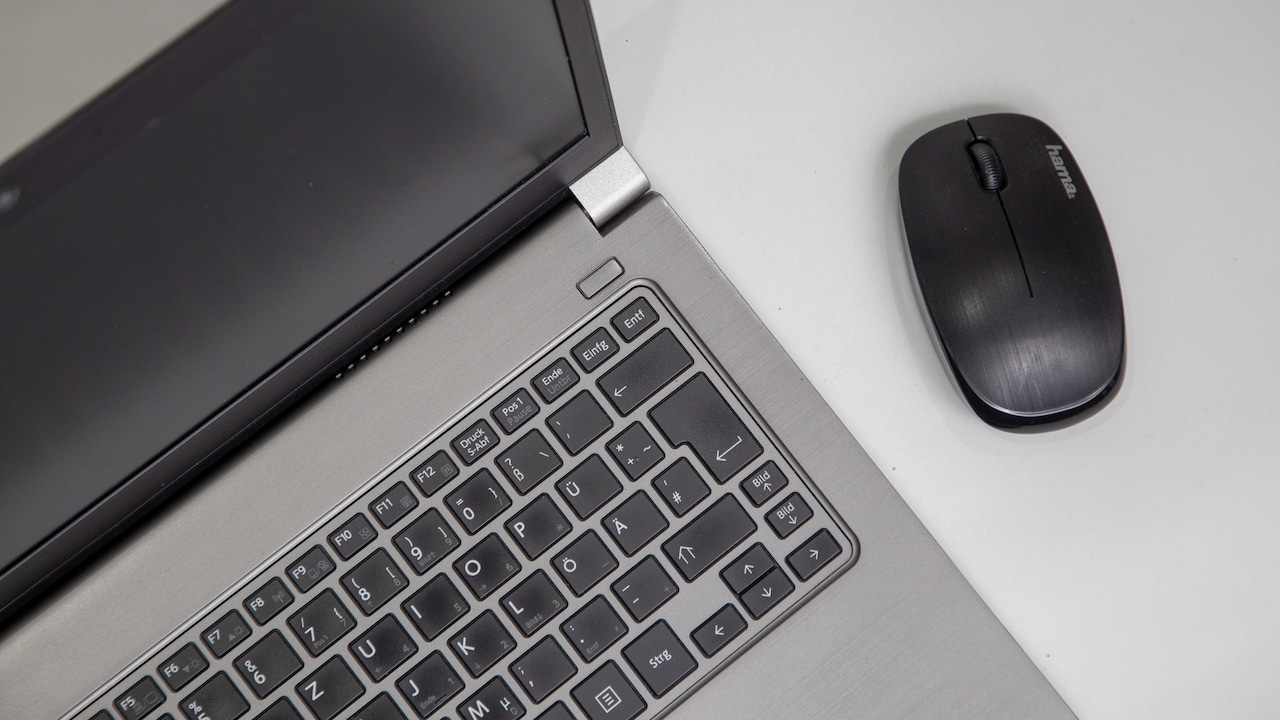
10 Reasons Your Wireless Mouse Lags Or Jumps On Glass Desks; Photo Credit: Pexels
4. The Wireless Receiver Is Too Far Away
A mouse can have an excellent sensor and still lag if its wireless receiver struggles to communicate with it.
Many wireless mice use a small USB receiver operating on the 2.4 GHz frequency band. The connection usually works well across a normal desk, but physical obstacles and distance can weaken the signal. A receiver plugged into the rear of a desktop tower sitting underneath the table may have to communicate through metal, furniture and other electronics.
That setup becomes especially troublesome when the computer sits several feet away. Movement data may arrive late or in uneven bursts, creating cursor hesitation that resembles poor surface tracking.
Move the receiver to a front USB port or use a short USB extension cable to bring it closer to the mouse. On a laptop, switching the dongle from one side to the other may also help.
The difference can be surprisingly dramatic. A tiny receiver hidden behind a computer often seems harmless, yet moving it 30 centimetres closer can turn a jittery pointer into a perfectly smooth one.
5. Wi-Fi And Bluetooth Devices Are Causing Interference
Modern desks are crowded with wireless signals. Phones, earbuds, smartwatches, routers, keyboards and speakers may all be communicating within the same small area.
Many wireless mouse receivers operate around the 2.4 GHz band, which is also widely used by Wi-Fi and Bluetooth devices. Heavy activity can sometimes create interference, particularly when several devices sit close together. The mouse may hesitate for a fraction of a second, skip movement or disconnect briefly.
USB 3.0 equipment can contribute to interference as well. External hard drives, hubs and certain poorly shielded cables may generate radio noise around frequencies used by wireless accessories. A mouse receiver plugged directly beside a busy USB hub can therefore perform worse than expected.
Try separating the receiver from other wireless dongles and USB devices. Switching a dual-band router from 2.4 GHz Wi-Fi to 5 GHz or 6 GHz for nearby devices may also reduce congestion where supported.
A polished desk may make tracking harder, but interference adds a second headache. Solving both usually produces much smoother performance.
6. Dust Or Fingerprints Are Blocking The Sensor
A mouse spends its life centimetres above dust, crumbs and everything else a working desk quietly collects. Eventually, some of that debris can reach the sensor opening underneath.
A small fibre or speck of dust near the optical sensor may interfere with the light it uses to track movement. On a textured mouse pad, the problem might barely show. On glass or a glossy desk, where tracking is already challenging, that tiny obstruction can cause noticeable jumping.
Fingerprints on the desk can also create inconsistent patches. Glass tables are particularly good at displaying evidence of tea breaks, snack breaks and mysterious handprints that nobody remembers making. Oil from the skin changes how light reflects from the surface and may affect tracking in certain spots.
Turn the mouse off before cleaning it. Use a soft, dry cloth around the sensor opening and avoid poking sharp objects inside. Clean the desk with a suitable surface cleaner and let it dry completely.
Sometimes a sophisticated-looking technical problem needs nothing more advanced than a cloth and two minutes of attention.
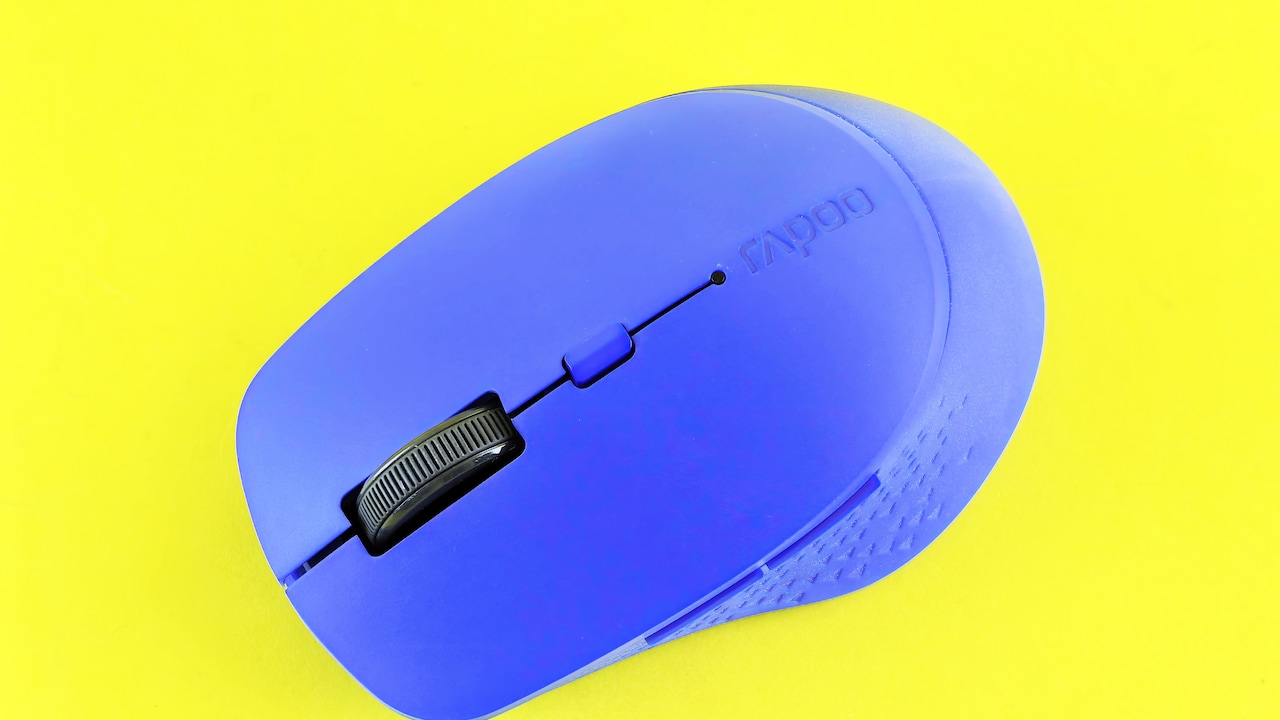
10 Reasons Your Wireless Mouse Lags Or Jumps On Glass Desks; Photo Credit: Pexels
7. Mouse Sensitivity Is Set Too High
High pointer sensitivity can make tiny tracking errors appear much larger than they really are.
When sensitivity or DPI is set extremely high, a movement of only a few millimetres can send the pointer travelling a considerable distance across the screen. On a polished surface, the sensor may already be detecting movement unevenly. High sensitivity amplifies those irregular readings, creating the impression that the cursor is jumping wildly.
Gaming mice often include buttons that change DPI instantly. It is surprisingly easy to press one accidentally while moving the device or reaching for another button. Suddenly, a comfortable everyday mouse starts behaving as though it has consumed three cups of strong filter coffee.
Lower the DPI using the mouse software or its dedicated sensitivity control. The operating system's pointer-speed setting can also help. Make small adjustments rather than dragging the slider straight to the minimum.
A moderate setting usually provides better control for office work, editing and browsing. Once movement feels natural on a normal mouse pad, test the polished desk again. Lower sensitivity cannot fix poor optical tracking, but it can make minor sensor errors far less noticeable.
8. The Mouse Driver Or Software Is Misbehaving
Hardware gets blamed quickly when a cursor starts jumping, but software can create similar symptoms.
Wireless mice often rely on standard operating-system drivers, while advanced models may use dedicated software for sensitivity, button mapping, scrolling and firmware updates. A corrupted driver, failed update or software conflict can interfere with normal tracking.
The problem may appear suddenly after a system update, even though the mouse and desk have not changed. Users sometimes respond by scrubbing the glass table, changing batteries and moving the receiver around, only to discover that a simple restart fixes everything.
Start by disconnecting and reconnecting the mouse or receiver. Restart the computer and check whether the manufacturer provides an updated driver or firmware version. If dedicated mouse software began causing problems after an update, reinstalling it may help.
Testing the mouse on another computer can also separate software trouble from hardware trouble. If it works smoothly elsewhere on the same surface, the original machine deserves closer attention.
Not every jumpy cursor is a battle between optics and shiny furniture. Sometimes software simply wakes up in a bad mood.
9. Power-Saving Settings Are Interrupting The Connection
Laptop power-saving features can occasionally become a little too enthusiastic.
To extend battery life, operating systems may reduce power to USB ports or wireless hardware when they appear inactive. That behaviour makes sense when every percentage point of battery matters during a long train journey, but it can create delays when a wireless mouse wakes from an idle state.
The first movement after a short pause may feel sluggish or unresponsive. The pointer can remain still for a moment and then catch up suddenly, which looks very similar to sensor trouble on glass.
USB power-management settings deserve particular attention when a mouse behaves normally while moving continuously but lags after sitting untouched for a minute or two. Bluetooth mice may show comparable behaviour when aggressive power-saving features affect the wireless adaptor.
Changing these settings requires care because disabling power saving can slightly reduce laptop battery life. It is better to adjust only the relevant USB or Bluetooth device rather than switching off every efficiency feature available.
A mouse should save energy when appropriate, but it should not need a formal invitation each time work resumes.
10. The Mouse Sensor Simply Does Not Suit The Desk
Sometimes nothing is broken. The mouse and the desk are simply a poor match.
Mouse sensors vary widely. Some perform beautifully on fabric pads and matte wood yet struggle badly on glass. Others use advanced laser or specialised optical systems that can track on polished materials with much greater accuracy. Manufacturers may even specify a minimum glass thickness or recommend avoiding transparent surfaces altogether.
This explains why two wireless mice placed on the same table can behave completely differently. A basic office model worth ₹700 may jump constantly while another device tracks smoothly without a mouse pad. The difference lies in sensor design rather than wireless technology alone.
Before replacing a perfectly usable mouse, try it on paper, cloth or a matte pad. If the lag disappears, buying a simple mouse pad for a few hundred rupees makes more sense than immediately spending several thousand on new hardware.
For a permanent glass-desk setup, however, choosing a model advertised for glass tracking can provide greater convenience. Compatibility matters more than flashy lighting, dramatic packaging or twenty programmable buttons that may never get pressed.
Products Related To This Article
1. Logitech M240 Silent Bluetooth Mouse, Compact
2. Portronics Toad 23 Wireless Optical Mouse with 2.4GHz, USB Nano Dongle
3. ZEBRONICS Wireless Mouse
4. Offbeat - Atom Dual Bluetooth 5.1+5.1 & 2.4Ghz Wireless
5. HP M290 Wireless Mouse
6. Zebronics Wireless Mouse, Dual Mode 2.4GHz + BT
7. Portronics Toad One Bluetooth Mouse with 2.4 GHz & BT 5.3 Dual Wireless
A wireless mouse that lags or jumps on glass and polished desks does not always signal a serious fault. In many cases, the sensor simply cannot read the surface reliably. Reflections, transparency, dust and fingerprints can all make accurate tracking harder.
Other problems may sit elsewhere. Weak batteries, distant receivers, crowded wireless frequencies, excessive sensitivity, outdated software and aggressive power-saving settings can produce remarkably similar symptoms.
The easiest troubleshooting method starts with the simplest test: place the mouse on a matte surface. If the pointer immediately behaves, the desk is the likely culprit. If the problem continues, check the battery, receiver position, wireless environment and software one by one.
A good mouse pad may not be the most exciting desk upgrade ever purchased, but it remains one of the cheapest ways to restore smooth tracking. And when the cursor finally stops performing surprise acrobatics across the screen, that modest patch of fabric suddenly feels worth every rupee.
(Disclaimer: This article may include references to or features of products and services made available through affiliate marketing campaigns. NDTV Convergence Limited (“NDTV”) strives to maintain editorial independence while participating in such campaigns. NDTV does not assume responsibility for the performance or claims of any featured products or services.)