Common Router Placement Mistakes That Cut Your Wi-Fi Speed In Half And How To Fix Them
Poor router placement can cut Wi-Fi speeds by up to 50%. This guide highlights the most common placement mistakes at home and offers simple fixes for faster, stable internet. Top router placement mistakes that might be affecting its strength in your home.
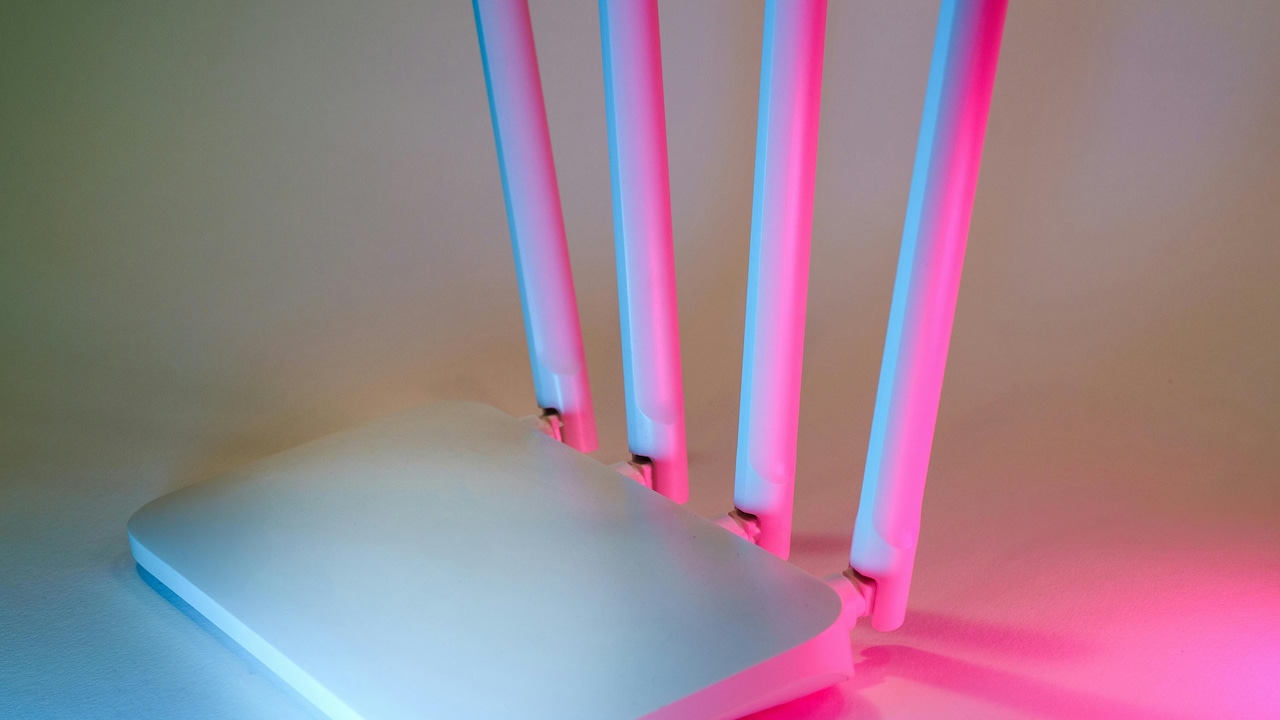
Why Your Wi-Fi Is Slow at Home: Common Router Placement Mistakes Explained.
Wi-Fi has become as essential as electricity and water. Work calls, online classes, streaming platforms, digital payments and smart devices all depend on a stable connection. When speeds drop, frustration rises quickly. Many households spend ₹800–₹1,200 more each month upgrading plans, hoping for better performance, only to feel disappointed again.
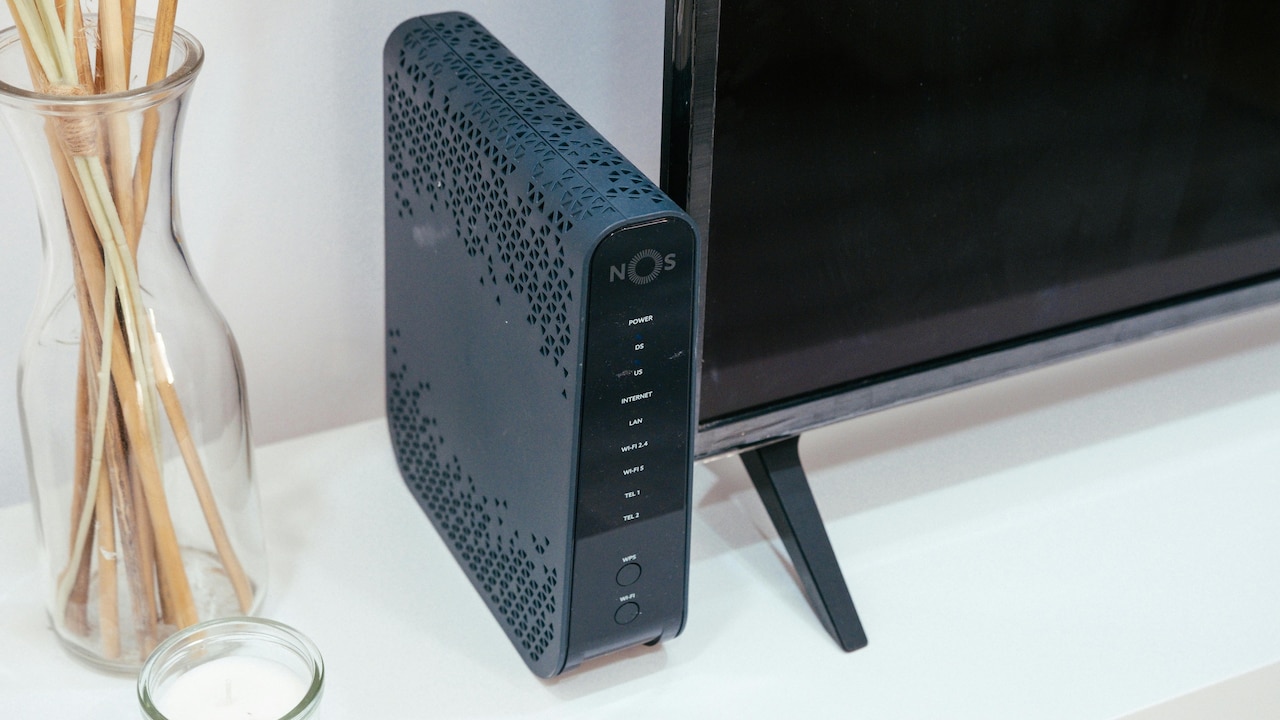
Explore common router placement mistakes that can affect internet speed; Photo Credit: Pexels
The truth is simple: even the fastest internet plan struggles if the router sits in the wrong place. Walls, furniture, appliances and even decorative choices can weaken signals. Most of these issues remain unnoticed because routers rarely attract attention after installation.
This article breaks down common router placement mistakes that quietly cut Wi-Fi speed in half. Each section explains why the mistake hurts performance and shares easy fixes that suit everyday homes. No technical jargon. No expensive upgrades. Just smart placement and a little awareness.
Also Read: Boost Your Laptop Speed: Top Wi-Fi Routers On Flipkart Right Now
The Small Placement Errors Quietly Ruining Your Wi-Fi
1. Hiding the Router in a Corner of the House
Many homes place the router in a far corner, often near the main telephone or fibre point. This choice feels logical but causes uneven signal distribution. Wi-Fi signals spread outward like ripples in water. When placed at the edge, half the signal escapes outside the house, leaving bedrooms and workspaces struggling.
Corners also tend to have thicker walls and more wiring, which interfere with signal strength. The result appears as slow downloads, frequent buffering and dropped video calls.
How To Fix It:
Move the router to a central location. A living room shelf or hallway table works well. The goal involves equal distance from frequently used rooms. If rewiring seems difficult, longer Ethernet cables cost far less than a plan upgrade. Even shifting the router a few metres can make a noticeable difference.
2. Placing the Router on the Floor
Routers often end up on the floor near power sockets. While convenient, this placement severely limits signal reach. Wi-Fi waves travel outward and downward poorly. Furniture, carpets and even people absorb part of the signal.
Dust and accidental kicks add another layer of risk. Over time, blocked vents can also cause overheating, which reduces performance further.
How To Fix It:
Raise the router at least four to five feet above the ground. A bookshelf, wall mount or sturdy cabinet works well. Elevated placement allows signals to travel freely across rooms. It also protects the device from dust and accidental damage. Many users notice stronger signals upstairs after making this simple change.
3. Hiding the Router Inside Cabinets or Drawers
A tidy home often hides unsightly gadgets. Routers frequently end up inside wooden cabinets, behind decorative doors or even inside metal racks. While the space looks cleaner, the Wi-Fi signal suffers badly.
Wood absorbs radio waves. Metal blocks them almost entirely. Closed spaces trap heat, which reduces performance during long usage hours.
How To Fix It:
Keep the router in open air. If aesthetics matter, choose a shelf with ventilation or a wall mount that blends with décor. Several modern routers come with sleek designs that look less intrusive. A visible router might not win design awards, but it delivers better speeds where it truly matters.
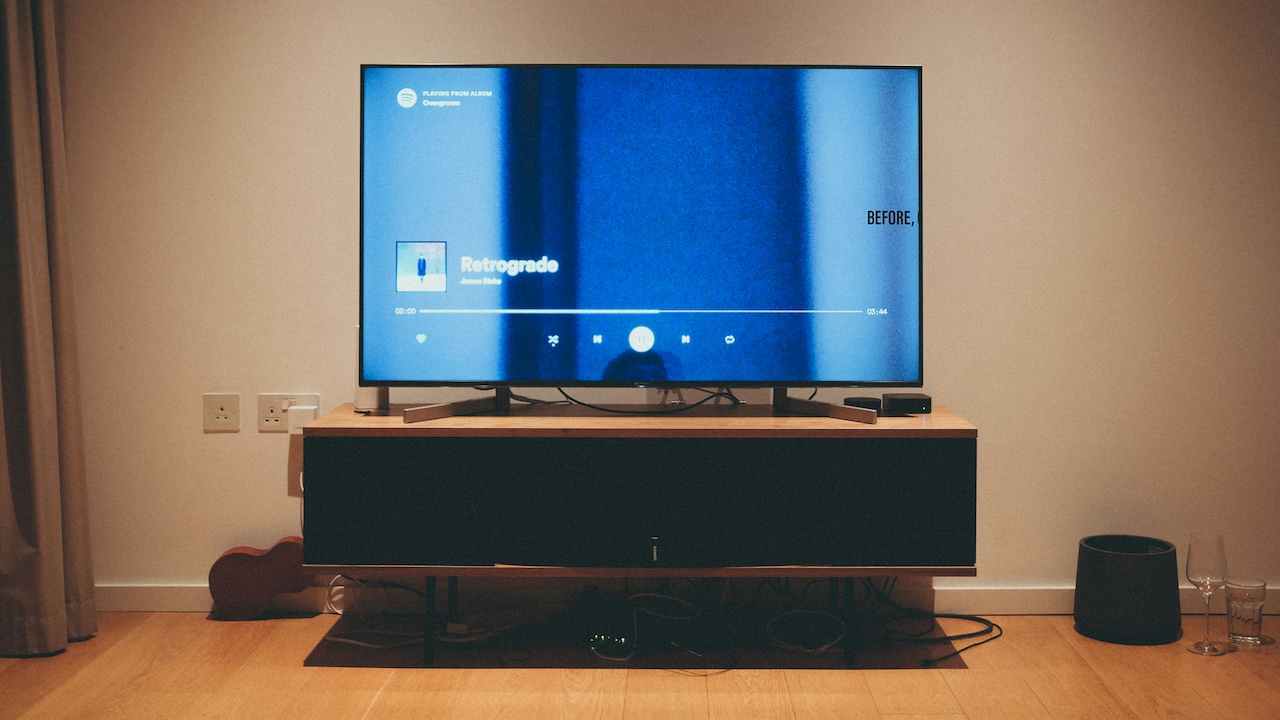
4. Keeping the Router Near the Television or Set-Top Box
Televisions, set-top boxes and gaming consoles often share the same corner. Placing the router here seems practical but creates interference. These devices emit electromagnetic signals that clash with Wi-Fi frequencies.
Large screens and speakers also block signal paths. During peak hours, streaming activity can worsen the problem, causing buffering across other devices.
How To Fix It:
Maintain distance between the router and entertainment units. A separation of at least one to two metres helps reduce interference. If relocation proves difficult, adjust the router's orientation or channels through settings. Small changes often lead to smoother streaming and fewer interruptions.
5. Placing the Router Near Kitchen Appliances
Kitchens attract routers due to nearby power points. Unfortunately, appliances like microwave ovens, refrigerators and induction stoves interfere heavily with Wi-Fi signals. Microwaves operate on similar frequencies, causing sudden drops during use.
Metal surfaces amplify the problem by reflecting or blocking signals. The kitchen environment also experiences more temperature fluctuations, which affects device longevity.
How To Fix It:
Move the router away from the kitchen. If the internet line enters through this area, use a longer cable to reposition it elsewhere. Avoid placing routers near large metal surfaces. The result often shows fewer sudden disconnects, especially during meal preparation hours.
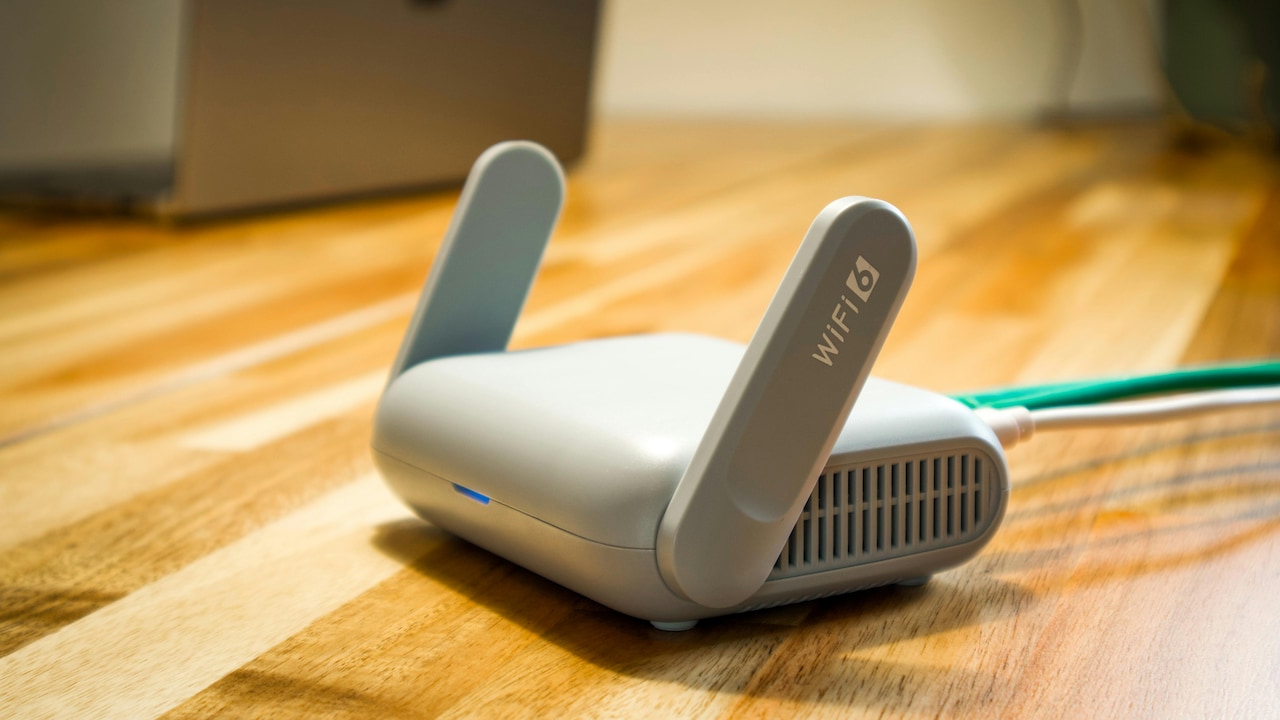
Don't place your router near kitchen appliances; Photo Credit: Pexels
6. Ignoring Wall Materials and Layout
Not all walls treat Wi-Fi equally. Thick concrete, brick and tiled walls reduce signal strength far more than wooden partitions. Many homes unknowingly place routers behind reinforced walls, assuming signal strength remains unaffected.
Bathrooms also create dead zones due to pipes, tiles and mirrors. Bedrooms behind multiple walls often experience slower speeds.
How To Fix It:
Study the home layout. Place the router where fewer solid walls stand between it and frequently used spaces. If relocation remains impossible, consider signal extenders for problem areas. Understanding wall impact helps achieve more consistent coverage without replacing equipment.
7. Keeping Antennas Pointed Randomly
External antennas often stay untouched after unboxing. Many users assume orientation does not matter. In reality, antenna direction plays a significant role in signal spread.
Vertical antennas send signals horizontally, while angled antennas help cover multiple floors. Incorrect alignment can leave certain rooms with weaker reception.
How To Fix It:
Adjust antenna angles deliberately. Keep one vertical and another slightly tilted for multi-room coverage. Experimentation helps find the best combination. Minor tweaks often boost signal strength without spending a rupee. Patience during adjustment pays off quickly.
8. Placing the Router Near Windows or Balconies
A router near a window may seem harmless, especially for better ventilation. However, Wi-Fi signals pass easily through glass and escape outside. This reduces indoor coverage while potentially sharing signals with neighbours.
Balconies also expose routers to temperature changes and moisture, which affect long-term performance.
How To Fix It:
Move the router away from windows and external walls. Interior placement ensures signals remain inside where they are needed. Curtains and blinds do little to stop signal loss, so distance remains the best solution. Indoor repositioning often strengthens weak spots instantly.
9. Overlooking Interference from Other Wireless Devices
Homes today host multiple wireless gadgets: Bluetooth speakers, smart bulbs, baby monitors and cordless phones. When placed close to the router, these devices compete for frequencies, reducing speed.
Crowded apartment buildings add further congestion as neighbouring networks overlap. The router struggles to find a clear channel.
How To Fix It:
Keep wireless gadgets at a reasonable distance from the router. Access router settings to change channels during busy hours. Dual-band routers offer better flexibility by separating devices across frequencies. A little adjustment prevents unnecessary signal clashes.
10. Never Re-evaluating Router Placement Over Time
Home usage patterns change. Workspaces shift, new devices arrive, and layouts evolve. Yet router placement often remains unchanged for years. What worked earlier may not suit current needs.
Walls added during renovation or new furniture can block signals unexpectedly. Speed complaints then appear without an obvious cause.
How To Fix It:
Review router placement every few months. Observe where connectivity struggles occur. Minor repositioning can restore balance. Treat the router as an active part of the home setup, not a forgotten box. Regular attention keeps Wi-Fi reliable as lifestyles evolve.
Products Related To This Article
1. TP-Link XC220-G3V AC1200 Wireless 4 Gigabit Port
2. D-Link DIR-615 Wi-fi Ethernet-N300 Single_band 300Mbps Router
3. TENDA-N301 N300 WiFi Easy Setup Router
4. MERCUSYS AC1200 Wireless Dual Band WiFi Router Mercusys AC10
5. D-Link M30 |WiFi 6 Speed 3000 Mbps
Slow Wi-Fi rarely means poor service alone. In many homes, simple placement mistakes quietly reduce performance day after day. A router hidden in a corner, blocked by furniture or surrounded by appliances, struggles to deliver its full potential.
The good news lies in simplicity. Moving the router, raising its height, adjusting antennas and avoiding interference often restores speed without extra monthly costs. These small changes save money, reduce frustration and improve daily digital experiences.
Before upgrading plans or blaming providers, take a fresh look at where the router sits. A few thoughtful adjustments can turn patchy connections into smooth, reliable Wi-Fi throughout the home.
(Disclaimer: This article may include references to or features of products and services made available through affiliate marketing campaigns. NDTV Convergence Limited (“NDTV”) strives to maintain editorial independence while participating in such campaigns. NDTV does not assume responsibility for the performance or claims of any featured products or services.)