10 Hidden Streaming Problems That Can Make A Smart TV Lag Despite Good Internet Speed
Fast internet but a laggy smart TV? Hidden issues such as weak Wi-Fi stability, outdated software, overloaded memory and ageing hardware could be disrupting your streaming experience.
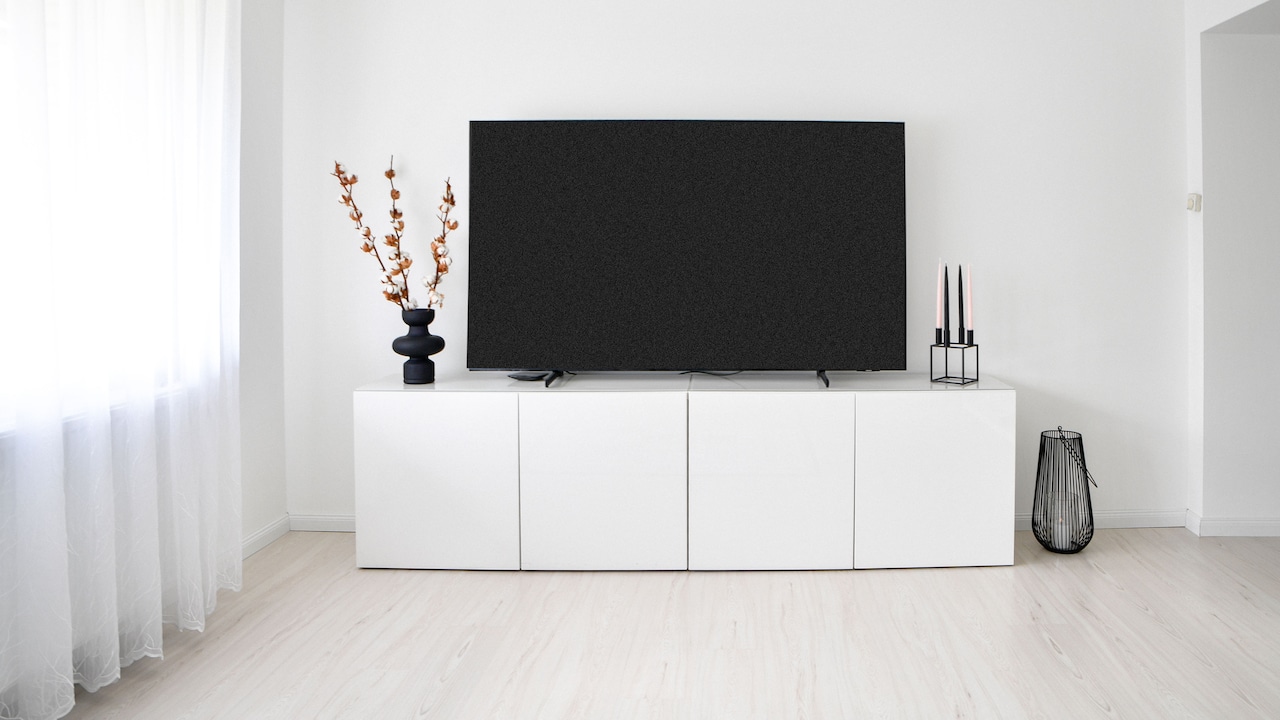
Smart TV Lagging With Fast Wi-Fi? 10 Hidden Streaming Problems To Check
There is a particularly modern kind of frustration in watching a loading circle spin on a television while the internet speed test proudly announces impressive numbers. The phone streams perfectly. The laptop handles video calls without complaint. Yet the smart TV takes several seconds to open an app, drops the picture quality or freezes right when the thriller reaches its best scene. Fast internet certainly matters, but streaming involves much more than raw download speed. The television has to process the video, communicate with the router, run the streaming app, manage its memory and keep background software under control. Trouble anywhere along that chain can create lag. That explains why upgrading from a 100 Mbps plan to a much faster connection does not always produce the dramatic improvement expected. Before spending more every month, it helps to look inside the home entertainment setup itself. Some of the biggest streaming problems hide in surprisingly ordinary places.
Smart TV Lagging With Fast Wi-Fi? 10 Hidden Streaming Problems To Check; Photo Credit: Pexels
Why Your Smart TV Lags Even When Your Internet Is Fast
1. The TV's Processor Cannot Keep Up
A smart TV looks sleek on the wall, but inside it sits a small computer. Like any computer, it relies on a processor to run menus, launch apps, decode video and handle picture enhancements. Older or entry-level televisions often contain modest processors that struggle as streaming services become more demanding.
This can create a confusing situation. The internet may deliver data quickly, yet the television takes its own sweet time turning that data into smooth video. Menus become sluggish, apps hesitate and 4K content may stutter during busy scenes.
Picture-processing features can make matters worse. Motion smoothing, noise reduction and artificial intelligence-based enhancements all demand extra processing power. A television juggling several of these jobs may behave like someone carrying six shopping bags while trying to answer the phone.
Try switching off unnecessary picture enhancements and restarting the TV. If streaming improves afterwards, processing pressure probably played a role. With an ageing television, an external streaming device can also provide a noticeable performance boost without forcing a complete TV upgrade.
Also Read: 10 Reasons An Amazon Fire TV Stick Buffers Even When Your Wi-Fi Seems Fast
2. Too Many Apps Are Hogging The TV's Memory
Smart TVs rarely announce that they are running short of memory. They simply become slow, temperamental and strangely reluctant to cooperate.
Streaming apps store temporary files to make menus and content load faster. Over time, that cached data can pile up. Other installed apps may also leave background processes running, particularly if the television has not had a proper restart for weeks.
The result resembles an overstuffed kitchen drawer. Everything technically fits, but finding anything takes longer than it should.
Deleting unused apps can free valuable storage and reduce background activity. Clearing the cache of troublesome streaming services may also help, although the option varies between television brands. A full restart often clears temporary memory too. Simply pressing the power button on the remote may place some models into standby rather than shutting them down completely, so unplugging the television briefly can sometimes work better.
Keeping dozens of rarely used apps because they “might come in handy someday” sounds harmless. On a low-memory smart TV, however, digital clutter can quietly turn every streaming session into a patience test.
3. The Wi-Fi Signal Is Strong But Unstable
Those reassuring Wi-Fi bars can tell only part of the story. A television may show a strong signal while receiving an inconsistent connection.
Streaming needs stability as much as speed. Tiny interruptions, packet loss and sudden latency spikes can cause buffering even when a speed test shows excellent results. This commonly happens when the router sits several rooms away, especially with thick concrete walls, cupboards or large appliances blocking the path.
The 5 GHz Wi-Fi band often provides faster performance but has a shorter range. The 2.4 GHz band travels farther, though it tends to face more interference. A television tucked into a bedroom may therefore perform better on the supposedly slower band.
Router placement matters too. Hiding the router behind the television, inside a cabinet or near metal objects can weaken performance.
When possible, move the router into a more open position or test an Ethernet cable. A wired connection removes much of the wireless uncertainty and can quickly reveal whether unstable Wi-Fi, rather than broadband speed, caused those irritating pauses.

Smart TV Lagging With Fast Wi-Fi? 10 Hidden Streaming Problems To Check; Photo Credit: Pexels
4. The Wi-Fi Channel Is Packed With Neighbouring Networks
Apartment living brings many conveniences, including food deliveries at almost any hour and neighbours whose Wi-Fi networks seem determined to occupy every available radio channel.
Routers share limited wireless frequencies. In a densely populated building, dozens of nearby networks may compete for the same channels. Your internet connection could easily handle a 4K film, but local wireless congestion may slow communication between the router and television.
This problem often becomes more noticeable in the evening when more households start streaming, gaming and making video calls. Everything works smoothly during the afternoon, then suddenly struggles around dinner time.
Modern routers can automatically select cleaner channels, but automatic selection does not always work perfectly. Restarting the router may encourage it to choose a less congested channel. Some router settings also allow manual channel selection.
Switching compatible devices to 5 GHz or 6 GHz can reduce competition on 2.4 GHz. Think of it as leaving a traffic-packed main road for a quieter route. The broadband speed stays the same, but the journey between the router and television becomes far less chaotic.
5. Other Devices Are Quietly Using The Connection
A household can consume enormous amounts of bandwidth without anyone appearing to do anything particularly demanding.
A laptop may download a huge system update. A gaming console could install a 70 GB title. Someone's phone might back up hundreds of photos to the cloud. Security cameras may continuously upload footage. Meanwhile, the television tries to stream a crisp 4K programme and wonders where all the bandwidth disappeared.
Speed tests sometimes miss this problem because background activity changes from minute to minute. The connection may look excellent during the test and become congested shortly afterwards.
Router dashboards can often show which devices currently use the most data. Quality of Service settings on some routers can also prioritise streaming traffic or prevent one device from dominating the connection.
There is no need to ban everyone from using Wi-Fi whenever a match or film begins. Simply knowing what else happens on the network can explain mysterious slowdowns. That “terrible streaming app” may have done nothing wrong; the real culprit could be a teenager's console casually downloading enough data to fill a small digital warehouse.
6. The Streaming App Has Become Buggy Or Outdated
Sometimes the television works perfectly and the internet behaves beautifully. The app itself causes the trouble.
Streaming services update their software regularly to add features, fix bugs and support newer video formats. An outdated app can develop playback problems, freeze at menus or crash unexpectedly. The reverse can also happen: a newly released update may contain a bug that affects certain television models.
App data can become corrupted too. Repeated updates, incomplete downloads or an overloaded cache may leave the software behaving strangely.
Start with the simplest fix: close the app properly and reopen it. If the problem continues, restart the television and check for app updates. Reinstalling the service can clear damaged local files when other fixes fail.
It also helps to compare several streaming platforms. If only one app buffers while everything else plays smoothly, the home internet probably deserves an apology.
Occasional service-side problems can also affect playback. In that case, changing router settings ten times will achieve little beyond creating new Wi-Fi passwords nobody remembers the following morning.

Smart TV Lagging With Fast Wi-Fi? 10 Hidden Streaming Problems To Check; Photo Credit: Pexels
7. The TV Firmware Has Fallen Behind
Smart television manufacturers periodically release firmware updates that improve performance, repair security problems and maintain compatibility with popular streaming services.
Skipping those updates for too long can create unexpected trouble. A streaming platform may introduce a newer playback system while the television continues running older software. Menus can slow down, apps may crash and features that once worked flawlessly can become unreliable.
Many televisions offer automatic updates, although that setting does not guarantee every installation happens immediately. A TV that rarely stays connected while idle may also miss scheduled downloads.
Open the system settings occasionally and check for firmware manually. The exact menu differs by brand, but manufacturers usually place the option under Support, System, About or Software Update.
Firmware updates will not transform an ageing television into a brand-new flagship model. They can, however, fix surprisingly stubborn streaming issues.
One warning deserves attention: avoid disconnecting power during an update. A few extra minutes of patience beats turning an ordinary software problem into a television that suddenly has the personality of an expensive black rectangle.
8. The Router Is Overheating Or Overworked
The router rarely receives much attention until the internet stops working. It sits quietly behind furniture, collecting dust and blinking mysterious lights like a tiny electronic traffic junction.
Heat can hurt its performance. Routers generate warmth while managing multiple wireless connections, and poor ventilation can push temperatures higher. A device wedged behind a cabinet, placed near other electronics or covered by decorative objects may struggle during long periods of heavy use.
Older routers face another challenge. A household that once connected three or four devices may now run phones, tablets, televisions, speakers, cameras, appliances and gaming systems simultaneously. An ageing router can buckle under that workload even when the broadband plan itself offers plenty of speed.
Place the router in an open, ventilated spot and restart it if performance becomes erratic. Check its age and technical capabilities too. A modern fibre plan paired with an ancient router creates a bottleneck before the fast connection gets a fair chance.
Spending more on broadband while using exhausted networking hardware can resemble widening a highway but leaving a narrow gate at the entrance.
9. High-Quality Streaming Is Pushing The Hardware Too Hard
A 4K label can make everything sound straightforward: choose the highest quality and enjoy sharper pictures. Real streaming behaves a little differently.
Ultra-high-definition video demands more than bandwidth. The television must decode high-resolution footage, process HDR information and sometimes handle advanced audio formats simultaneously. Older smart TVs may struggle with that workload, particularly when an app uses a newer codec.
Automatic quality settings can also jump between resolutions when network conditions fluctuate. Those transitions may create brief freezes or visible drops in picture quality.
Try temporarily reducing streaming quality from 4K to Full HD. If the lag disappears, the problem may involve decoding or stability rather than broadband speed.
This does not mean abandoning 4K forever. Turning off unnecessary picture processing, updating firmware or using a capable external streaming device may restore smooth playback at full resolution.
Sharpness loses its charm when a dramatic scene freezes on someone's half-open mouth. A slightly lower resolution that plays flawlessly often feels far more premium than maximum quality accompanied by constant interruptions.
10. DNS Delays Can Make Apps Feel Slow
Not every streaming delay happens while a video plays. Sometimes the real annoyance comes earlier: app home pages load slowly, thumbnails take ages to appear and videos hesitate before starting.
The Domain Name System, or DNS, helps devices locate internet services. Think of it as a directory that translates familiar service names into the network addresses machines need. A slow or unreliable DNS resolver can make an otherwise fast connection feel oddly sluggish.
Broadband providers usually assign DNS settings automatically, and they often work perfectly well. Occasionally, however, a resolver responds slowly or experiences temporary problems.
Changing DNS settings to a reputable alternative can improve responsiveness in some homes, although it will not magically increase the actual broadband speed. Router settings often allow a network-wide change, while some televisions support custom DNS entries directly.
DNS should not become the first suspect whenever buffering appears. Wi-Fi stability, app problems and hardware limitations occur more often. Still, when videos stream smoothly after starting, but apps spend forever preparing them, DNS becomes a useful clue worth investigating before reaching for a more expensive internet package.
Products Related To This Article
1. Samsung 55 inches Crystal UHD 4K Samsung Vision AI Smart TV UA55UE85AHULXL
2. VW 101 cm (40 inches) Spectra Series Full HD Smart QLED Android TV VW40AQ3
3. Xiaomi 138 cm (55 inch) FX Pro QLED Ultra HD 4K Smart Fire TV L55MB-FPIN
4. Samsung 43 inches Mini LED 4K Samsung Vision AI Smart TV UA43M2EHAULXL
5. Lumio Vision 7 139 cm (55 inches) 4K Ultra-HD Smart QLED Google TV FTW3-ADSG
6. Hisense 139 cm (55 Inches) 4K Ultra HD Smart Hi-QLED TV
7. Toshiba 139 cm (55 inches) E350SP Series 4K Ultra HD Smart LED Google TV 55E350SP
Good internet speed forms only one part of a smooth streaming experience. A smart TV also depends on capable hardware, healthy software, stable Wi-Fi, sensible router placement and enough breathing room on the home network.
That is why another broadband upgrade should not automatically become the first response to buffering. Restarting the television, clearing clutter, checking updates, improving Wi-Fi conditions and testing other apps can reveal far more.
The next time a favourite show freezes while the speed test displays impressive numbers, the broadband connection may deserve less blame. Somewhere between the router, television and streaming app, a quieter culprit could be causing all the drama, and unlike the cliffhanger on screen, this mystery often has a fairly simple ending.
(Disclaimer: This article may include references to or features of products and services made available through affiliate marketing campaigns. NDTV Convergence Limited (“NDTV”) strives to maintain editorial independence while participating in such campaigns. NDTV does not assume responsibility for the performance or claims of any featured products or services.)