Wireless Keyboard Buying Guide: Key Travel, Layout And Connectivity Explained
Learn how key travel, keyboard layout, connectivity, battery life and compatibility affect comfort and performance before choosing the right wireless keyboard.

How To Choose A Wireless Keyboard Layout, Key Travel And Connection Types
A keyboard often receives less attention than a laptop, monitor or smartphone, even though fingers may spend several hours on it every day. The wrong model can turn a simple email into a finger workout, while the right one can make long reports, late-night study sessions and weekend gaming feel noticeably smoother. Wireless keyboards have become especially appealing because they remove cable clutter and work across desks, sofas and shared workspaces. Some connect to several devices, while others slip easily into a backpack. Prices range from a few hundred rupees to premium models costing well above ₹10,000, so appearance alone cannot guide the decision.
How To Choose A Wireless Keyboard Layout, Key Travel And Connection Types
Photo Credit: Pexels
The most comfortable option depends on how and where it will be used. A compact keyboard may suit a crowded study table, while a full-sized layout may help someone who enters numbers all day. Key travel affects typing feel, connectivity shapes reliability and battery design influences convenience. Understanding these details can prevent an attractive keyboard from becoming an expensive drawer resident.
What To Consider Before Buying A Wireless Keyboard
1. Understand Key Travel Before Judging Typing Comfort
Key travel refers to the distance a key moves when pressed. It may sound like a tiny technical detail, but it strongly affects comfort, speed and accuracy. Shallow keys move only a short distance and usually appear on slim keyboards. They feel quick and light, making them suitable for casual browsing, emails and portable setups.
Deeper key travel creates a more pronounced press. Many writers, programmers and heavy typists enjoy this extra movement because each keystroke feels deliberate. However, deep keys may require more effort, especially when the switches feel stiff. After several hours, that resistance can become tiring.
There is no perfect measurement for everyone. Someone used to a thin laptop keyboard may find tall mechanical keys awkward at first. Another person may consider shallow keys flat and lifeless. Testing a keyboard in a shop can reveal more than a long specification sheet.
Pay attention to whether the keys return quickly, feel stable and register without force. Comfortable travel should support a natural rhythm. Typing should feel like a smooth conversation, not like pressing doorbells in an old apartment building.
2. Choose Between Membrane, Scissor And Mechanical Keys
Wireless keyboards generally use membrane, scissor-switch or mechanical key designs. Each type has a distinct feel, sound and price.
Membrane keyboards are common and affordable. They use a rubber layer beneath the keys, which creates a soft and sometimes slightly spongy response. They work well for light home use, online classes and occasional office tasks. Models under ₹1,500 often use this design.
Scissor-switch keyboards are slimmer and more stable. Their mechanism supports each key from both sides, reducing wobble. This style appears on many laptops and low-profile wireless keyboards. It suits people who prefer short travel, quiet typing and a neat desk.
Mechanical keyboards use individual switches beneath every key. They often provide stronger feedback, greater durability and more customisation. Some switches feel smooth, while others produce a tactile bump or an enthusiastic click. That click may sound satisfying at home but less charming during a quiet video call.
Mechanical models usually cost more, though budget choices have become easier to find. Buyers should focus on comfort rather than hype. A keyboard does not become better simply because it sounds like a miniature typewriter.
3. Pick A Layout That Matches Daily Work
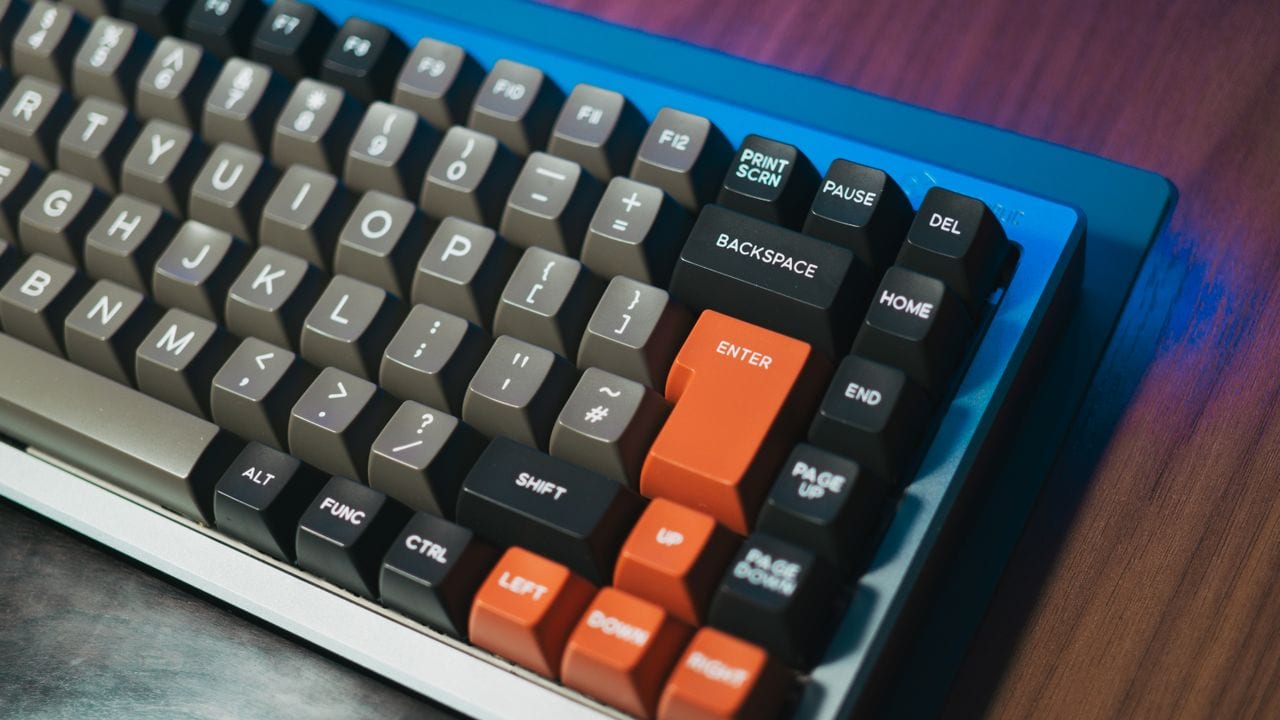
Keyboard layout affects productivity more than many buyers expect. A full-sized keyboard includes function keys, arrow keys, navigation controls and a separate number pad. It suits accountants, analysts, shop owners and anyone who works regularly with spreadsheets or numerical data.
A tenkeyless keyboard removes the number pad while keeping most other keys. This creates more room for the mouse and can reduce shoulder strain. It is a practical middle ground for writing, coding and general office use.
Compact layouts, such as 75 per cent or 65 per cent designs, remove additional keys or combine functions. They save space and travel well, but they may require shortcuts for commands that once had dedicated buttons. That adjustment can feel clever on day one and mildly irritating on day ten.
Check the placement of the arrow keys, delete key, function row and right Shift key. Unusual arrangements can slow down familiar actions. Also confirm that the keyboard follows the expected key order and symbol placement.
A compact design looks elegant on a small table, but elegance should not come at the cost of daily frustration.
Also Read: Top 5 Mechanical Gaming Keyboards For Beginners Under ₹3,000
4. Compare Bluetooth And USB Receiver Connections
Most wireless keyboards connect through Bluetooth, a USB receiver or both. Bluetooth removes the need for a dedicated dongle and works well with laptops, tablets and smartphones. It is especially useful when USB ports are limited.
However, Bluetooth pairing may occasionally take a few seconds, particularly after the keyboard wakes from sleep. Performance also depends on the device and surrounding wireless signals. For writing and browsing, this delay rarely causes trouble. Competitive gaming or rapid command-based work may expose it more clearly.
A USB receiver usually offers a steady, low-latency connection. Plug the receiver into a computer, switch on the keyboard and it often starts working immediately. The drawback is simple: the tiny receiver can disappear faster than the last piece of mithai at a family gathering.
Some premium keyboards support both options. This provides flexibility and acts as a useful backup. Before buying, check whether the receiver has storage space inside the keyboard.
Those using a tablet or a laptop with only USB-C ports should also confirm port compatibility. An extra adaptor may turn a convenient purchase into another item dangling from the desk.
5. Look For Multi-Device Switching
Multi-device support allows one keyboard to connect to several gadgets and switch between them through dedicated buttons or key combinations. This feature can be surprisingly useful in homes where work, study and entertainment share the same desk.
For example, a user may type a report on a laptop, reply to a message on a tablet and search for a recipe on a phone without changing keyboards. A quick tap moves the connection from one screen to another. It feels seamless when implemented well.
Check how many devices the keyboard can remember. Many models support three, though some handle fewer or more. Also examine whether switching works only through Bluetooth or includes a USB receiver connection.
The transition speed matters. A long delay breaks the flow and makes the feature feel decorative rather than practical. Device indicators should also remain clear, so there is no mystery about where the next sentence will appear.
Multi-device support may not matter to someone using a single desktop computer. For hybrid workers, students and families sharing a workspace, however, it can reduce clutter and make everyday switching far less chaotic.

How To Choose A Wireless Keyboard Layout, Key Travel And Connection Types
Photo Credit: Pexels
6. Consider Battery Type And Charging Convenience
Wireless keyboards either use replaceable batteries or built-in rechargeable ones. Both options can work well, but they suit different habits.
Models using AA or AAA batteries often run for several months, sometimes longer. They do not require a charging cable, and replacing the batteries takes seconds. Keeping a spare pair nearby prevents unexpected interruptions. The main drawback is the recurring cost and waste, though rechargeable cells can help.
Built-in batteries offer the convenience of USB charging. Some keyboards continue working while connected to power, which avoids downtime. Battery life varies widely depending on backlighting, connection type and sleep settings. A brightly lit keyboard may need charging every few days, while a simple non-backlit model may last for weeks.
Check the charging port before buying. USB-C feels more convenient because many current phones, tablets and laptops already use the same cable. Older micro-USB ports still work, but finding the correct lead at the wrong moment can become a small household treasure hunt.
A battery indicator is also valuable. Sudden shutdowns during an important presentation are memorable for all the wrong reasons.
7. Decide Whether Backlighting Is Worth The Cost
Backlighting makes keys easier to see in dim rooms and adds a polished appearance. It can help during late-night work, especially when the room lights stay low to avoid disturbing others.
Single-colour lighting is usually enough for practical use. Adjustable brightness matters more than dramatic effects because overly bright keys can become distracting. Some keyboards automatically adjust illumination according to the room, while others switch it off when idle to save power.
RGB lighting offers multiple colours and patterns. Gamers may enjoy assigning colours to different zones, while casual users may simply appreciate the visual flair. Yet lighting can shorten battery life significantly. A wireless keyboard that needs constant charging starts to lose part of its appeal.
Also examine how evenly the light passes through the legends. Patchy illumination may make certain letters harder to read. On cheaper models, light may leak around the key edges and create a glowing halo.
Backlighting deserves the extra expense when typing often happens after dark. For a brightly lit office or daytime study area, the money may be better spent on stronger build quality or better switches.
Also Read: 5 Best Wireless Keyboards Under ₹1,500 for Seamless Work-from-Home Setup
8. Check Size, Weight And Desk Ergonomics
A wireless keyboard should fit both the desk and the body. A large model may offer every key imaginable, but it can crowd a narrow table and push the mouse too far to one side. Reaching repeatedly across that distance may strain the shoulder.
Compact keyboards place the mouse closer and leave room for notebooks, tea cups and the occasional plate of snacks. They are also easier to carry between rooms or pack for travel. However, very light keyboards may slide during fast typing unless they have strong rubber feet.
Keyboard height deserves attention too. Tall mechanical designs may require a wrist rest, while slim models usually keep the hands flatter. Adjustable feet can change the angle, though a steeper position is not always more comfortable. Wrists should remain relaxed rather than bent upwards.
The body material influences stability. Plastic keeps weight and cost down, while metal frames usually feel firmer. Press the centre of the keyboard and check for flex. A little movement is normal on budget models, but excessive bending can make typing feel cheap and uneven.
Comfort should guide the choice, not desk photographs on social media.
9. Verify Compatibility And Software Support
Most wireless keyboards work with Windows, macOS, Android and other common platforms, but full compatibility is not always guaranteed. Basic typing may function correctly while shortcut keys behave differently.
Check whether the keyboard includes labels for multiple operating systems. A Command key for macOS, a Windows key and familiar media controls can make switching easier. Some models automatically change key behaviour depending on the connected device, while others require a manual shortcut.
Software support adds another layer of control. Companion applications may allow key remapping, shortcut creation, battery monitoring and lighting adjustments. These features can improve productivity, but they may not support every operating system. A keyboard advertised as customisable may offer those options only on Windows.
Users connecting to smart televisions, tablets or older computers should examine the supported Bluetooth version and system requirements. Office computers may also restrict software installation, making onboard controls more useful.
Compatibility checks take only a few minutes and can prevent disappointing surprises. A keyboard that connects successfully but places familiar commands in awkward locations may technically work, yet still feel wrong every single day.
10. Balance Build Quality, Features And Price
Wireless keyboard prices vary dramatically. Entry-level models below ₹1,000 may handle basic typing well, while mid-range options between ₹2,000 and ₹6,000 often add better keys, stronger construction and multi-device support. Premium keyboards can cross ₹10,000 with mechanical switches, metal frames, smart backlighting and advanced software.
A higher price does not guarantee a better personal experience. Someone writing occasional emails may not benefit from premium switches or elaborate lighting. A frequent typist, however, may appreciate paying more for comfort and durability.
Look beyond the brand name. Check warranty terms, replacement support and the availability of service centres. Reviews can reveal issues that specification sheets avoid, such as connection drops, fading key legends or noisy stabilisers.
It also helps to separate essential features from attractive extras. Reliable connectivity, comfortable keys and the right layout should come first. Lighting effects and decorative controls can follow.
The best value lies in a keyboard that solves daily problems without introducing new ones. A sensible purchase should feel natural after a week, not like a gadget that constantly demands attention.

How To Choose A Wireless Keyboard Layout, Key Travel And Connection Types
Photo Credit: Pexels
Products Related To This Article
1. Logitech Pebble Keys 2 K380s
2. Amkette New and Improved Optimus BT 4 in 1 Multi Device Wireless Keyboard/Bluetooth Keyboard
3. Zebronics Wireless Keyboard, 2.4GHz
4. Portronics Bubble 3.0 Wireless Keyboard with Bluetooth
5. Dell KB216 Wired Multimedia Keyboard
6. HP K260 Wireless Keyboard
7. FRONTECH Wireless Mini Keyboard
Choosing a wireless keyboard becomes easier once the glossy packaging stops leading the conversation. Key travel determines how each press feels, while switch type influences feedback, noise and durability. Layout affects speed, connectivity shapes reliability and battery design controls how often the charging cable makes an appearance.
The right choice should suit real habits. A full-sized keyboard may help with invoices and spreadsheets, while a compact model may rescue a crowded desk. Bluetooth works well across several devices, whereas a USB receiver often provides a simpler and steadier link. Features such as backlighting and software customisation can help, but they should support comfort rather than distract from it.
Before paying, imagine a normal working day. Consider the number of hours spent typing, the devices involved and the available desk space. Whenever possible, test the keys and listen to their sound.
A good wireless keyboard quietly becomes part of the routine. It should make work easier, keep the desk cleaner and survive the occasional chai-side scare without turning every email into an endurance test. Shop now!
(Disclaimer: This article may include references to or features of products and services made available through affiliate marketing campaigns. NDTV Convergence Limited (“NDTV”) strives to maintain editorial independence while participating in such campaigns. NDTV does not assume responsibility for the performance or claims of any featured products or services.)