10 Reasons External Hard Drives Click During File Transfers And When The Noise Signals A Problem
External hard drives may click during file transfers for harmless or serious reasons. Learn 10 common causes, what each sound means, and when clicking could signal drive failure or data loss.
10 Reasons Your External Hard Drive Clicks And When To Worry
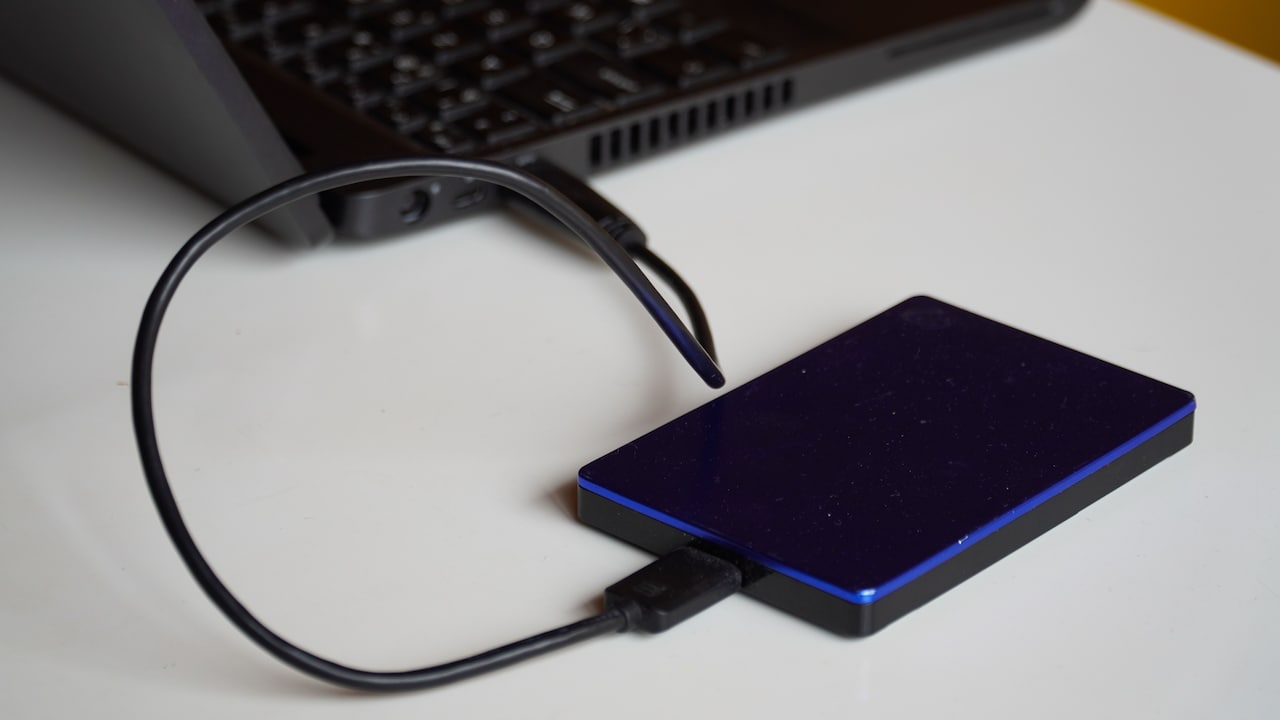
External hard drives have an odd talent for making people anxious with very little effort. One moment, a large folder is moving normally. The next, the drive begins making a faint click, tick or tap from somewhere inside its plastic case. For anyone transferring years of family photographs, office files or a 200 GB video archive, that tiny sound can feel surprisingly dramatic. The good news is that clicking does not always mean the drive is dying. Traditional external hard disk drives contain moving parts, including spinning platters and a read/write head. Some mechanical noise is therefore perfectly normal. A drive may become more audible when handling thousands of small files, searching scattered data or working continuously for several minutes. However, there is an important difference between occasional mechanical chatter and repeated, rhythmic clicking accompanied by slow transfers, disconnections or unreadable files. Understanding that difference matters because storage problems rarely announce themselves politely. They tend to appear during inconvenient moments, perhaps while backing up wedding photographs before clearing a laptop or copying a presentation the night before an important meeting. Here are ten common reasons external hard drives click during file transfers, along with clues that help separate harmless activity from a genuine problem.

10 Reasons Your External Hard Drive Clicks And When To Worry; Photo Credit: Pexels
Why External Hard Drives Click During File Transfers
1. Normal Read And Write Head Movement
A traditional hard drive is a surprisingly physical piece of technology. Inside the enclosure, magnetic platters spin while a tiny read/write head moves rapidly across their surfaces to locate and store data. Those movements can produce soft ticks, faint clicks or brief mechanical chatter.
The noise often becomes more noticeable during large file transfers because the drive is working continuously. Copying a single 10 GB video may sound relatively smooth, while transferring 40,000 photographs, documents and thumbnails can create more frequent head movement.
A few occasional clicks with steady transfer speeds usually cause little concern. The drive should remain recognised by the computer, files should open normally, and the transfer should continue without repeated errors.
Attention becomes necessary when the clicking changes character. A loud click every few seconds, especially in an identical rhythm, deserves caution. The same applies when the drive repeatedly pauses or disappears from File Explorer or Finder.
Think of normal drive noise as background kitchen clatter. A few sounds are expected. A pressure cooker behaving like a drum solo deserves investigation.
Also Read: Need More Storage? Buy These Top 10 Compact Hard Disks
2. Heavy File Fragmentation
Hard drives perform best when they can access data efficiently. Over time, however, files may become scattered across different areas of the disk. This fragmentation forces the read/write head to travel repeatedly between locations rather than collecting information from one nearby section.
During a demanding transfer, all that movement can make the drive noticeably busier and noisier.
The effect tends to appear more clearly on older drives that have spent years storing, deleting and rewriting files. Imagine a cupboard where every matching sock has somehow ended up on a different shelf. Finding a complete pair requires far more movement than it should.
Fragmentation alone does not normally produce violent clicking, but it can create frequent seeking sounds and slower performance. If the drive behaves normally outside intensive transfers, fragmentation or scattered data may explain the extra chatter.
Modern operating systems usually handle drive optimisation automatically, so aggressive manual defragmentation is rarely necessary. More importantly, nobody should begin a lengthy optimisation process when a drive already shows signs of failure.
When clicking appears alongside unreadable folders or repeated transfer errors, securing important data should take priority over tidying the disk.
3. Insufficient Power From The USB Port
External hard drives need a stable supply of electricity. Portable models usually draw that power directly through USB, which means the quality of the connection matters more than many users realise.
If a port cannot provide enough power, the drive may struggle to spin its platters consistently or position its internal mechanism correctly. Clicking, restarting or repeated connection sounds may follow.
This situation sometimes occurs when the drive is connected through an unpowered USB hub crowded with keyboards, webcams, card readers and other accessories. Older laptop ports can also cause trouble, particularly when several devices draw power at once.
A useful clue is inconsistency. The drive may work perfectly through one USB port but click or disconnect through another. Connecting it directly to the computer rather than through a hub may improve stability.
Desktop external drives with separate power adapters can face similar problems when an adapter becomes damaged or loose.
Persistent clicking despite a reliable power source is more concerning. Repeated spin-up attempts followed by clicks can indicate an internal mechanical problem rather than simple power starvation.
10 Reasons Your External Hard Drive Clicks And When To Worry; Photo Credit: Pexels
4. A Faulty Or Loose USB Cable
The humble USB cable rarely receives much attention until something stops working. Yet a damaged or loose cable can create surprisingly alarming symptoms.
During a large file transfer, the connection carries a constant stream of data. A worn connector, sharply bent cable or poorly fitting plug may interrupt that communication. The drive can briefly reset, pause or attempt operations again, making its normal mechanical sounds more obvious.
The first sign may not even be the clicking. Transfer speeds can suddenly fall to zero, the progress bar may freeze or the computer may display messages saying the device was disconnected unexpectedly.
Trying another compatible, good-quality cable is one of the simplest diagnostic steps. It costs far less than replacing a drive and can save considerable frustration. A basic replacement cable may cost only a few hundred rupees, depending on the connector type and quality.
Cable trouble becomes less likely when the same clicking continues across different computers and cables.
Repeated mechanical clicking with file errors points towards the drive itself. At that stage, endlessly reconnecting it may place already fragile hardware under additional stress.
5. The Drive Is Becoming Too Hot
Hard drives produce heat while operating, particularly during long transfers. A portable drive sitting on a bed, sofa or pile of papers may have surprisingly poor ventilation.
As temperatures rise, performance can become inconsistent. Components inside the enclosure expand slightly, electronics work under greater strain and the drive may repeatedly reposition its heads while attempting to complete operations.
The result can include increased mechanical chatter, slower transfers or unexpected pauses.
Warmth alone is normal. A hard drive that has copied several hundred gigabytes will rarely feel refrigerator-cool. Excessive heat is different. If the enclosure becomes uncomfortably hot to touch or the drive repeatedly disconnects after prolonged use, temperature deserves attention.
Place the drive on a hard, flat surface with space around it. Avoid covering it with notebooks, clothing or that mysterious collection of cables occupying half the desk.
Heat-related behaviour may disappear after the drive cools. However, a clicking drive should not be repeatedly stressed simply to test whether it survives another transfer.
If the noise becomes louder with time, backing up essential files while the drive remains accessible is the wiser priority.
6. Bad Sectors Are Developing
Hard drives divide their storage surfaces into tiny areas called sectors. When some of these areas become damaged or unreliable, the drive may struggle to read the information stored there.
During file transfers, the computer might repeatedly request data from a troublesome section. The drive then makes several attempts to locate and read it, which can create repeated seeking noises or clicks.
Bad sectors often reveal themselves through more than sound. A particular file may refuse to copy. Transfers can stall at the same percentage. Windows may report a data error, while another operating system may complain that a file cannot be read.
One or two damaged sectors do not necessarily mean immediate mechanical collapse. Drives can sometimes remap faulty areas automatically. The concern grows when the number of bad sectors increases or new errors appear regularly.
Important data should be copied elsewhere as soon as practical.
This is one situation where persistence can become expensive. Repeatedly forcing the same failing transfer for hours may place additional strain on a deteriorating drive.
A stubborn folder is irritating. Losing the only copy of years of photographs is considerably worse.
7. The Read And Write Head Is Struggling
One of the more serious causes of clicking involves the read/write head itself. This tiny component moves above the spinning platters and retrieves magnetic information without normally touching their surfaces.
When the head cannot locate the correct track, the drive may repeatedly reposition it and try again. That process can create a distinctive recurring click.
Technicians sometimes describe severe versions of this behaviour as the "click of death", although not every clicking drive deserves such a dramatic label.
The warning pattern is usually difficult to ignore. The drive may click at regular intervals, fail to appear on the computer, vanish halfway through a transfer or show folders that suddenly become inaccessible.
Continuing to power-cycle the drive repeatedly is risky if the head assembly is genuinely failing. Mechanical problems can worsen, potentially damaging the platter surface and making professional recovery more difficult.
For replaceable films or downloaded software, the loss may simply be inconvenient. For business accounts, client projects, family videos or irreplaceable photographs, professional data recovery may become worth considering despite potentially substantial costs.
Repeated rhythmic clicking deserves far more caution than occasional soft seeking sounds.
10 Reasons Your External Hard Drive Clicks And When To Worry; Photo Credit: Pexels
8. The Drive Has Suffered Physical Shock
External drives travel everywhere. They sit in backpacks, desk drawers and laptop bags, often beside chargers and keys. Unfortunately, traditional hard disks do not appreciate sudden physical shocks.
Dropping a drive, knocking it off a table or even giving it a hard bump while its platters are spinning can disturb delicate internal components.
Sometimes the damage appears immediately. At other times, the drive works normally until a transfer demands access to a damaged section. Clicking then begins as the mechanism repeatedly attempts to retrieve data.
A recent fall followed by a new mechanical noise should therefore be treated seriously.
Avoid the temptation to shake the drive, tap the enclosure or search for a magical angle at which it suddenly behaves. Such tricks belong in the same category as hitting an old television to improve reception: memorable, occasionally lucky and generally unwise.
If the drive contains valuable information, minimise further use. Professional recovery may offer the best chance when physical damage has occurred.
For future protection, solid-state external drives tolerate movement better because they contain no spinning platters. They usually cost more per gigabyte, but frequent travellers may find that extra durability worthwhile.
9. File System Errors Are Causing Repeated Access Attempts
Not every suspicious clicking sound originates from broken hardware. Sometimes the drive's file system contains errors that confuse the operating system during transfers.
The file system acts like an organised catalogue, helping the computer understand where files begin, where they end and which storage locations belong to them. If that structure becomes corrupted, the computer may repeatedly request information or struggle to navigate certain folders.
The mechanical drive responds by searching again and again, producing extra seeking sounds.
File system problems can develop after unsafe removal, sudden power loss, a computer crash or disconnecting the drive while data is still being written.
Typical symptoms include folders that take unusually long to open, requests to scan or repair the drive, missing file names or transfers that repeatedly fail.
Built-in disk-checking utilities can sometimes correct logical errors, but caution matters. Repair operations modify the disk.
If valuable files remain accessible, creating another copy before attempting repairs is sensible. When serious clicking accompanies file system errors, the apparent software problem may actually sit on top of failing hardware, making aggressive repair attempts risky.
10. The Drive Is Reaching The End Of Its Working Life
Mechanical hard drives do not last forever. Bearings wear, motors weaken, read/write assemblies age and electronic components endure years of heating and cooling.
A drive that has survived college assignments, three laptops, endless family photographs and several hurried office backups may eventually begin showing its age.
Clicking during transfers can be one of the early signs.
Age alone does not determine failure. Some drives operate reliably for many years, while others develop problems much sooner. Usage patterns, temperature, manufacturing variation, physical treatment and power quality all influence lifespan.
The important factor is behavioural change. A drive that has always produced a gentle hum but suddenly develops loud clicks, pauses and slow transfers deserves attention regardless of its age.
Check whether important files exist elsewhere. If not, creating another copy should become the priority while the drive remains readable.
Replacing an ageing backup drive can feel unnecessary when it still technically works, but storage is cheaper than recovery. Spending ₹5,000 or ₹7,000 on new storage is far easier to accept than discovering that the only copy of something precious disappeared with an old drive that had been warning everyone for weeks.
Products Related To This Article
1. Seagate Expansion 1TB External HDD
2. Western Digital WD 2TB My Passport Portable Hard Disk Drive
3. KINGSTER 500GB External Hard Drive – USB 3.0 Portable HDD
4. UnionSine External Hard Disk Drive 1TB Portable HDD USB 3.0 Black
5. GEONIX PowerShell S3 500GB Portable External Hard Drive 2.5-Inch SATA USB 3.0
6. WD Western Digital My Passport 6TB Black
7. Seagate One Touch 4TB External HDD with Password Protection
A clicking external hard drive does not automatically mean disaster. Mechanical drives naturally make noise as their heads move, platters spin, and files scatter across different parts of the disk. Heavy transfers can simply make those normal sounds easier to hear.
Context matters far more than one isolated tick.
Occasional soft clicking with normal speeds, stable connections and readable files usually points towards ordinary activity. Clicking caused by a weak USB connection, damaged cable, heat or demanding workloads may also disappear once the underlying issue is corrected.
Repeated rhythmic clicking tells a different story, particularly when it appears alongside slow transfers, corrupted files, disappearing folders or frequent disconnections. Bad sectors, head problems, physical shock and general mechanical wear can all place stored data at risk.
The most valuable habit is also the least exciting: keep important files in more than one place. External hard drives are useful backup tools, but no single drive should become the sole home of irreplaceable photographs, financial records or important work.
When a familiar drive suddenly starts sounding unfamiliar, pay attention. Sometimes it is merely busy. Sometimes it is asking for retirement before making the decision itself.
(Disclaimer: This article may include references to or features of products and services made available through affiliate marketing campaigns. NDTV Convergence Limited (“NDTV”) strives to maintain editorial independence while participating in such campaigns. NDTV does not assume responsibility for the performance or claims of any featured products or services.)