Premium Laptop Overheating Too Fast? Everyday Mistakes And Smart Fixes That Actually Work
Premium laptop overheating often stems from simple daily mistakes like blocked vents, dust, and poor charging habits. Smart maintenance and practical fixes can improve cooling, protect performance, and extend device life.

Premium Laptop Overheating Too Fast? Everyday Mistakes And Smart Fixes That Actually Work
There is something deeply frustrating about investing in a premium laptop, expecting speed and efficiency, only to hear the fan roar louder than a crowded local train at rush hour. The machine heats up, the keyboard turns uncomfortable, and suddenly, even opening multiple tabs feels risky. Overheating is not merely an inconvenience. Excess heat can reduce battery lifespan, slow performance, and even damage internal components over time. Many assume high temperatures mean poor build quality, but often the real culprits are everyday habits that quietly sabotage even the best laptops.

Premium Laptop Overheating Too Fast? Everyday Mistakes And Smart Fixes That Actually Work
Photo Credit: Pexels
Whether the device is used for office work, creative projects, gaming, or binge-watching late-night cricket highlights, heat management matters. Surprisingly, small adjustments can make a major difference. Better airflow, smarter charging routines, and a few maintenance habits can keep temperatures under control without spending a fortune at a service centre.
For those tired of their expensive laptop behaving like an overheated pressure cooker, these practical fixes offer genuine relief.
Everyday Mistakes And Smart Fixes That Actually Work
Blocking Air Vents Is A Silent Performance Killer
One of the most common mistakes happens in the most comfortable places: beds, sofas, and laps. Premium laptops rely on carefully designed ventilation systems to release heat. Soft surfaces block these vents, trapping hot air inside and causing internal temperatures to spike rapidly.
Picture someone working from bed during monsoon season, laptop balanced on a blanket. It may feel cosy, but the device is essentially suffocating. This restricted airflow forces cooling fans to work overtime, draining battery and stressing components.
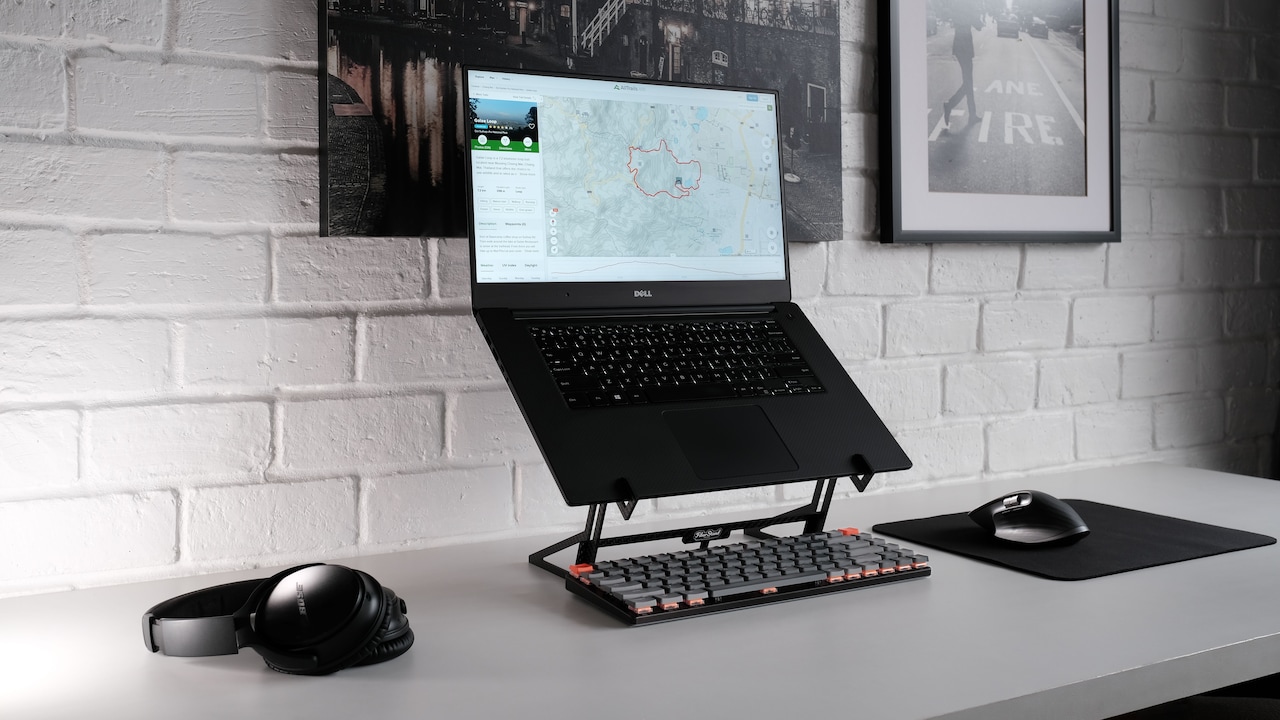
Using a hard, flat surface instantly improves ventilation. Laptop stands can also help by lifting the machine slightly, creating better air circulation underneath. Even a simple wooden tray can make a noticeable difference.
Many users underestimate how much the environment affects heat levels. A laptop placed on a cluttered desk surrounded by papers faces similar struggles. Keeping vents clear allows the cooling system to function as intended. Sometimes, the smartest fix is not technical at all. It is simply giving the laptop room to breathe.
Dust Build-Up Turns Cooling Systems Into Weak Defenders
Dust is the sneaky villain of laptop performance. Over weeks and months, tiny particles gather inside vents and fans, reducing cooling efficiency. This issue becomes even more noticeable in bustling urban homes where dust accumulation happens faster than expected.
A dusty fan cannot cool effectively. Instead, it circulates warm air while the processor continues heating up. The result feels dramatic: slower speeds, louder fans, and uncomfortable surface temperatures.
Regular cleaning makes a significant difference. Compressed air can clear vents without opening the machine, while professional servicing every year keeps internal components cleaner. Spending ₹1,500 on preventive maintenance often saves far more in future repairs.
Ignoring dust is like expecting an air conditioner to cool a room with clogged filters. Premium laptops need upkeep, regardless of their price tag. Sleek design does not make them immune to grime. A clean machine performs better, lasts longer, and stays noticeably cooler.
Also Read: Top 5 Laptop Backpacks For Professionals Who Hate Bulky Designs
Too Many Background Apps Create Unnecessary Heat
Modern laptops often juggle dozens of hidden tasks without users noticing. Automatic updates, browser tabs, cloud syncing, and startup apps quietly consume processing power. This constant workload generates excess heat, even during basic tasks.
A laptop should not feel scorching hot while merely sending emails or editing documents. When it does, overloaded background processes may be the cause.
Task Manager or Activity Monitor can reveal resource-hungry applications. Closing unnecessary programs and disabling excessive startup apps reduces processor strain immediately. Lightweight browser habits also help. Keeping 35 tabs open may feel productive, but it can push even premium systems harder than necessary.
Many users treat laptops like endless multitasking machines, then wonder why temperatures rise. Smarter app management is like decluttering a busy kitchen before cooking. Less chaos means smoother, cooler performance.
Charging Habits Can Secretly Increase Heat Levels
Charging generates heat naturally, but poor charging routines worsen the problem. Using non-certified chargers, gaming while plugged in, or keeping the laptop constantly at 100% charge can all contribute to temperature issues.
Fast charging, while convenient, often raises temperatures quickly. Combine this with intensive use, and the machine experiences dual stress from workload and battery heat.
Using manufacturer-approved chargers is essential. Charging in cooler spaces and unplugging once the battery reaches healthy levels can also help. Many premium laptops now offer battery optimisation settings that cap charging at around 80%, reducing thermal strain.
Think of it like constantly overfilling a fuel tank while driving uphill. It creates unnecessary pressure. Balanced charging habits preserve both battery health and overall temperature control.
Ignoring Software Updates Can Worsen Thermal Management
Software updates are not just about shiny features or security patches. Manufacturers frequently release thermal management improvements through BIOS and system updates. Skipping these updates can leave laptops running inefficient cooling profiles.
An outdated system may mismanage fan speeds, processor power, or battery settings, causing avoidable overheating. Users often postpone updates endlessly, fearing inconvenience, but this delay can cost performance.
Installing updates regularly ensures the laptop benefits from the latest optimisations. Graphics driver updates are particularly important for creative professionals and gamers, where heat loads are heavier.
A laptop without updated software is a bit like driving through city traffic with outdated maps. It may still function, but not efficiently. Staying current often leads to quieter fans and better temperature regulation.

Premium Laptop Overheating Too Fast? Everyday Mistakes And Smart Fixes That Actually Work
Photo Credit: Pexels
Heavy Gaming And Editing Without Cooling Support Is Risky
Premium laptops may boast powerful processors and graphics cards, but slim designs often struggle under sustained heavy loads. Video editing, gaming, or 3D rendering can generate intense heat rapidly.
Running such tasks for hours without cooling support can push temperatures dangerously high. External cooling pads offer practical assistance by improving airflow and reducing heat build-up.
While cooling pads cost between ₹1,500 and ₹4,000, they are often worthwhile for performance-heavy users. Lower temperatures can also prevent throttling, where the laptop intentionally slows down to avoid damage.
High-end machines are powerful, but they are not invincible. Demanding workloads require sensible support. Expecting marathon performance without thermal help is like driving a luxury car nonstop in peak summer without checking the radiator.
Poor Room Conditions Amplify Laptop Heat
Ambient temperature matters more than many realise. Using laptops in hot, poorly ventilated rooms naturally raises baseline temperatures, making cooling systems work harder.
Summer afternoons, especially during power cuts or weak fan circulation, can turn laptops into heat magnets. Direct sunlight worsens the issue dramatically.
Air-conditioned spaces help, but even basic room ventilation can improve thermal performance. Positioning the laptop away from windows and heat sources also matters.
The environment shapes device performance. Premium hardware cannot fully compensate for harsh surroundings. Keeping the workspace cooler benefits both user comfort and machine longevity.
Sometimes the simplest solution is not inside the laptop, but around it.
Thermal Paste Degradation Reduces Cooling Efficiency Over Time
Thermal paste plays a critical role in transferring heat from processors to cooling systems. Over the years, this paste can dry out, reducing heat transfer effectiveness.
Older premium laptops, especially after two to three years, may overheat despite careful use due to degraded thermal paste. Professional replacement can significantly improve temperatures.
Though repasting may cost ₹3,000 to ₹7,000, depending on the model, it often restores cooling efficiency impressively. For users noticing sudden heat increases in ageing devices, this step can be transformative.
Many overlook thermal paste because it remains invisible, yet its role is vital. Think of it as the hidden glue keeping cooling performance intact.
Over-Reliance On Maximum Performance Settings Creates Heat
Performance modes boost speed, but they also increase power consumption and heat output. Many users keep laptops in high-performance mode constantly, even for basic browsing or document editing.
This unnecessary power usage strains internal systems and raises temperatures without real benefits.
Switching to balanced or battery saver modes during lighter tasks can dramatically reduce heat generation. Modern laptops are smart enough to adapt performance when needed.
Using full-throttle mode all day is like revving a superbike in traffic jams. It wastes energy and creates needless stress.
Smart power management offers cooler operation while preserving premium performance for when it truly matters.
Accessories And Peripherals Can Influence Heat More Than Expected
External monitors, USB hubs, hard drives, and connected devices all place additional demands on laptops. These peripherals increase power draw and internal processing activity, often contributing to higher temperatures.
A workstation loaded with accessories may look impressive, but it can quietly push the laptop harder than intended.
Disconnecting unused peripherals and using powered hubs when necessary reduces this strain. Efficient setup choices can improve thermal performance substantially.
Premium laptops thrive best when supported intelligently, not overloaded unnecessarily.

Premium Laptop Overheating Too Fast? Everyday Mistakes And Smart Fixes That Actually Work
Photo Credit: Pexels
Products Related To This Article
1. Dell 15, 13th Gen Intel Core i5-1334U (16GB DDR4, 512GB SSD) Anti-Glare FHD 15.6"
2. ASUS TUF A15 (2025), AMD Ryzen 7 7445HS
3. Apple 2026 MacBook Air 13″ Laptop with M5 chip
4. ASUS Vivobook 15, Smartchoice,Intel Core i5 13th Gen 13420H
5. HP Omnibook 5 OLED (Previously Pavilion)
6. acer Nitro V 15, AMD Ryzen 5 6600H Hexa-core Processor
7. HP Victus, AMD Ryzen 7 7445HS, 6GB RTX 4050
Laptop overheating can feel alarming, especially when the device carries a premium price tag. Yet in most cases, the problem is not flawed engineering but everyday habits that gradually raise temperatures.
Blocked vents, dust, charging mistakes, overloaded software, and poor environmental conditions all play surprisingly large roles. Thankfully, practical changes can make a remarkable difference. Simple steps like improving airflow, cleaning regularly, managing apps wisely, and maintaining hardware properly can extend a laptop's lifespan significantly.
A premium laptop should deliver smooth performance, not constant thermal anxiety. Treating it with a little care ensures it stays efficient, reliable, and cool under pressure.
In the end, avoiding overheating is less about expensive fixes and more about smarter daily choices. Sometimes, the best solution is not buying a new machine, but simply using the current one more wisely.
(Disclaimer: This article may include references to or features of products and services made available through affiliate marketing campaigns. NDTV Convergence Limited (“NDTV”) strives to maintain editorial independence while participating in such campaigns. NDTV does not assume responsibility for the performance or claims of any featured products or services.)