What To Do If Your Bluetooth Adapter Keeps Losing Connection
Is your Bluetooth adapter losing connection? Find out the most common causes and practical fixes to restore stable wireless connectivity on your device.
What To Do If Your Bluetooth Adapter Keeps Losing Connection
Bluetooth connections are designed to make your life easier, whether you're using wireless headphones, a keyboard, a mouse, Bluetooth speakers, or sharing files between devices. But the problem is, when your Bluetooth adapter keeps disconnecting for no reason, it can be very frustrating. One moment everything is working fine; the next your device disappears, the audio cuts out, or the connection completely drops. The problem can occur in both built-in Bluetooth adapters and external USB dongles, and it usually happens due to outdated drivers, power settings, wireless interference, or software conflicts.
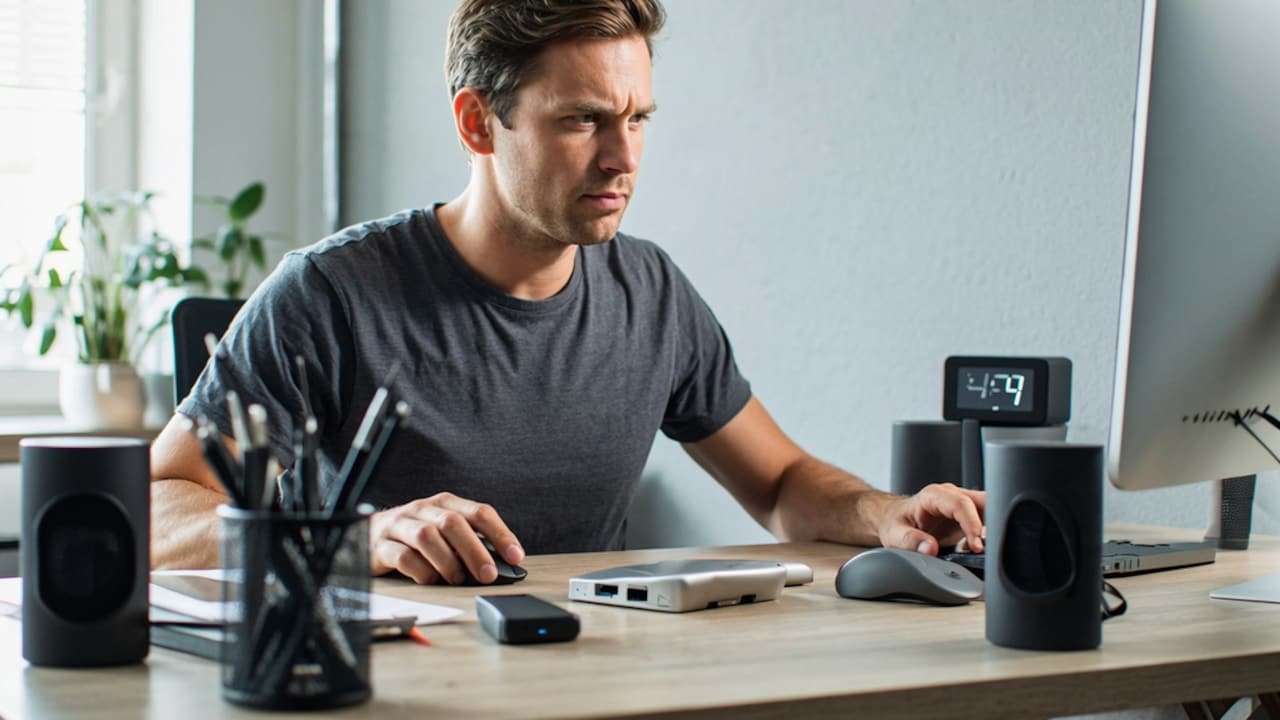
Discover the most common causes and easy solutions to restore a stable Bluetooth connection; Photo Credit: iStock
Why Does a Bluetooth Adapter Keep Losing Connection?
Before jumping into fixes, it helps to understand what's behind the problem. A Bluetooth adapter's repeated disconnection typically stems from a few fundamental issues: wireless interference from nearby devices, outdated or corrupted drivers, power management settings that turn off the adapter to conserve battery, or physical obstructions between your device and the connected accessory.
Software conflicts, low battery levels in the peripheral device, or a cluttered Bluetooth pairing list can all cause these issues. Sometimes the problem is not with the hardware at all but with Windows or the operating system's settings.
How To Fix Bluetooth Adapter Connection Drops On Windows
Step 1: Disable Power Management For The Bluetooth Adapter
Windows often switches off Bluetooth adapters automatically to conserve power, which causes the connection to drop without warning. Disabling this setting is one of the first things worth trying.
Open Device Manager, expand the Bluetooth section, and right-click your adapter. Select Properties, go to the Power Management tab, and untick the box that says “Allow the computer to turn off this device to save power.” Click OK and restart your machine. This small change alone resolves the issue for many users.
Step 2: Update Or Reinstall The Bluetooth Driver
An outdated or corrupted driver is one of the most common causes of unstable Bluetooth connections. Open Device Manager, right-click on your Bluetooth adapter, and select Update driver. Let Windows search for it automatically, or go to your laptop or motherboard manufacturer's website and download the latest driver yourself.
If the update didn't help, try fully uninstalling the driver and rebooting your computer. Windows will reinstall a fresh copy on boot. This often clears up any corruption that is causing the drop-outs.
Step 3: Run The Bluetooth Troubleshooter
Windows also has a built-in troubleshooter that can automatically find and fix common Bluetooth problems. Go to Settings > System > Troubleshoot > Other troubleshooters. In the list, locate Bluetooth and execute it. There are no guarantees, but it's fast and can catch things you might miss by hand.
Also Read: How To Choose A Wireless Bluetooth Speaker That Sounds Clean and Sharp
How To Reduce Wireless Interference Affecting Your Bluetooth
1. Identify Nearby Devices Causing Interference
Bluetooth works in the 2.4GHz frequency band, which is also used by Wi-Fi routers, microwaves, baby monitors, and many other wireless devices. But when many of them are active in the same space, they compete for bandwidth and disrupt the signal.
If your Wi-Fi router has dual-band capabilities, try switching to the 5 GHz band. Or, try moving other wireless devices away from your Bluetooth adapter. Shifting your router slightly can greatly enhance Bluetooth stability.
2. Reduce Physical Obstructions
Walls, big metal objects, and even your body can weaken a Bluetooth signal. If your connected device is across the room or behind a thick surface, try moving it closer to your computer or moving the adapter so it has a clearer line of sight.
The positioning of USB Bluetooth adaptors is especially sensitive. If the adapter is plugged into a port on the back of a desktop tower, try a USB extension cable to pull the adapter out from behind the case, where it can pick up a cleaner signal.
What To Do When the Bluetooth Keeps Disconnecting on Specific Devices
1. Check the Battery Level of Your Peripheral
A wireless headset, mouse, or keyboard with a low battery will often drop its connection before powering off completely. This can look like an adapter problem when it's actually just a dying battery in the accessory. Check the battery level of the device you're trying to connect, charge it fully, and test again.
2. Remove Old or Conflicting Bluetooth Pairings
A long list of old paired devices can sometimes create conflicts, particularly if a nearby device your adapter previously paired with tries to reconnect automatically. Go into your Bluetooth settings and remove any devices you no longer use. Then, re-establish the connection with the problematic device from the beginning. A fresh pairing often produces a much more stable connection than one that's been around for a while.
Additional Tips To Keep Your Bluetooth Connection Stable
1. Keep Your System and Firmware Up To Date
Keeping your operating system and drivers updated can help you avoid most Bluetooth problems caused by software. Also, it is always a good idea to check for updates for your OS and your peripheral device, as the manufacturer will often release firmware patches that directly address connectivity issues. You should also ensure that your Bluetooth adapter supports the same Bluetooth version as your peripheral device, as there can be issues with mismatched versions.
If you have a USB Bluetooth dongle, try using another USB port, preferably a USB 3.0 or higher port. Occasionally it's a faulty port, and it only takes seconds to test the port switch. Built-in adapters always underperform, and a plug-in USB Bluetooth dongle is a cheap upgrade that can vastly improve range and reliability.
Learn why your Bluetooth adapter loses connection and how to fix wireless stability issues; Photo Credit: iStock
Some Products You May Like
1. Amazon Basics 2 in 1 Bluetooth 5.0 Transmitter Receiver
2. TP-Link USB Bluetooth Adapter
3. Amazon Basics 150Mbps Nano Wireless USB Wi-Fi Adapter
4. YellowCult USB Bluetooth Adapter
5. PACE USB Bluetooth Adapter for PC
6. EVM Bluetooth 5.1 USB Adapter
7. PACE USB Bluetooth Adapter Version 5.4
8. Sellingal Generic Ultra-Mini Bluetooth CSR 5.0 USB Dongle Adapter
Most Bluetooth connection problems can be resolved without replacing your hardware or calling in a professional repair. It also helps to troubleshoot the problem step by step rather than trying random fixes. The exact cause is known, and it is much easier to get a stable connection back and keep the problem from coming back. Here are some of the best solutions that can help if your Bluetooth adapter keeps disconnecting. Shop now on Amazon
Frequently Asked Questions (FAQs)
1. Why does my Bluetooth adapter keep disconnecting every few minutes?
This is usually caused by Windows' power management feature, which switches off the adapter to save battery. Disabling that option in Device Manager is typically the quickest fix.
2. Can a Wi-Fi router affect my Bluetooth connection?
Yes. Both operate on the 2.4GHz band, so interference is common. Switching your router to 5GHz or moving it away from your Bluetooth devices usually helps.
3. Does reinstalling Bluetooth drivers actually help?
Frequently, yes. Corrupted or outdated drivers are a surprisingly frequent cause of connection drops, and a fresh installation resolves them more often than not.
4. How do I know if the problem is the adapter or the connected device?
Try pairing a different Bluetooth device to see if the drops continue. If they do, the adapter is likely the issue. If the new device connects cleanly, the problem is with the original peripheral.
5. Should I buy a new Bluetooth adapter if nothing works?
If you've worked through all the software fixes and interference checks without success, a USB Bluetooth adapter is worth trying. They're relatively affordable and often offer better performance than older built-in adapters.
(Disclaimer: This article may include references to or features of products and services made available through affiliate marketing campaigns. NDTV Convergence Limited (“NDTV”) strives to maintain editorial independence while participating in such campaigns. NDTV does not assume responsibility for the performance or claims of any featured products or services.)