Why Is My Smart TV Slow, Lagging Or Frozen? Settings That Slow Down Performance
Is your Smart TV slow, laggy or freezing at the worst moments? The problem often lies in everyday settings. This guide explains what’s slowing your TV down and how to fix it for smoother performance.
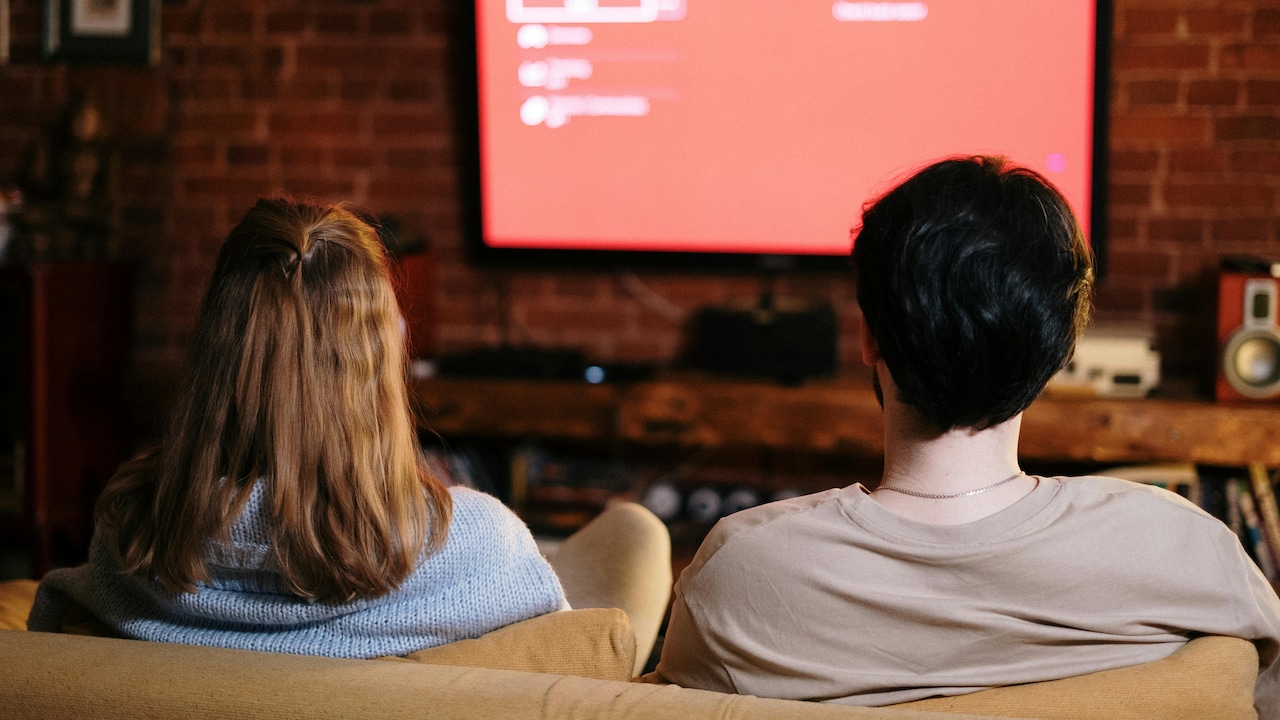
Here Are The Reasons Why Your Smart TV Is So Slow - Common Settings That Cause Lag and Freezing.
Smart TVs promised effortless entertainment. One remote, endless content, and no clutter. Yet many homes face the same irritation: the TV stutters during a cricket match, Netflix buffers during a thriller's climax, or YouTube freezes right when the punchline lands. The frustration grows when the television isn't even that old.
The truth remains simple. Smart TVs behave like smartphones with larger screens and fewer updates. Over time, apps pile up, storage fills, settings clash, and performance drops. Most issues have nothing to do with price or brand. They stem from default configurations that favour features over speed.
This article explores the most common reasons behind sluggish Smart TVs. Each section focuses on one specific setting or habit that slows things down. Expect clear explanations, relatable examples, and practical fixes that restore smooth performance, without technical jargon or expensive repairs.
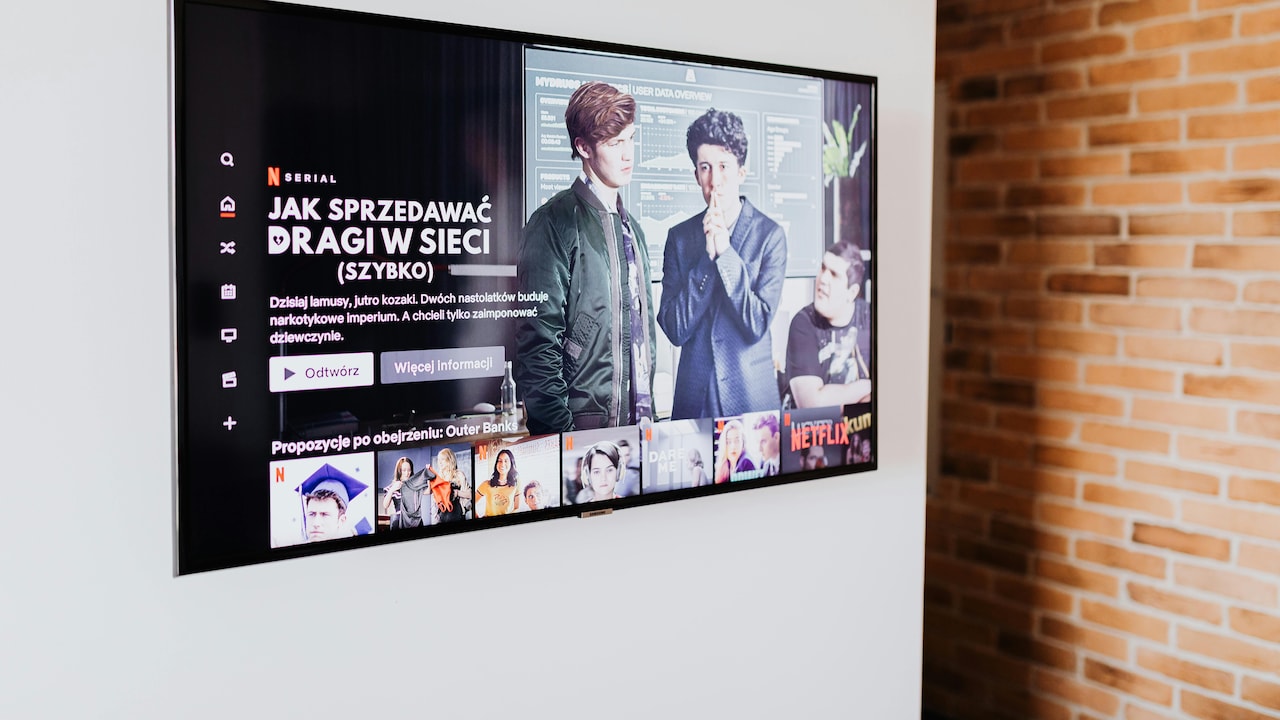
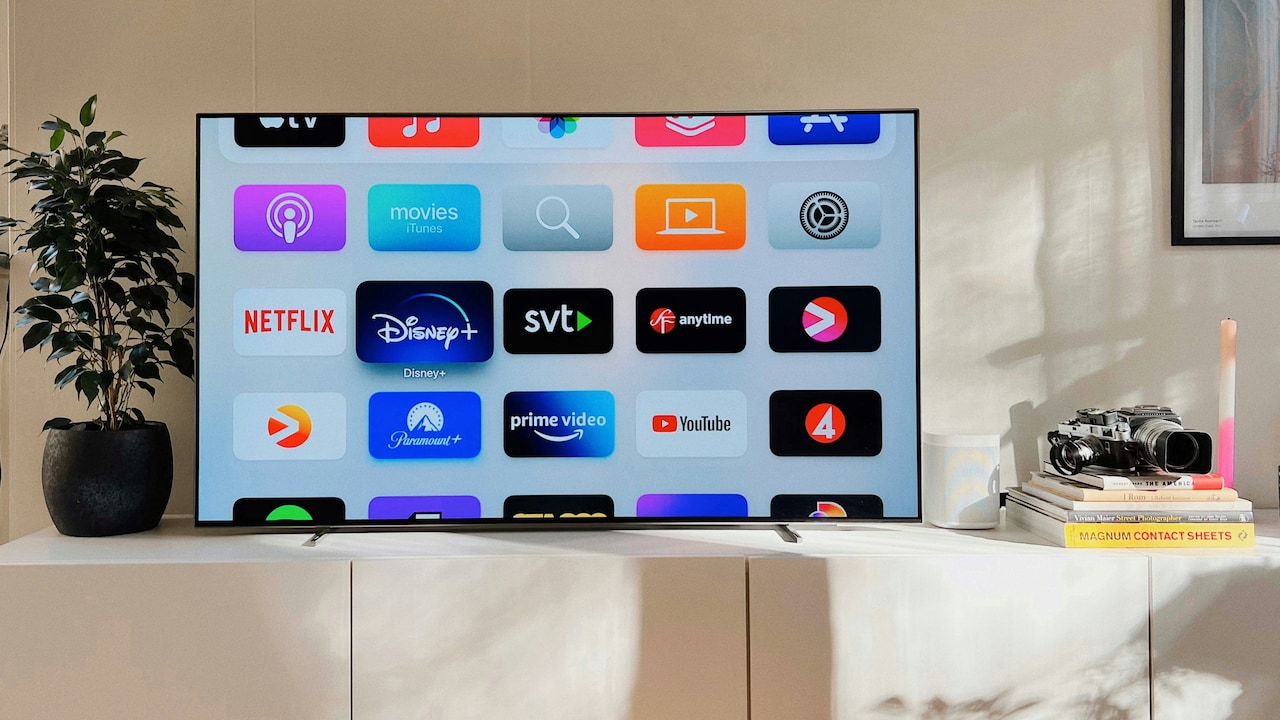
Smart TV Lagging or Frozen? Hidden Settings That Slow Down Performance
Photo Credit: Pexels
The Hidden Reasons Your Smart TV Starts Acting Sluggish Over Time
1. Too Many Apps Running in the Background
Smart TVs rarely close apps fully. They stay half-awake in the background, ready to resume instantly. While this sounds helpful, it eats into memory. Over time, multiple streaming apps quietly drain processing power.
Picture switching between a sports app, YouTube, and a movie platform within minutes. Each app stays loaded unless manually closed. The TV begins to struggle, menus lag, and buttons feel unresponsive.
Many televisions lack powerful processors. Background apps overwhelm them faster than expected. This causes freezing screens or delayed audio.
Closing unused apps regularly makes a noticeable difference. Some models allow force-closing through settings. Others require pressing the back button until the app exits fully. A quick restart every few days clears memory and restores speed.
Treat the TV like a phone. Fewer open apps mean smoother performance and quicker response times.
2. Auto-Start Apps Slowing Boot Time
Some Smart TVs launch apps automatically when switched on. News apps, recommendations, or branded content often start without permission. These auto-start features slow boot time and create lag from the first second.
The TV turns on, yet the home screen takes ages to appear. Buttons feel slow. Sound appears late. All this happens because apps compete for resources during startup.
Auto-start settings usually hide inside system or app management menus. Turning them off speeds up launch time and improves responsiveness immediately.
A faster start feels refreshing. No waiting. No frozen screens. Just instant access to content.
Disabling unnecessary auto-launch apps reduces clutter and gives the processor breathing space. It remains one of the easiest fixes with the biggest impact.
3. Limited Storage Space Causing Freezes
Smart TVs come with surprisingly small internal storage. A few apps, cached data, thumbnails, and updates fill it quickly. Once storage reaches its limit, performance drops sharply.
Apps struggle to load. Updates fail. The screen freezes randomly. Some TVs even reboot without warning.
Cache files build up silently. Streaming apps store thumbnails and temporary data every time content plays. Over months, this invisible clutter slows everything down.
Clearing the cache and deleting unused apps frees up space. Checking storage status every few months prevents sudden slowdowns.
Think of it like a packed cupboard. Nothing fits, and finding anything becomes a struggle. Clearing space restores order and speed.
4. Software Updates Waiting in the Background
Many users ignore system updates. Some fear changes. Others forget. Meanwhile, outdated software creates compatibility issues with apps.
Older firmware struggles with newer app versions. This mismatch causes lag, crashes, and frozen screens. Security bugs also creep in.
Some TVs download updates in the background but wait for permission to install. During this time, performance suffers as the system prepares files silently.
Keeping software updated improves speed, stability, and app compatibility. Updates often include performance tweaks and bug fixes.
Checking for updates once a month avoids long-term issues. It keeps the TV feeling fresh, responsive, and secure.
5. Heavy Visual Settings Overloading the Processor
Smart TVs love showing off features. Motion smoothing, dynamic contrast, HDR enhancements, and noise reduction sound impressive. In reality, they push the processor hard.
These settings process every frame in real time. Cheaper or older TVs struggle to keep up. The result shows as lag, stutter, or audio-video mismatch.
Sports broadcasts and fast-action scenes suffer the most. Motion smoothing causes unnatural visuals and occasional freezing.
Reducing or disabling advanced picture enhancements improves performance instantly. Standard or cinema modes often run smoother than vivid presets.
The picture may look less flashy, but playback feels stable and natural. Smooth viewing always beats artificial sharpness.
6. Internet Settings That Create Buffering Illusions
Not every lag issue comes from slow internet. Sometimes the TV's network settings cause problems even with fast connections.
Automatic DNS settings, outdated Wi-Fi standards, or weak signal strength create delays. Streaming apps buffer despite decent broadband speeds.
Placing the router far from the TV weakens signals. Walls and furniture interfere more than expected.
Switching to a wired Ethernet connection improves stability. If Wi-Fi remains the only option, choosing the right band and repositioning the router helps.
Changing DNS settings to reliable public servers also improves streaming performance. Stable connections reduce buffering, freezing, and app crashes.
7. Voice Assistants and Smart Features Always Listening
Voice assistants sound convenient. They also consume resources constantly. The TV listens, processes, and stays alert even when unused.
Smart recommendations, personalised ads, and activity tracking run quietly in the background. Over time, they slow the system.
Disabling unused smart features improves speed and privacy. Voice assistants can remain off unless actively needed.
Fewer background processes mean faster menus and quicker app launches. The TV focuses on entertainment rather than listening.
Less clutter, fewer distractions, and smoother performance follow.
Smart TV Lagging or Frozen? Hidden Settings That Slow Down Performance
Photo Credit: Pexels
8. Overloaded Home Screen and Widgets
Modern Smart TV home screens feel crowded. Recommendations, ads, previews, and widgets load simultaneously. Each element demands memory and processing power.
Scrolling through the home screen feels sluggish. Tiles load slowly. Sometimes the screen freezes entirely.
Customising the home screen helps. Removing unnecessary widgets, previews, and sponsored content reduces load.
A clean interface responds faster and feels calmer. Navigation becomes intuitive rather than frustrating.
Simple layouts suit everyday viewing far better than flashy dashboards.
9. Ageing Hardware Showing Its Limits
Even with perfect settings, hardware ages. Entry-level TVs use modest processors and limited RAM. Over time, newer apps demand more resources.
Updates grow heavier. Features increase. Hardware stays the same.
This mismatch causes a gradual slowdown. Apps load more slowly. Crashes appear more often.
While upgrades may seem tempting, optimising settings often extends usability by years. Reducing background features, clearing storage, and limiting apps helps older TVs cope better.
Understanding hardware limits prevents unrealistic expectations and unnecessary frustration.
10. Rare Reboots and No Maintenance Routine
Many TVs run continuously for months. They enter standby mode rather than shutting down fully. Memory fills. Background tasks pile up.
A simple restart clears temporary files and refreshes the system. It works like magic yet remains overlooked.
Restarting the TV once a week keeps performance stable. Power cycling by unplugging for a minute helps even more.
Routine maintenance keeps issues away. A little care goes a long way in preserving smooth operation.
Products Related To This Article
1. Onida 80 cm (32 inch) Smart Genius Series HD Ready Smart LED TV 32AHI
2. Hisense 253 cm (100 inches) U7Q Series 4K Ultra HD Smart QLED Mini LED TV
3. VW ( Visio World. 101 cm (40 inches) OptimaX Series Full HD Smart QLED Android TV
4. Philips 80 cm (32 inches) 6100 Series Frameless HD Smart LED Google TV 32PFT6130/94
5. Samsung 80 cm (32 inches) HD Smart LED TV UA32H4550FUXXL
6. LG 80 cms (32 inches) LR570 Series Smart webOS LED TV 32LR570B6LA
7. Xiaomi 80 cm (32 inches) G QLED Series Smart TV L32MB
A slow Smart TV rarely signals failure. Most issues stem from hidden settings, background clutter, or neglected maintenance. With a few thoughtful adjustments, performance improves dramatically.
Closing unused apps, freeing storage, updating software, and simplifying settings restores speed and stability. The viewing experience becomes enjoyable again rather than stressful.
Smart TVs reward attention. Treat them like the smart devices they are. A little care ensures smooth streaming, faster menus, and fewer frozen moments, so entertainment stays effortless, just as promised.
(Disclaimer: This article may include references to or features of products and services made available through affiliate marketing campaigns. NDTV Convergence Limited (“NDTV”) strives to maintain editorial independence while participating in such campaigns. NDTV does not assume responsibility for the performance or claims of any featured products or services.)