How to Fix a Blurry Projector: Setup Errors That Ruin Picture Quality
A blurry projector image is often caused by simple setup mistakes. Learn the most common errors that affect picture clarity and how to fix them quickly without replacing your projector.
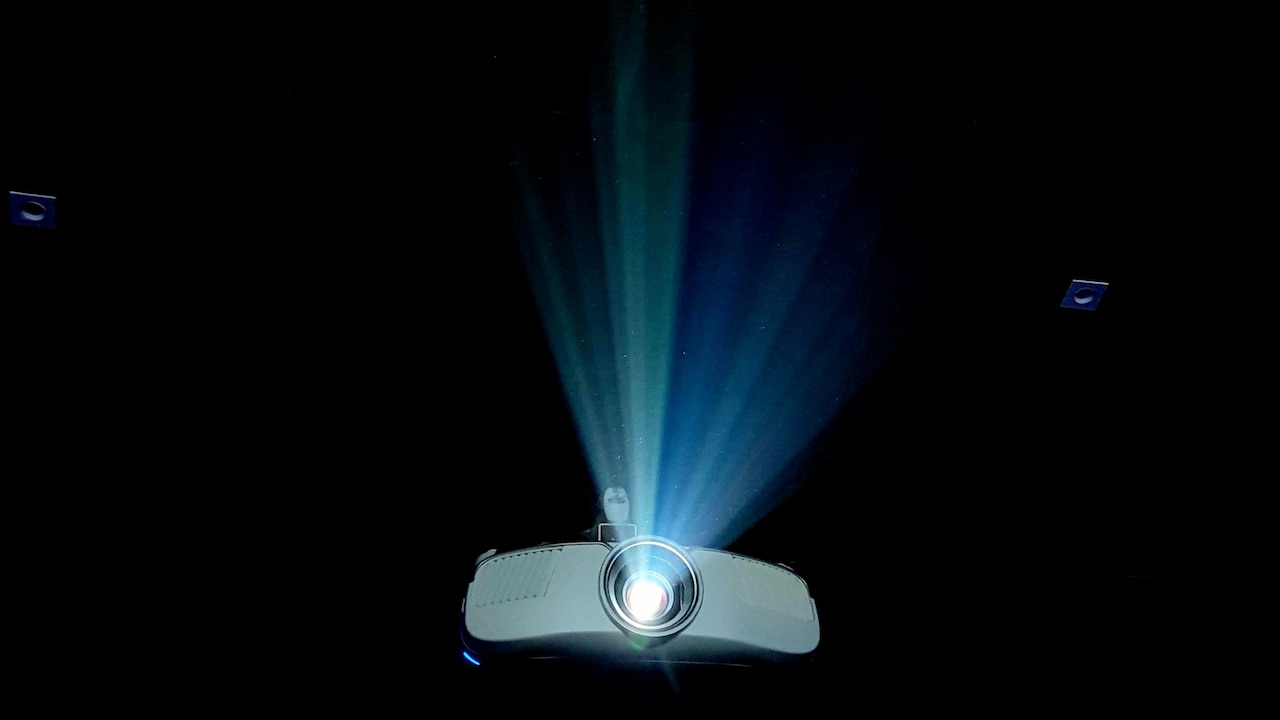
Facing Blurry Projector Image Problem? Here Are The Common Setup Mistakes That Ruin Picture Quality.
Projectors have become part of everyday life. Homes use them for weekend films, offices rely on them for presentations, and classrooms use them to keep lessons lively. Yet nothing disappoints faster than switching one on and seeing a soft, hazy image that refuses to sharpen. Many assume the projector has aged or needs costly repairs. In reality, clarity issues often come from small setup errors made in a hurry. Projectors behave like finely tuned instruments. They need the right distance, clean lenses, proper alignment, and suitable lighting. A slight misstep can throw everything off. The good news lies in how simple these fixes can be.
This article walks through the most common setup errors that ruin projector picture quality and explains how to correct them without stress or heavy spending.

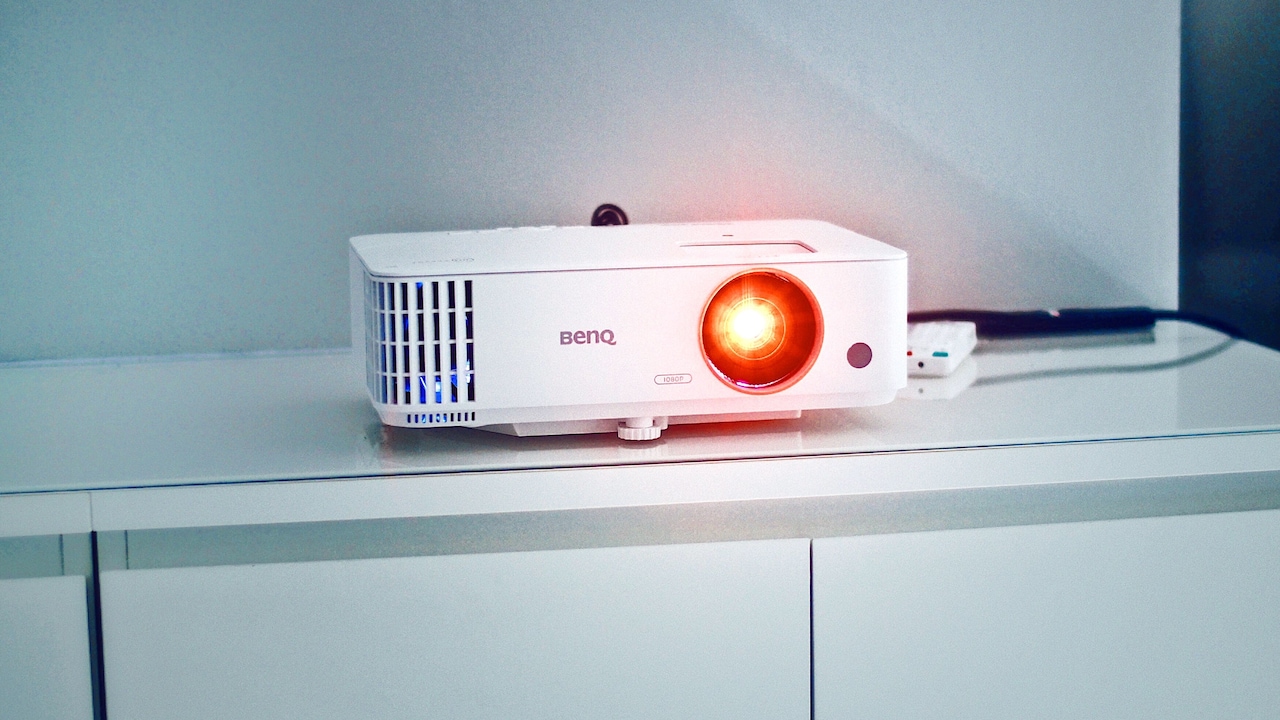
How to Fix a Blurry Projector: Setup Errors That Ruin Picture Quality; Photo Credit: Pexels
Why Your Projector Looks Blurry Even When It's Working Fine
1. Incorrect Focus Adjustment
Focus feels like the obvious place to start, yet it often causes the most frustration. Many twist the focus ring quickly and stop as soon as the image looks acceptable from a distance. That shortcut leads to soft edges and tired eyes. Focus needs patience.
Begin by projecting a still image with text or sharp lines. Stand close to the screen and adjust the focus slowly. Watch the corners as well as the centre. A picture can look sharp in the middle yet blurry at the edges. Keep adjusting until the text appears clean across the entire screen. Warm-up time also matters. Projectors need a few minutes to reach stable temperature. Adjusting focus too early can lead to blur once the unit heats up.
Dust can trick the eye, too. A dusty lens creates a hazy glow that feels like a focus issue. Cleaning the lens gently before adjusting focus saves time and effort. A well-focused projector brings instant relief. Text becomes readable, films feel immersive, and eyes stop straining during long sessions.
2. Wrong Projection Distance
Distance plays a quiet but powerful role in picture clarity. Each projector has an ideal throw distance, which refers to how far it should sit from the screen. Place it too close or too far, and sharpness suffers. Many set up projectors wherever space allows and hope for the best.
Check the projector's manual or markings on the body. These guide proper distance for different screen sizes. Measure the gap carefully instead of guessing. Even a few inches can make a noticeable difference. A projector pushed too close often stretches the image and softens details. One placed too far can dim the picture and reduce sharpness.
Rooms with limited space still have solutions. Adjust screen size instead of forcing distance. Smaller images often appear sharper and brighter. A balanced setup respects the projector's design. When distance feels right, focus adjustments become easier and the image snaps into clarity.
Also Read: New Year Entertainment Upgrade: Best 5 Portable Projectors For Home
3. Keystone Correction Overuse
Keystone correction helps straighten images when the projector sits at an angle. It feels like a miracle feature, yet heavy use often damages picture quality. Digital keystone correction resizes pixels, which reduces sharpness and creates blur.
The best fix avoids keystone altogether. Place the projector level with the centre of the screen. Use a stable table, ceiling mount, or stack of sturdy books if needed. Align the lens directly with the screen's centre. This physical alignment keeps the image rectangular without digital tricks.
If keystone adjustment becomes unavoidable, use it sparingly. Small tweaks work better than extreme angles. Watch how text sharpness changes as keystone increases. When blur appears, reduce correction and adjust placement instead. A well-aligned projector produces cleaner lines and more natural images.
4. Dirty Lens and Filters
Dust loves projectors. Lenses and air filters attract it silently, especially in homes near busy roads or open windows. A thin layer of dust can soften images and dull colours. Many overlook this simple issue.
Cleaning should happen gently and regularly. Use a soft microfiber cloth for the lens. Avoid harsh liquids or rough fabrics. A small puff of air helps remove loose particles before wiping. Filters also deserve attention. Clogged filters trap heat and affect performance. Remove and clean them as recommended by the manufacturer.
A clean projector breathes better and projects sharper images. Colours regain depth, and contrast improves. Cleaning takes minutes yet saves hours of frustration. Treat the projector like spectacles. Clear lenses lead to clear vision.

How to Fix a Blurry Projector: Setup Errors That Ruin Picture Quality; Photo Credit: Pexels
5. Poor Screen Surface Choice
Walls often stand in for projector screens, especially in casual setups. While convenient, wall surfaces can ruin picture clarity. Uneven paint, cracks, and colour tones scatter light and blur images. Even clean white walls reflect light unevenly.
A proper projector screen improves sharpness instantly. These screens reflect light evenly and enhance contrast. If a screen feels expensive, budget-friendly options exist. Matte white fabric or portable screens work well and cost far less than replacing a projector.
Screen placement matters too. Ensure it sits flat and free from wrinkles. A sagging screen distorts focus and clarity. Choosing the right surface transforms viewing quality. Films feel cinematic, presentations look professional, and every pixel finds its place.
6. Ambient Light Interference
Light fights projectors. Sunlight and bright room lights wash out images and reduce clarity. Many try to compensate by increasing brightness settings, which rarely works. The picture grows harsh yet remains blurry.
Control the environment instead. Draw curtains, dim lights, and block direct sunlight. Evening setups often look sharper simply because light levels drop. Positioning the screen away from windows helps too.
Brightness settings should support, not fight, the room. Lower ambient light allows the projector to display richer blacks and sharper details. A cosy, dim room enhances focus and comfort. Projectors shine best when allowed to own the darkness.
7. Incorrect Resolution Settings
Resolution mismatches cause hidden blur. When the source device sends a resolution that does not match the projector's native resolution, scaling occurs. Scaling softens details and blurs edges.
Check display settings on connected devices. Laptops, streaming sticks, and set-top boxes often default to unsuitable resolutions. Match the output resolution with the projector's native specification. This alignment preserves pixel accuracy.
Text clarity improves immediately when resolutions match. Icons sharpen, lines straighten, and motion appears smoother. Resolution feels technical, yet fixing it often requires just a few clicks. This small adjustment delivers big visual rewards.

How to Fix a Blurry Projector: Setup Errors That Ruin Picture Quality; Photo Credit: Pexels
8. Low-Quality Cables and Connections
Cables influence clarity more than expected. Old or damaged HDMI cables can cause signal loss, noise, and blur. Many reuse cables lying around without checking their quality.
Investing in a decent HDMI cable costs little, often under ₹1,000, yet improves stability and sharpness. Avoid excessively long cables unless required. Longer lengths increase signal degradation.
Secure connections matter too. Loose plugs cause flickering and soft images. Ensure cables fit snugly and ports remain clean. Reliable connections deliver clean signals. Clean signals produce clear images.
9. Projector Placement Stability
A shaky projector creates a shaky image. Placing it on unstable surfaces leads to micro-movements that blur focus. Even ceiling fans can cause vibrations.
Choose a solid surface or proper mount. Ensure the table or shelf does not wobble. Avoid placing the projector near speakers that vibrate heavily. Stability supports consistent focus and alignment.
Once secured, recheck focus and alignment. Stable placement keeps the image sharp over time. Viewers stop adjusting and start enjoying. A steady base brings steady clarity.
10. Ignoring Regular Maintenance
Projectors need care. Lamps dim over time, and filters clog quietly. Ignoring maintenance leads to a gradual blur that creeps in unnoticed.
Check lamp hours and replace lamps when recommended. While lamp replacements cost money, delaying them reduces brightness and clarity. Filters need periodic cleaning to maintain airflow.
Maintenance feels tedious yet pays off. A well-maintained projector performs like new for years. Routine checks prevent sudden disappointments during important moments. Care extends clarity.
Products Related To This Article
1. WZATCO Legend Optimus, Netflix Certified
2. Smart Projector with Android 11 HD Projector 1080P 4K WiFi6 BT Home Theater
3. Portronics Beem 440 Smart LED Projector with 720p HD Resolution
4. E GATE Atom 3X Projector 4k ultra HD
5. Lifelong Electronics Lightbeam Smart Projector
A blurry projector image feels frustrating, yet the cause often hides in plain sight. Simple setup errors, environmental factors, and neglected maintenance account for most clarity problems. Projectors reward thoughtful setup with stunning visuals. Clear images elevate films, sharpen presentations, and make shared moments memorable. The next time a projector disappoints, pause before blaming the device. A few small corrections can turn blur into brilliance and restore the joy of the big screen.
(Disclaimer: This article may include references to or features of products and services made available through affiliate marketing campaigns. NDTV Convergence Limited (“NDTV”) strives to maintain editorial independence while participating in such campaigns. NDTV does not assume responsibility for the performance or claims of any featured products or services.)