How To Get Used To A Vertical Mouse: 10 Checks For Grip, Size, Sensitivity And Desk Position
Learn how to get used to a vertical mouse by checking grip, hand size, sensitivity, wrist position and desk setup for smoother, more comfortable everyday use.
How To Get Used To A Vertical Mouse: 10 Checks For Grip, Size, Sensitivity And Desk Position
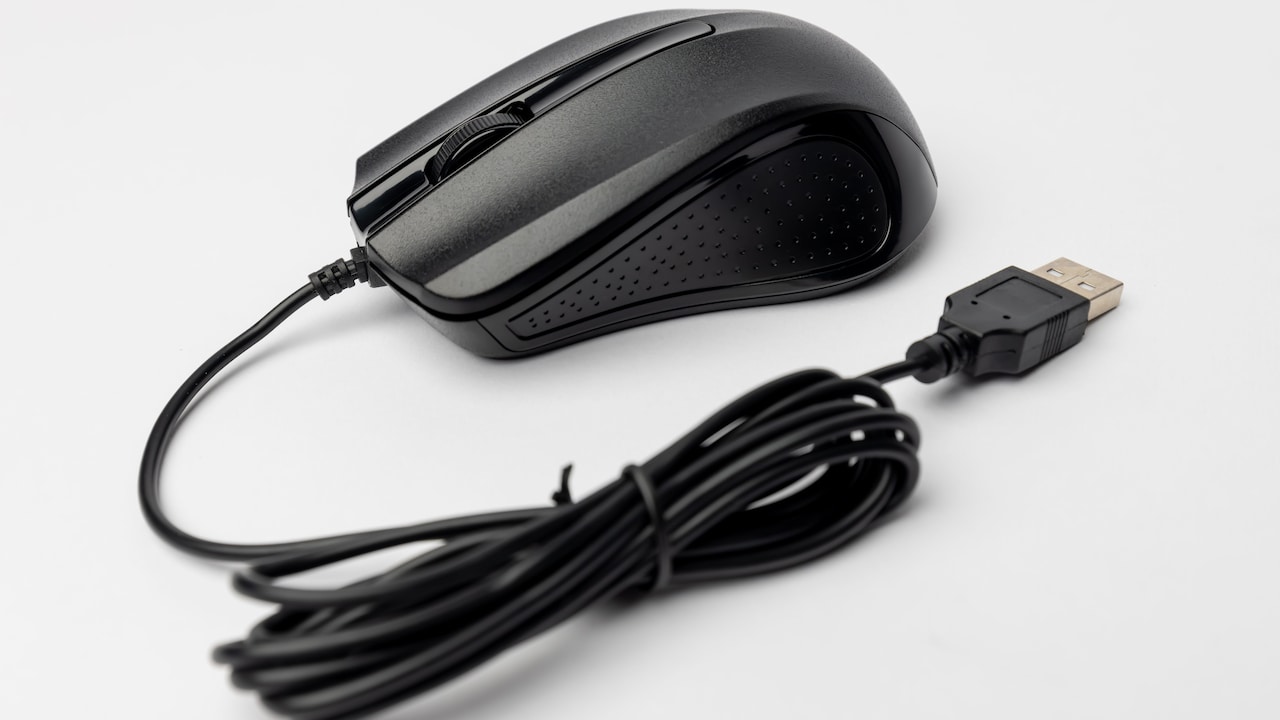
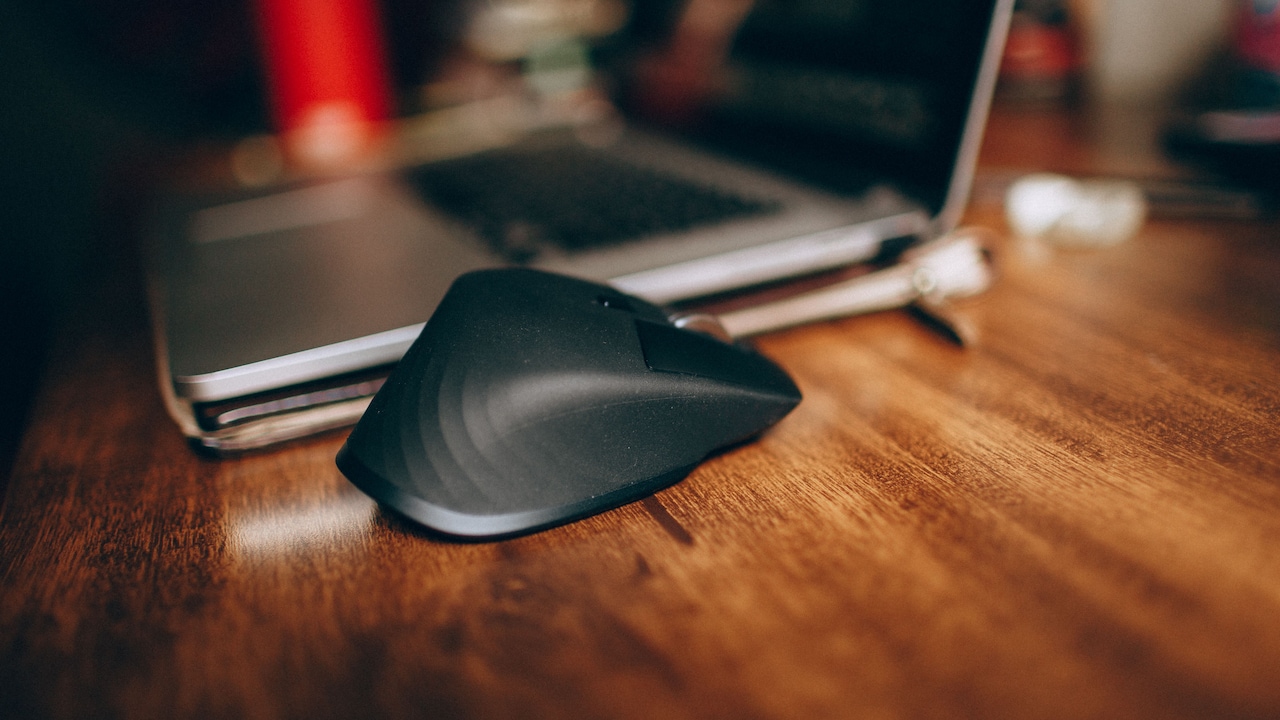
A vertical mouse looks like someone took an ordinary mouse and tilted it onto its side. The design may appear unusual, but the idea behind it is straightforward: keep the hand in a more handshake-like position rather than turning the palm flat towards the desk. Buying one, however, does not magically make it comfortable. During the first few days, even simple actions can feel oddly demanding. The pointer may overshoot a spreadsheet cell. Highlighting a sentence can turn into an accidental tour of the entire paragraph. Reaching for the scroll wheel may require more thought than anyone expects from scrolling.
How To Get Used To A Vertical Mouse: 10 Checks For Grip, Size, Sensitivity And Desk Position
Photo Credit: Pexels
That awkwardness usually comes from unfamiliar movement rather than the mouse itself. Years of using a conventional mouse create habits involving the fingers, wrist and forearm. A different shape asks those muscles to work slightly differently.
Getting comfortable, therefore, involves more than patience. Grip pressure, mouse dimensions, sensitivity settings, elbow position and desk height all matter. Rather than waiting for the hand to “get used to it” by chance, these ten checks can make the learning curve far less frustrating.
10 Things To Check When Getting Used To A Vertical Mouse
1. Check Whether Your Grip Feels Natural
The first temptation with a vertical mouse is to hold it tightly. That usually happens because the device feels unfamiliar, especially when trying to make precise movements. Unfortunately, gripping harder rarely improves control. It can make the whole experience feel more tiring.
Let the palm rest against the mouse without squeezing its sides. The thumb should sit comfortably on its support area while the fingers fall naturally over the main buttons. Think of holding a relaxed handshake rather than gripping the handle of an overcrowded local train.
Pay attention to the little finger as well. If it keeps dragging along the desk, the mouse may be too narrow or the hand may be sitting too low.
The aim is not to copy one supposedly perfect grip. Hands differ, and vertical mice come in many shapes. A comfortable grip should require very little conscious effort.
During the first week, check grip pressure every hour or so. If the fingers feel tense, loosen them. That small habit can speed up adaptation considerably and stop the mouse from feeling like something that must constantly be controlled.
2. Check Whether The Mouse Fits Your Hand Size
A vertical mouse can have excellent reviews and still feel terrible if its dimensions do not suit the hand using it.
A mouse that is too large may force the fingers to stretch towards the buttons or scroll wheel. One that is too small can leave much of the palm unsupported, encouraging the hand to curl around it. Neither situation helps when trying to build a relaxed grip.
Before deciding that vertical mice simply feel uncomfortable, check where the fingertips naturally land. The index and middle fingers should reach their buttons without stretching forward. The thumb should rest on its side support rather than constantly searching for somewhere comfortable to sit.
Manufacturers sometimes offer small, medium and large versions, although sizing is hardly universal. Product dimensions can therefore be more useful than labels.
This becomes particularly important when ordering online. A ₹2,500 mouse that matches the hand properly may prove far more comfortable than a ₹6,000 model chosen mainly for extra buttons and flashy specifications.
Fit comes before features. When the shell suits the hand, learning the new movement becomes noticeably easier.
Also Read: Wireless And Wired Mouse Options That Make Office Work Easier
3. Check Your Pointer Sensitivity
One of the quickest ways to make a new vertical mouse feel clumsy is to leave pointer sensitivity at an unsuitable setting.
If sensitivity is too high, tiny hand movements can send the cursor flying across the screen. If it is too low, the entire arm may have to travel halfway across the desk just to reach a browser tab. Neither extreme helps confidence.
Start with a moderate pointer speed and use it for ordinary tasks such as opening folders, selecting cells and highlighting text. Then make small adjustments rather than jumping dramatically from one setting to another.
A useful test involves moving the cursor between opposite corners of the screen several times. The movement should feel controlled without demanding repeated lifting and repositioning of the mouse.
Some models also include adjustable DPI settings. Higher DPI makes the pointer travel farther for the same physical movement, while lower DPI offers slower movement.
There is no magical DPI figure that suits everyone. Screen size, resolution and personal habits all affect what feels comfortable. The best sensitivity is simply the one that allows accurate movement without making the hand work unnecessarily hard.
4. Check Where Your Wrist Is Sitting
A vertical mouse is designed around a different hand position, but poor wrist placement can cancel much of the comfort people expect from that design.
Watch what happens while moving the pointer. Ideally, the wrist should remain fairly neutral rather than bending sharply sideways. Movement can come from a combination of the forearm, elbow and hand instead of repeatedly flicking the wrist.
Desk space matters here. A mouse squeezed between a keyboard, notebook, chai mug, charging cable and yesterday's paperwork does not have much room to travel. That often encourages cramped wrist movements.
Clear enough space for the forearm to move comfortably.
Also notice whether the wrist is pressed firmly into the desk surface. A hard desk edge can become irritating during long sessions. A suitable mouse mat or smoother desk arrangement may make movement feel easier.
Do not obsess over keeping the wrist perfectly frozen, though. Natural movement is still movement. The goal is simply to avoid working from an awkward angle for hours.
Sometimes the biggest improvement comes from shifting the mouse just five centimetres closer.
How To Get Used To A Vertical Mouse: 10 Checks For Grip, Size, Sensitivity And Desk Position
Photo Credit: Pexels
5. Check Your Desk And Chair Height
A perfectly sized vertical mouse can still feel wrong when the desk and chair are fighting against it.
Sit normally and look at the elbow rather than the mouse. The forearm should be able to approach the desk without the shoulder lifting towards the ear. If the desk is too high, the shoulder may remain slightly raised throughout the day. If it is too low, the upper body may gradually slump forward.
Neither posture feels dramatic for five minutes. After several hours of email, spreadsheets and video calls, the difference becomes much more noticeable.
Chair height often provides the easiest adjustment. Raise or lower the seat until the forearm can rest comfortably while operating the mouse. Feet should still have stable support, so a footrest may help if increasing chair height leaves them dangling.
Keep the mouse reasonably close to the body as well. Reaching forward for every click creates unnecessary shoulder movement.
Ergonomic accessories tend to receive all the attention, but furniture position is just as important. Even an expensive mouse cannot rescue a workstation where the arm spends eight hours reaching uphill.
6. Check How Much You Are Moving Your Arm
Using a vertical mouse often changes where movement comes from. With a traditional mouse, some people rely heavily on quick wrist flicks. A vertical design may initially feel smoother when slightly larger movements come from the forearm.
That does not mean swinging the whole arm around like a table-tennis player.
Instead, notice whether the mouse can glide across the desk while the hand remains relaxed. For larger pointer movements, allow the forearm to participate. For tiny adjustments, the fingers and wrist can naturally provide precision.
This balance usually develops with practice.
A common mistake is trying to preserve exactly the same movement pattern used with the old mouse. That can make the vertical model feel slower or less accurate than it really is. The body is learning a new mechanical relationship with the device.
Give everyday tasks time to rebuild that coordination. Browsing, document editing and spreadsheet work are particularly useful because they involve different movement sizes.
After several days, movements that once required conscious thought often become automatic. One morning, the cursor simply lands where expected, and the strange new mouse suddenly feels considerably less strange.
7. Check Your Button And Scroll Wheel Reach
A mouse may fit the palm yet still create problems if the controls sit in awkward places.
Check the main buttons first. The fingers should click them without stretching, curling tightly or shifting the whole hand. Next, test the scroll wheel. It should be reachable with a small finger movement rather than requiring the hand to crawl forward every time a webpage gets interesting.
Side buttons deserve attention too. Many vertical mice include forward and back buttons near the thumb. These can be useful, but accidentally pressing them twenty times a day becomes irritating remarkably quickly.
If the software supplied with the mouse allows button remapping, customise controls around actual habits. Someone working with spreadsheets may value different shortcuts from someone editing photographs or browsing research papers.
Do not feel obliged to use every available button simply because it exists. Extra controls are conveniences, not an exam.
Spend a day noticing which actions require hand repositioning. Frequent shifting usually indicates either poor fit or inconvenient button placement.
The best setup is wonderfully boring: clicking and scrolling happen almost without thought, leaving attention for the work on screen instead.
8. Check Whether Your Mouse Surface Allows Smooth Movement
Sometimes the vertical mouse gets blamed when the real culprit is sitting underneath it.
A glossy table, uneven wooden surface or worn-out mouse pad can make tracking inconsistent. The cursor may hesitate, jump or require more effort to position accurately. With a new mouse design already demanding adaptation, unpredictable tracking only adds frustration.
Test the mouse on a clean, even surface. A decent mouse mat does not need to cost a fortune. The important qualities are stable tracking, enough room for movement and a texture that allows the mouse feet to glide without excessive resistance.
Keep the sensor area clean too. Dust and tiny fibres can occasionally interfere with tracking.
Desk clutter can also restrict movement. A charging cable repeatedly catching the edge of the mouse is enough to ruin an otherwise comfortable setup. Wireless models avoid that particular annoyance, although wired mice work perfectly well when the cable has enough slack.
Smooth movement builds confidence. Once the brain knows that moving the hand a certain distance produces a predictable cursor response, adapting to the vertical angle becomes much faster.
9. Check How Quickly You Are Trying To Adapt
There is no prize for switching to a vertical mouse at 9 am and using it continuously until 11 pm on the first day.
The unfamiliar position can make muscles feel tired simply because they are being used differently. Trying to power through discomfort may create unnecessary frustration and make the mouse seem worse than it is.
A gentler transition often works better.
Use the vertical mouse for routine browsing or lighter work initially. If an urgent design project, competitive game or monster spreadsheet demands speed, switching briefly to the familiar mouse is perfectly reasonable. Gradually extend the time spent with the vertical model as accuracy improves.
Most importantly, distinguish unfamiliarity from pain. Slight awkwardness during adaptation is one thing. Persistent pain, numbness, tingling or worsening discomfort deserves attention rather than heroic perseverance.
People adapt at different speeds. Some feel comfortable within a few days, while others need longer.
Treat the process more like breaking in a pair of shoes than installing a software update. The change does not need to happen instantly to be successful.
10. Check Your Entire Workstation, Not Just The Mouse
The final check is the easiest to overlook because the mouse tends to receive all the blame.
Look at the whole workstation.
Is the keyboard so wide that the mouse sits far to the side? Is the monitor positioned off-centre, causing the body to twist? Is the laptop screen low enough that the neck spends hours tilted downwards? Does the chair encourage leaning forward?
These small issues can influence how comfortable mouse use feels.
A compact keyboard can sometimes bring the mouse closer to the body. Raising a laptop on a stand may improve screen position, although an external keyboard and mouse then become more useful. Frequently used objects should also remain within easy reach so the desk does not turn into a daily stretching exercise.
Comfort comes from the relationship between equipment, not one gadget in isolation.
Think of the workstation as a tiny ecosystem. Change one part and the others may need adjusting too.
The vertical mouse may start the conversation, but the most comfortable setup often emerges after repositioning several ordinary things that had quietly been in the wrong place for years.

How To Get Used To A Vertical Mouse: 10 Checks For Grip, Size, Sensitivity And Desk Position
Photo Credit: Pexels
Products Related To This Article
1. ZEBRONICS Jaguar V, Vertical Wireless Mouse
2. Portronics Toad Ergo 4 Vertical Wireless Bluetooth Mouse, Dual Mode
3. Amkette XS Series Natural Vertical Wireless Mouse/Bluetooth Mouse
4. Offbeat - Atom Dual Bluetooth 5.1+5.1 & 2.4Ghz Wireless
5. ZEBRONICS Jaguar V, Vertical Wireless Mouse, Dual Mode
6. DQST Rechargeable Ergonomic Wireless Mouse
7. Acer Ergo Vertical Wireless Mouse | Silent 6D Buttons & Scroll Wheel
Getting used to a vertical mouse is less about forcing the hand into an unusual position and more about removing small sources of awkwardness.
Start with the basics: relaxed grip, suitable size and sensible pointer sensitivity. Then look beyond the mouse itself. Wrist position, elbow movement, chair height, desk space and tracking surface can all influence how natural the device feels.
Most people also benefit from giving themselves an adjustment period. Years of muscle memory do not disappear because a new parcel arrived from an online sale. At first, selecting a tiny spreadsheet cell may feel like attempting keyhole surgery. With regular use, those movements generally become far more automatic.
The important point is that discomfort should not simply be accepted as part of the learning process. If the mouse constantly requires stretching, squeezing or awkward reaching, change the setup. A different size or design may also be necessary.
A vertical mouse should eventually fade into the background of the working day. When the hand stops thinking about the mouse and attention returns to the actual task, the adjustment has done its job.
(Disclaimer: This article may include references to or features of products and services made available through affiliate marketing campaigns. NDTV Convergence Limited (“NDTV”) strives to maintain editorial independence while participating in such campaigns. NDTV does not assume responsibility for the performance or claims of any featured products or services.)