10 Reasons A Wireless Mouse Feels Jerky On Fabric Desk Mats And How To Improve Tracking
Wireless mouse stuttering on a fabric desk mat? Discover 10 common causes behind jerky tracking, from dust and worn fibres to battery, DPI and signal issues, plus simple fixes for smoother cursor movement.

10 Reasons A Wireless Mouse Feels Jerky On Fabric Desk Mats And How To Improve Tracking
A jerky mouse can turn an ordinary workday into a surprisingly irritating affair. One moment the pointer moves perfectly; the next, it behaves as though it has developed stage fright. Clicking a tiny spreadsheet cell becomes a challenge, dragging a design element feels awkward, and lining up a headshot in a game can become downright frustrating. Fabric desk mats are popular for good reason. They soften the desk, reduce noise, protect surfaces and give a workspace a neat, comfortable look. Many large mats also cost far less than replacing an entire desktop, with decent options often available from around ₹400 to ₹1,500. Yet fabric is not automatically the perfect tracking surface for every wireless mouse.

Wireless Mouse Jerky On A Fabric Desk Mat? 10 Causes And Fixes
Photo Credit: Pexels
Modern optical sensors analyse microscopic changes in the surface beneath them. If that surface becomes uneven, dirty, reflective in patches or physically damaged, tracking can suffer. Wireless interference, battery problems and incorrect software settings can make the problem even worse.
The good news is that jerky tracking rarely means the mouse belongs in the electronics recycling bin. A few careful checks can often restore the smooth glide that should have been there in the first place.
Why Your Wireless Mouse Struggles On Fabric Desk Mats
1. The Fabric Weave Is Too Coarse
Not all fabric desk mats are woven in the same way. Some have a fine, tightly packed surface, while others use thicker fibres that feel soft to the hand but look like hills and valleys to a mouse sensor.
An optical mouse continually photographs tiny sections of the surface and compares them to detect movement. When the weave is unusually coarse, the sensor may struggle to interpret those changes consistently. The pointer can then hesitate or jump, particularly during slow and precise movements.
This problem often appears with decorative desk mats that prioritise cushioning, printed artwork or texture over mouse performance. A mat bought mainly because it matched the curtains may look excellent while making the cursor behave like it has had three cups of cutting chai.
Try placing the mouse on a plain sheet of white paper or a smooth wooden table for a minute. If tracking improves immediately, the desk mat is probably the culprit.
A tightly woven mouse pad usually provides better consistency. Look for surfaces described as smooth cloth or precision weave rather than heavily textured fabric. A replacement need not be expensive. Even a modest mat designed specifically for optical mice can outperform a thick decorative desk cover.
2. Dust Has Settled Deep Into The Mat
Fabric desk mats are excellent collectors. Unfortunately, they collect far more than compliments.
Dust, skin particles, crumbs, pet hair and tiny fibres gradually work their way into the weave. The mat may still look perfectly respectable from a distance, yet the sensor sees a much messier landscape. Fine debris changes the way light reflects from the surface, which can reduce tracking accuracy.
The problem becomes especially noticeable on frequently used sections of the mat. A mouse might feel smooth near the upper corner but jerky in the area where it spends most of the day. That difference is a useful clue.
A proper clean can make a surprisingly big difference. Start by shaking the mat outdoors and gently brushing the surface. If the manufacturer allows washing, clean it with mild soap and cool or lukewarm water. Avoid aggressive scrubbing, which can roughen the fabric.
Let the mat dry completely before using it again. Damp fabric can distort the surface and may also affect rubber backing.
For everyday maintenance, a quick wipe or brush every few days works well. Anyone who regularly eats biscuits, namkeen or lunch beside the keyboard may want to make that routine slightly more enthusiastic.
3. The Mouse Sensor Is Dirty
The desk mat is often blamed first, but sometimes the trouble sits underneath the mouse itself.
A tiny strand of hair, speck of dust or fluff near the optical sensor can interfere with the light used for tracking. Since the sensor opening is small, even minor debris can have an outsized effect. The result may look exactly like poor surface compatibility: skipped movement, sudden jumps or inconsistent pointer speed.
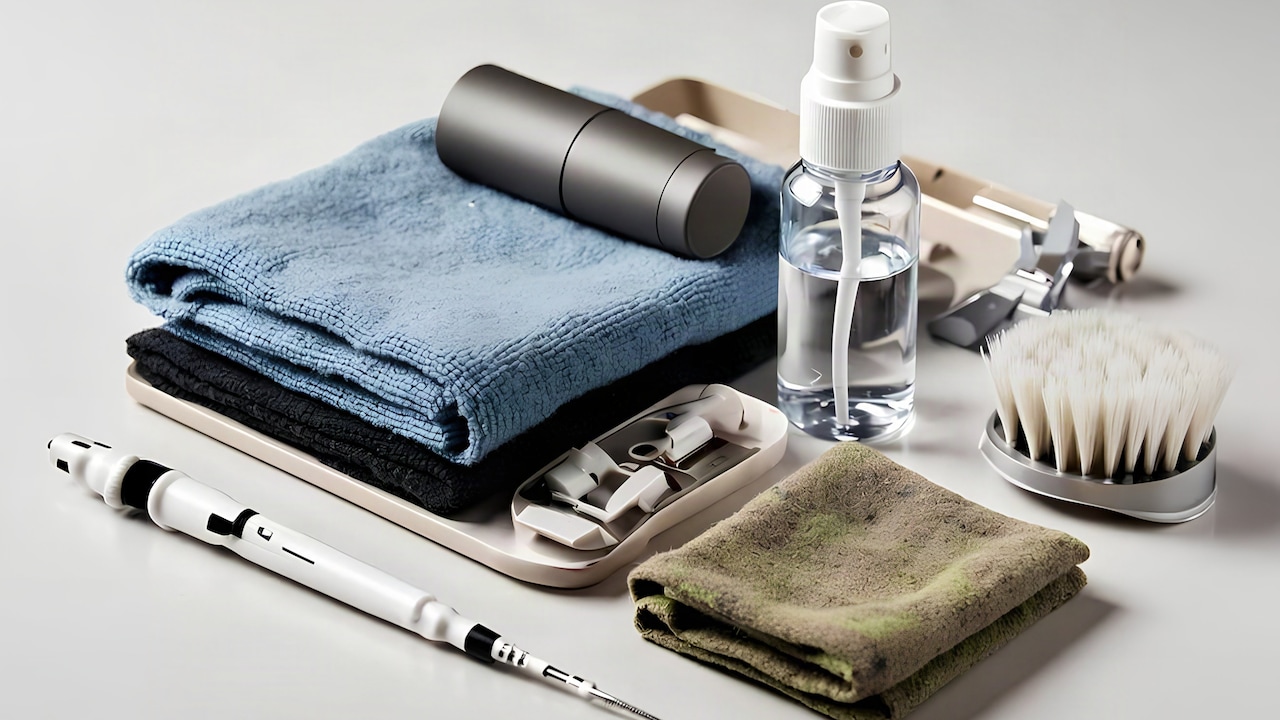
Turn the mouse over and inspect the sensor area under good light. Avoid touching the sensor lens directly with fingers because oils from the skin can leave residue. Instead, use a clean air blower or a soft, dry brush to remove loose particles.
Cotton buds can help around the surrounding plastic, but they should be used gently. There is no need to attack the underside of the mouse like a weekend deep-cleaning project.
It is also worth checking the glide feet while the mouse is upside down. Dirt often collects around their edges and can drag against fabric.
Cleaning the sensor takes barely a minute, yet it is one of the easiest fixes to overlook. Before changing drivers, buying a new mat or blaming the wireless receiver, giving the sensor a careful inspection can save both effort and money.
4. The Desk Mat Has Developed Worn Patches
A favourite desk mat can age quietly. The edges still look fine, the artwork remains visible and the rubber backing stays firmly in place. Meanwhile, the centre may have been polished smooth by thousands of mouse movements.
Repeated friction compresses and wears fabric fibres. Certain sections may become smoother, shinier or thinner than others. A sensor moving between normal and worn areas can receive inconsistent surface information, creating a jerky pointer.
This is particularly common among people who use low mouse sensitivity. Their hands travel across larger sections of the mat, generating more friction over time.
Run a hand across the surface. If one area feels noticeably different, the mouse probably notices the difference too. Viewing the mat from an angle under a lamp can also reveal shiny patches that are difficult to spot from above.
Rotating the mat by 180 degrees may offer a temporary fix by moving the worn section away from the main tracking area. If performance improves, replacement is probably the sensible long-term choice.
There is little benefit in trying to rescue a badly worn mat with endless cleaning. Once the weave itself has changed, washing cannot rebuild it. A fresh surface often makes an ageing mouse feel unexpectedly new.
5. The Wireless Receiver Is Too Far Away
A smooth mouse surface cannot compensate for a weak wireless connection.
Many wireless mice use a small 2.4 GHz USB receiver. These connections are usually reliable, but signal strength can suffer when the receiver sits far from the mouse or gets hidden behind a metal desktop, computer cabinet or monitor.
A desktop PC placed under the table creates a common example. The receiver may be plugged into a rear USB port while the mouse operates almost a metre away, with wood, metal and cables between them. Tracking may then appear jerky even though the optical sensor is working correctly.
Move the receiver closer whenever possible. A front USB port can help, while a short USB extension cable can place the dongle directly on the desk. Some gaming mice include receiver extenders for exactly this reason.
Distance is not the only factor. Nearby wireless devices can also affect reliability, particularly in crowded setups with Wi-Fi equipment, Bluetooth accessories and several USB devices.
A simple test is useful: temporarily move the receiver close to the mouse and use it normally. If the stuttering disappears, the desk mat probably deserves an apology. The real problem was travelling through the air rather than across the fabric.
Wireless Mouse Jerky On A Fabric Desk Mat? 10 Causes And Fixes
Photo Credit: Pexels
6. The Battery Is Running Low
Wireless mice can become strangely unpredictable when battery power drops.
Some models provide a clear warning light. Others continue working until the battery is nearly exhausted, with occasional stutters appearing long before the mouse stops entirely. That can make the problem difficult to diagnose because the device still seems alive and functional.
Low voltage may affect wireless transmission, sensor performance or both, depending on the design. The pointer might freeze for a fraction of a second, jump ahead or respond unevenly during faster movements.
Replacing the battery is an easy test. For mice using AA or AAA cells, choose a fresh battery from a reliable brand. Rechargeable models should be fully charged before further troubleshooting.
There is also a practical clue hidden in timing. If the mouse worked perfectly for months and suddenly became jerky without any change to the desk setup, battery condition deserves early attention.
Rechargeable gaming mice may behave differently while charging, particularly when used with poor-quality cables or crowded USB hubs. Testing the mouse after a full charge can rule that out.
A new battery costing perhaps ₹20 to ₹60 is far cheaper than replacing a perfectly good mouse. It is worth trying before beginning a dramatic online search for a new peripheral.
7. The Lift-Off Distance Does Not Suit The Mat
Lift-off distance sounds technical, but the idea is simple. It describes how high a mouse can be lifted before its sensor stops tracking the surface.
A mouse with an unsuitable lift-off distance may behave oddly on certain fabric mats, particularly thick or soft ones. When the user slightly tilts, lifts or repositions the mouse, the sensor may continue detecting movement even though the base is no longer sitting flat.
The result can be a small unwanted pointer jump. During everyday browsing, that feels mildly annoying. During detailed editing or competitive gaming, it can feel far more significant.
Thicker mats can exaggerate the effect because the mouse feet sink slightly into the fabric. Soft padding may also allow tiny changes in angle during movement.
Some gaming mice allow lift-off distance adjustment through manufacturer software. Lowering the setting can improve control on soft cloth surfaces. Other mice handle calibration automatically or offer surface-tuning features.
For models without adjustment, testing a thinner mat can reveal whether softness is part of the problem.
Mouse technique also matters. Users who frequently pick up and reposition the mouse may notice lift-off problems more clearly than those who use high sensitivity and small movements.
It is a subtle issue, but once recognised, those mysterious little cursor hops become much easier to explain.
Also Read: Wireless And Wired Mouse Options That Make Office Work Easier
8. The DPI Or Pointer Speed Is Poorly Matched
Sometimes the mouse tracks correctly, yet the settings make every small inconsistency feel much worse.
DPI, or dots per inch, determines how far the pointer moves in response to physical mouse movement. Very high DPI can magnify tiny hand movements and surface irregularities. A slight twitch on a fabric mat may suddenly send the pointer much farther than expected.
Very low DPI creates a different problem. The user must move the mouse across a larger area, increasing the chance of crossing worn patches, rough sections or wrinkles in the mat.
Finding a comfortable middle ground usually produces better control. For general office work, many people find settings somewhere around 800 to 1,600 DPI manageable, although preference varies considerably.
Operating system pointer speed matters too. Extreme software sensitivity combined with high hardware DPI can make movement feel nervous rather than responsive.
Change one setting at a time and test it for a few minutes. Rapidly adjusting everything at once makes it difficult to identify what actually helped.
Gamers may also want to disable pointer acceleration if consistent movement matters more than convenience.
The aim is not to chase a magical DPI number shared on a forum. The best setting is the one that feels predictable on the actual desk, mat and screen being used.
9. The Mat Is Wrinkled Or The Desk Is Uneven
A fabric desk mat can look flat while hiding small waves underneath.
Rolled mats often retain curves after unpacking. Heat, moisture or uneven pressure can also create subtle ripples over time. Even a charging cable running beneath the edge of the mat can produce a raised section.
These bumps change the angle and distance between the mouse sensor and the surface. The mouse may glide normally across one section and hesitate when it reaches another. Soft mats make the effect more noticeable because the mouse can tilt slightly as it crosses uneven areas.
Place the mat on a clean, flat desk and inspect it from the side. Press gently across the surface to feel for raised sections. If the mat has recently been unrolled, leaving it flat under a few books overnight can help.
Avoid ironing unless the manufacturer explicitly permits it. Heat can damage printed surfaces, foam layers and rubber backing.
The desk itself deserves attention as well. An old table with joints, dents or warped boards can transfer its unevenness through a thin mat.
A proper flat base costs nothing to test. Move the mat temporarily to another table and compare the tracking. If the jerks disappear, the mouse was merely reporting the geography beneath it with uncomfortable accuracy.
10. The Mouse Sensor Simply Dislikes That Fabric
Occasionally, nothing is dirty, worn, weak, wrinkled or wrongly configured. The mouse and desk mat simply do not get along.
Different mouse sensors use different optical designs, processing systems and calibration methods. A fabric surface that works beautifully with one model may produce inconsistent tracking with another. Printed patterns, unusual dyes, mixed textures and very dark or shiny fibres can all affect certain sensors.
This explains why replacing a mouse does not always fix the problem. A new device placed on the same troublesome surface may behave similarly, while the old mouse suddenly feels perfect on a plain pad.
Testing alternative surfaces is the fastest way to identify compatibility. Try smooth paper, bare wood and another mouse pad. If the mouse works consistently everywhere except the fabric mat, there is little reason to keep fighting the combination.
A dedicated cloth mouse pad with a uniform surface is usually the easiest solution. There is no need to buy an extravagant ₹5,000 gaming mat unless its other features appeal. Tracking consistency matters far more than dramatic branding or oversized packaging.
Sometimes the best troubleshooting result is also the simplest one: the mouse is fine, the desk mat is fine, but together they have the chemistry of two relatives arguing over the television remote.

Wireless Mouse Jerky On A Fabric Desk Mat? 10 Causes And Fixes
Photo Credit: Pexels
Products Related To This Article
1. Portronics Toad 23 Wireless Optical Mouse with 2.4GHz
2. Logitech Signature M650 Wireless Mouse
3. ZEBRONICS Blanc Slim Wireless Mouse with Rechargeable Battery
4. Portronics Toad One Bluetooth Mouse with 2.4 GHz
5. Arctic Fox Pureview Transparent Wireless and Bluetooth Rechargeable Mouse
6. Acer Wireless Mouse for Computer, 6 Buttons 1600 DPI, Large Ergonomic Mouse
7. Dell WM118 Wireless Mouse, 1000DPI, 2.4 Ghz with USB Nano Receiver
Jerky tracking on a fabric desk mat can feel like a hardware failure, but the cause is often surprisingly ordinary. Dust, worn fibres, wrinkles, low battery power and poor receiver placement can all interfere with smooth cursor movement. Settings such as DPI and lift-off distance can make those problems easier to notice, while some mouse sensors simply perform better on certain surfaces than others.
The smartest approach is to troubleshoot from the easiest possibilities first. Clean the sensor, test a fresh battery, move the wireless receiver closer and try the mouse on another surface. Check the mat for worn patches, bumps and deep-set dirt before spending money on replacement hardware.
A good mouse setup should disappear into the background. The pointer should follow the hand without demanding attention, whether someone is filling out a spreadsheet, editing photos, browsing shopping deals or squeezing in a quick gaming session after work.
When the cursor starts performing its own little dance across the screen, there is usually a reason. Find the weak link between sensor, signal, settings and surface, and that irritating stutter can often be turned back into a clean, confident glide.
(Disclaimer: This article may include references to or features of products and services made available through affiliate marketing campaigns. NDTV Convergence Limited (“NDTV”) strives to maintain editorial independence while participating in such campaigns. NDTV does not assume responsibility for the performance or claims of any featured products or services.)