How To Transfer All Data From Your Old Android To A New Phone
Planning to move to a new smartphone? Learn how to transfer all data from your old Android to a new phone effortlessly using cloud backups and cable setups.

How To Transfer All Data From Your Old Android To A New Phone
Unboxing a new Android phone is one of those genuinely satisfying moments. The clean screen, the snappy performance, the fresh start – but that feeling tends to fade once you realise that your entire digital life is still on your old device. Thousands of photos, years of WhatsApp conversations, contact lists, downloaded apps and saved passwords – everything needs to move over without a single thing going missing.

Move your data to a new smartphone quickly using simple cloud backups and cable setups.
Photo Credit: iStock
The good news is that transferring data from your old Android phone to a new one is far more straightforward than it used to be. You don't need to be technically minded or spend hours doing it manually. Android's built-in tools and a few brand-specific apps handle most of it for you.
The process stays largely the same whether it's a budget Redmi or a premium Samsung flagship (or simply upgrading within the same brand). Let's walk through it properly.
Also Read: 5 Best Smartphones Under ₹70000 For Photography, Gaming And Productivity
How To Get Your Old Phone Ready First?
First, you need to prepare your old smartphone. Then follow these steps below:
Step 1: Charge Both Phones
Make sure both your old and new phones have at least 70 per cent battery before you start. A transfer that cuts off midway because of a dead battery can corrupt files or leave your data incomplete. Plugging both into chargers throughout the process is the safest option.
Step 2: Connect to a Strong Wi-Fi Network
A home Wi-Fi connection matters here. Cloud backups & app syncing can involve several gigabytes of data. A weak or unstable connection will slow everything down considerably. Never use mobile data for backups.
Step 3: Update Your Old Phone's Software
Go to Settings on your phone and check your operating system and Google Play Services. Make sure they are up to date. Running an older version of Android can sometimes create compatibility issues during restore or backup.
How To Back Up With Your Google Account?
Google's backup system is the most reliable way to transfer your core data. It covers your contacts, SMS messages, call history, app data, Wi-Fi passwords and device settings.
Step 1: A New Backup
Visit Settings > Google > Backup; then tap Back Up Now. This will ensure the backup reflects your most recent data.
Step 2: Sign in to Google on Your New Phone
Turn on your new Android phone & go through the initial setup. Sign in using the same Google account you used on your old phone when prompted.
Step 3: Restore during Setup
Your new phone detects available backups & asks whether you want to restore. Select the recent backup from your old device. Then, your contacts, settings & app list will begin transferring automatically.
How To Use A Cable For Large Media Files?
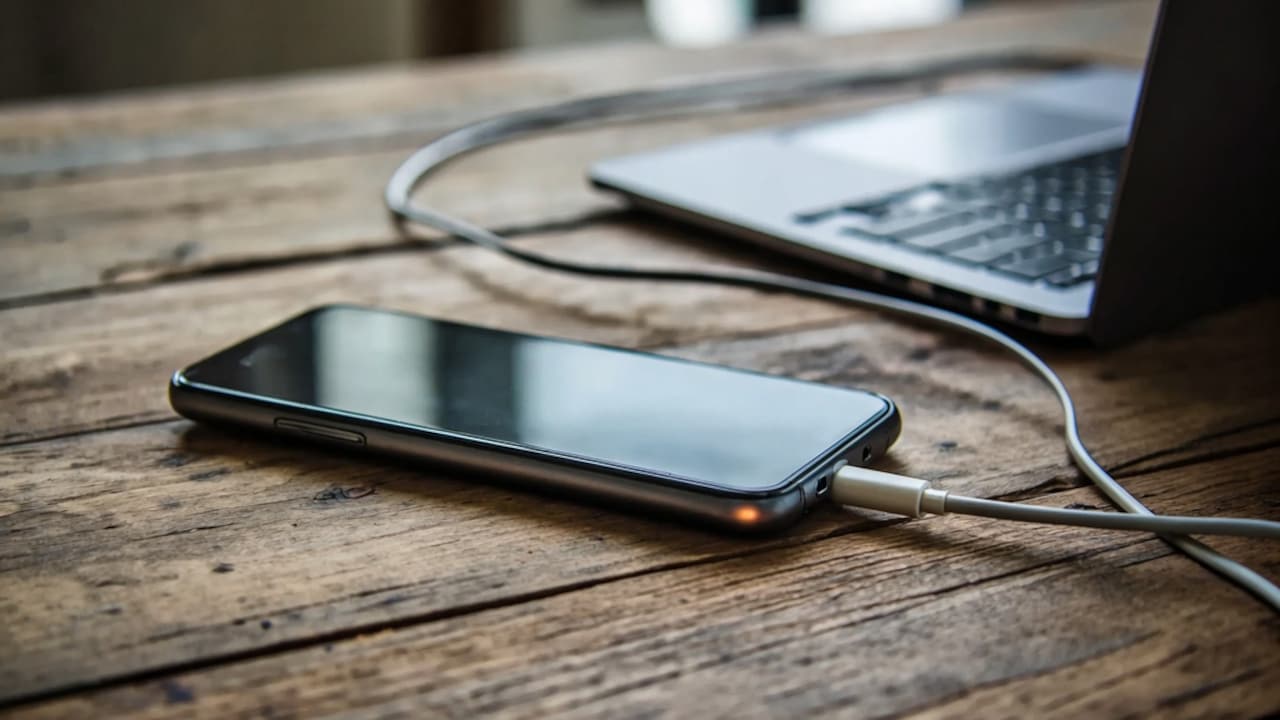
Do you have photos and videos that are more than 8 to 10 GB? Well, a USB C to USB C cable transfer is the best option. Here are the steps
Step 1: Connect Your Old And New Smartphones And Give Permission
Use a USB C to USB C cable to connect your old phone directly to the new one. Then, you will see a permission prompt on the old smartphone. There, you need to tap ‘Allow' or ‘Trust' to give access.
Step 2: Select Ones You Want to Transfer
Select the folders and file types you want to copy over. You may choose photos, videos, documents, music or all of the above. The transfer will begin (but it may take a lot of time, depending on the files you transfer).
How to Transfer WhatsApp Chats Separately?
WhatsApp data does not move with your Google backup by default. It needs a few steps mentioned below:
Step 1: Get a Backup of Your Chats
Open WhatsApp & go to Settings. You need to select Chats & then Chat Backup. Now, you must select Back Up Now & send your messages or media to your Google Drive.
Step 2: New Phone Log in
Insert your SIM card into the new phone. Download WhatsApp & verify your phone number.
Step 3: Restore after the Prompt Appears
WhatsApp detects the Google Drive backup linked to the number. Here, you need to restore your complete chat history (including media) to your new smartphone.
How To Use Brand Apps For A Deeper Transfer?
Switching between phones of the same brand? The manufacturer's app handles migration better than Google Backup alone.
Step 1: Download the App on Both Phones
Samsung users should download Samsung Smart Switch. OnePlus users can use Clone Phone. Xiaomi users have the Mi Mover. All these are available on the Google Play Store.
Step 2: Connect via QR Code
Open the app on both devices. Scan the QR code on the screen to establish a direct local wireless connection between your phones.
Step 3: Transfer Deeper Settings
These apps move home screen layouts, alarms, notes, as well as call logs that a standard Google backup does not include.

Discover the best ways to transfer all your Android files to a new device seamlessly.
Photo Credit: iStock
The next time you want to transfer all data from an old Android phone to a new one, don't fret. Try these easy tips and work your way around it. Protect and preserve all your files, images, and important documents without worrying.
Some Accessories To Help With Your Transfer
1. Wayona Type C to Type C Fast Charging Cable
2. Ambrane Unbreakable 60W Fast Charging 1.5M Braided Type C to Type C Cable
3. Portronics Konnect X 60W
4. HAMMER Type C to Type C Cable
5. Amazon Basics 128GB OTG USB Flash Drive
6. Lifelong Electronics 60W PD USB Type C to Type C Magnetic Coiled Fast Charging Cable
7. Zebronics Wattz 60CC4 Type-C to Type-C Braided Cable
8. Wayona 100W USB C to USB C Cable
Frequently Asked Questions (FAQs)
1. Will my passwords also transfer over to my new Android phone?
Passwords saved in your Google account, including those stored in Chrome, will sync automatically to your new phone once you sign in. Passwords stored locally in third-party apps require you to log in manually again.
2. Can I transfer data if my old Android phone has a broken screen?
Yes, in most cases. If your phone still powers on and you can connect it to a laptop via USB, you can access and copy all data files through your file manager. Enabling USB debugging beforehand makes the process easier.
3. Do my downloaded apps automatically log in on the new phone?
Apps reinstall automatically, but they don't log you in. You'll need to enter your credentials for each app individually once the restore is complete.
4. How long does it usually take to transfer all data from an old phone?
A basic Google backup restore takes 15 to 30 minutes. A full cable transfer with large media files can take an hour or more, depending on the total storage size.
5. Should I remove my SIM card before or after starting the data transfer?
Keep your SIM card in your old phone until the transfer is fully complete. You'll need it in your new phone, specifically for the WhatsApp verification step.
(Disclaimer: This article may include references to or features of products and services made available through affiliate marketing campaigns. NDTV Convergence Limited (“NDTV”) strives to maintain editorial independence while participating in such campaigns. NDTV does not assume responsibility for the performance or claims of any featured products or services.)