Ethernet Vs Wi-Fi: Understanding Latency, Jitter And Stability For Better Internet Performance
Ethernet often feels faster because it delivers lower latency and steadier performance. These 10 checks help identify Wi-Fi interference, packet loss, jitter, weak signals and other issues that affect connection stability.
Discover Which Connection Feels More Stable: Ethernet Or Wi-Fi?
There is a peculiar kind of frustration in watching a 300 Mbps internet connection behave as though it has just returned from a long lunch. A streaming video may look perfect while a video call develops awkward pauses. A large download can fly along, yet an online game feels strangely sluggish. Even everyday browsing may occasionally produce that tiny delay between clicking and seeing something happen. That is because internet speed and responsiveness are not the same thing. Bandwidth tells you how much data a connection can move. Latency tells you how quickly data begins making the journey and returning. Stability decides whether that experience remains consistent from one second to the next.
Ethernet Vs Wi-Fi: 10 Checks For Lower Latency And A More Stable Connection
Photo Credit: Pexels
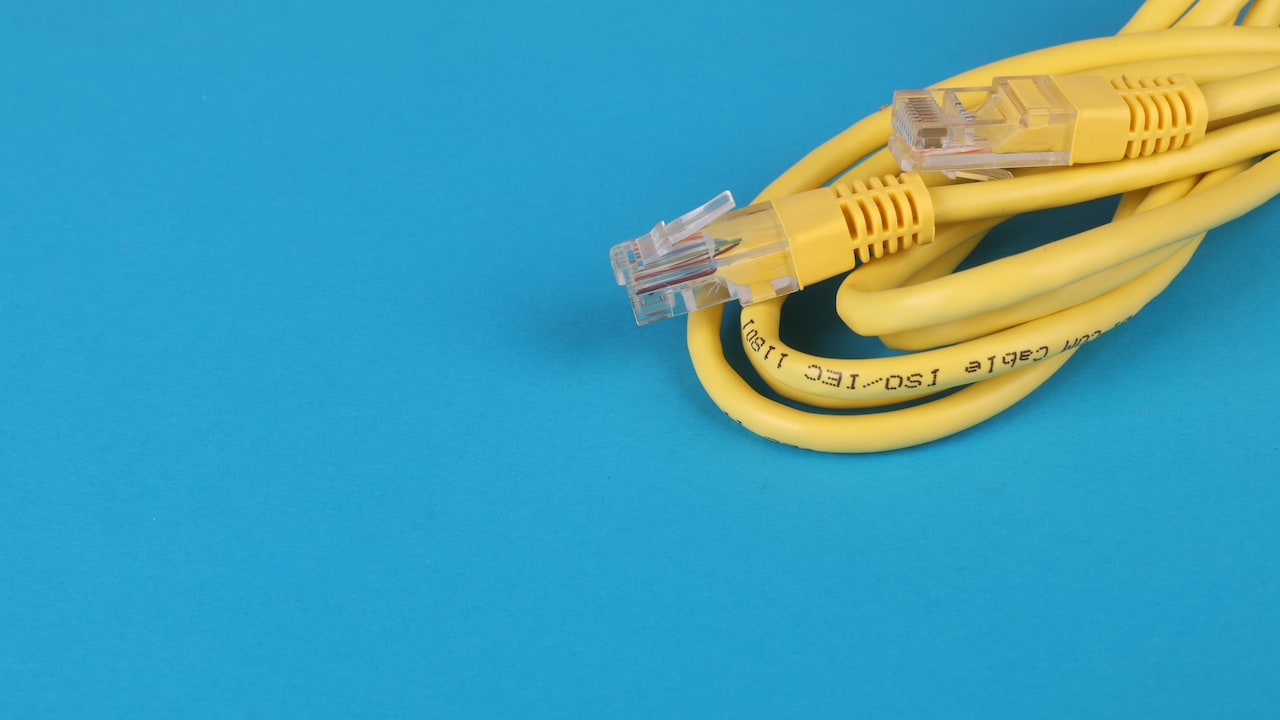
This is where Ethernet often has an advantage. A cable provides a direct physical connection between a device and the router or network equipment. Wi-Fi relies on radio waves travelling through an environment filled with walls, neighbouring networks, televisions, Bluetooth devices and the occasional badly placed router tucked behind a decorative flowerpot.
Before blaming the broadband provider, these ten checks can reveal what is actually slowing things down.
10 Checks To Find What's Affecting Your Connection
1. Compare Latency Before Comparing Download Speed
The first useful check has little to do with the enormous download number displayed by a speed-test app.
Look at latency instead.
Latency, often called ping, measures how long data takes to travel from your device to another point on the network and back again. It is usually measured in milliseconds. Lower figures generally create a snappier experience.
Imagine two connections delivering 200 Mbps. One produces a steady 10 ms ping while the other jumps between 20 ms and 80 ms. Both may download a film quickly, but the first will usually feel sharper during gaming, calls and other interactive tasks.
Run the same latency test over Wi-Fi and Ethernet from the same device wherever possible. Keep other conditions similar.
The interesting figure is not simply the lowest result. Watch how much it changes between tests.
Ethernet frequently produces a tighter range because the cable does not compete for radio airtime. Wi-Fi can still perform brilliantly, particularly close to a modern router, but fluctuating latency often exposes problems that a headline download figure conveniently hides.
Sometimes the connection is not slow. It is simply indecisive.
2. Check For Jitter During Real-Time Tasks
Average latency can look perfectly respectable while a connection still feels uncomfortable. Jitter is often the missing clue.
Jitter describes variation in latency from one packet of data to the next. A connection that repeatedly delivers packets in 15 ms feels predictable. One that alternates between 12 ms, 45 ms and 90 ms forces applications to compensate for inconsistent arrival times.
That matters enormously during voice calls, online classes, gaming and live meetings.
Consider an office call just as someone begins explaining an important figure. The audio briefly turns robotic, two people speak at once because of a delay, and then everybody spends ten seconds asking, “Can you hear me?”
That little comedy may be a jitter problem rather than a lack of bandwidth.
Compare Wi-Fi and Ethernet while the network is under normal household use. If jitter drops substantially on Ethernet, the internet line itself may be perfectly healthy.
The problem could exist between the device and router.
Ethernet gives packets a predictable path. Wi-Fi packets must negotiate shared radio space, retransmissions and changing signal conditions. Those tiny variations often escape notice during streaming but become painfully obvious when timing matters.
Also Read: Top 5 Laptop Docking Stations For Home Office Setups ₹2000
3. Look For Wi-Fi Interference Around The Router
Wi-Fi does not operate in a private bubble. It shares radio spectrum with other devices and nearby networks.
In a densely populated apartment building, dozens of routers may be competing within the same general frequency range. Add Bluetooth accessories, wireless speakers, smart devices and other electronics, and the airwaves can become surprisingly busy.
That does not mean every nearby gadget destroys Wi-Fi. Modern wireless standards handle congestion intelligently. Still, interference can increase delays and force data to be retransmitted.
Ethernet largely sidesteps this issue.
Pay attention to when responsiveness becomes worse. If Wi-Fi performs beautifully early in the morning but becomes inconsistent during busy evening hours, local wireless congestion deserves investigation.
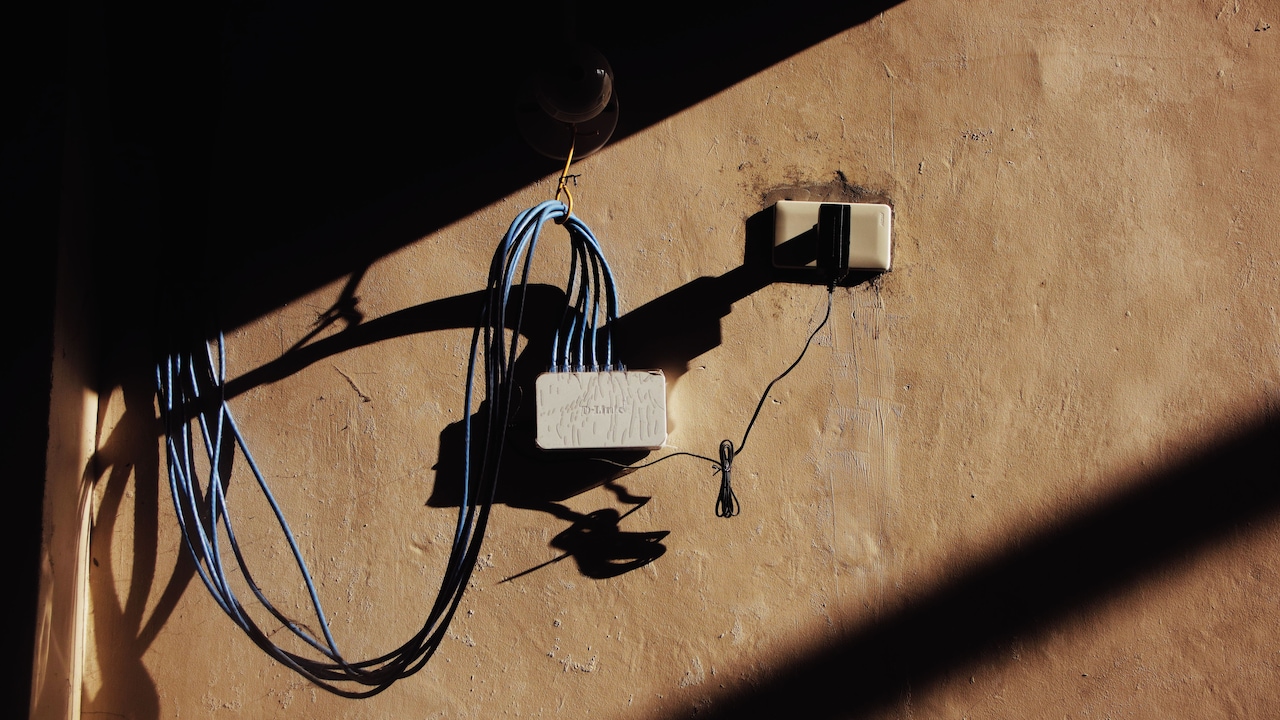
Router placement matters too. Keeping one inside a cabinet because cables look untidy can quietly sabotage performance. So can placing it behind a television, beside large metal objects or near equipment that creates electromagnetic noise.
A router should have room to breathe, both literally and electronically.
The neatest-looking corner of a home is not always the best networking location. Sometimes better connectivity begins with moving the router away from the furniture that was supposedly hiding the mess.
4. Test Both The 2.4 GHz And 5 GHz Bands
Not all Wi-Fi bands behave in the same way, and choosing the wrong one can make Ethernet appear dramatically better.
The 2.4 GHz band generally travels farther and handles walls more effectively, but it tends to be busier and offers less capacity. The 5 GHz band usually provides higher performance and lower congestion at shorter distances, although walls and distance affect it more strongly.
Newer equipment may also support the 6 GHz band, which can provide excellent performance under suitable conditions.
A laptop sitting two metres from the router may perform wonderfully on 5 GHz. Carry the same device into another room behind two concrete walls and the result can change quickly.
Testing different bands helps separate a broadband issue from a wireless coverage issue.
Do not assume that the network showing the strongest signal automatically delivers the best responsiveness. Signal strength is only part of the story.
A crowded 2.4 GHz connection can show full bars while struggling with interference. A moderately strong 5 GHz connection may provide cleaner performance.
Ethernet avoids that entire balancing act. There is no frequency band to choose and no invisible wall deciding that tonight's gaming session needs additional suspense.
Ethernet Vs Wi-Fi: 10 Checks For Lower Latency And A More Stable Connection
Photo Credit: Pexels
5. Measure Packet Loss Instead Of Ignoring It
Packet loss happens when pieces of data fail to reach their destination successfully.
Most internet applications can recover from a small amount of loss, but repeated packet loss creates noticeable trouble. Video quality may suddenly fall. Websites may hesitate. Games can register delayed movement, while voice calls produce missing words and strange gaps.
This is another area where Ethernet can feel more stable.
Wireless connections occasionally need to retransmit data when interference, weak signals or congestion corrupt a packet. That retransmission takes time. A strong wired connection removes many of those wireless variables.
Run a packet-loss or continuous ping test for several minutes rather than relying on a single result. Short tests can miss intermittent problems.
Then compare Ethernet with Wi-Fi.
If both connections show loss, the issue may sit farther upstream, perhaps with the router, modem, fibre equipment or service provider. If Ethernet remains clean while Wi-Fi drops packets, attention should shift towards wireless coverage, congestion or hardware.
Packet loss resembles a conversation in which every twentieth word disappears. People can usually reconstruct the meaning, but doing so repeatedly becomes exhausting.
Networks feel exactly the same way.
6. Check Whether Distance Is Weakening The Signal
Wi-Fi performance changes with distance. Ethernet performance, within normal household cable lengths, generally does not suffer the same dramatic decline.
That distinction becomes important in larger flats, multi-storey homes and offices.
A router in the drawing room may serve a nearby television beautifully while a bedroom laptop receives a much weaker signal. Walls, doors, floors and furniture stand between the device and access point, absorbing or reflecting some of the radio energy.
Concrete and reinforced structures can be particularly troublesome.
Watch performance while moving closer to the router. If latency, jitter and throughput improve considerably, distance or obstruction probably plays a role.
Ethernet can provide an excellent comparison because it establishes what the connection is capable of without relying on wireless coverage.
That does not mean running cables across the floor like festival decorations. Properly installed Ethernet, access points or a well-designed mesh system can solve coverage problems without turning the house into a networking laboratory.
The important point is diagnosis.
If Wi-Fi works brilliantly beside the router and poorly from the study, replacing the internet plan with a more expensive one may achieve very little. More bandwidth cannot politely ask a concrete wall to become transparent.
7. Watch For Bufferbloat When The Network Gets Busy
Some connections feel responsive until somebody starts a large upload.
Then everything changes.
A cloud backup begins, photos sync, a game downloads an update, and suddenly web pages hesitate while video calls develop delays. This can point towards bufferbloat.
Routers and network equipment temporarily store packets in buffers when traffic becomes busy. Buffering is necessary, but excessively large queues can make time-sensitive data wait behind bulk transfers.
The result is high latency under load.
Test responsiveness while the connection is idle, then repeat the test while downloading or uploading heavily. A substantial increase in latency deserves attention.
Ethernet cannot magically eliminate bufferbloat because the problem can occur elsewhere in the network. However, a wired test provides a cleaner baseline by removing Wi-Fi interference from the equation.
Modern routers may include traffic-management features such as Quality of Service or smarter queue-management systems. Configured properly, these can prevent one enormous download from behaving like a wedding procession occupying the entire road.
Raw bandwidth matters, but orderly traffic matters too.
A 500 Mbps connection with poor queue management can sometimes feel less responsive during heavy use than a slower connection that handles competing traffic intelligently.
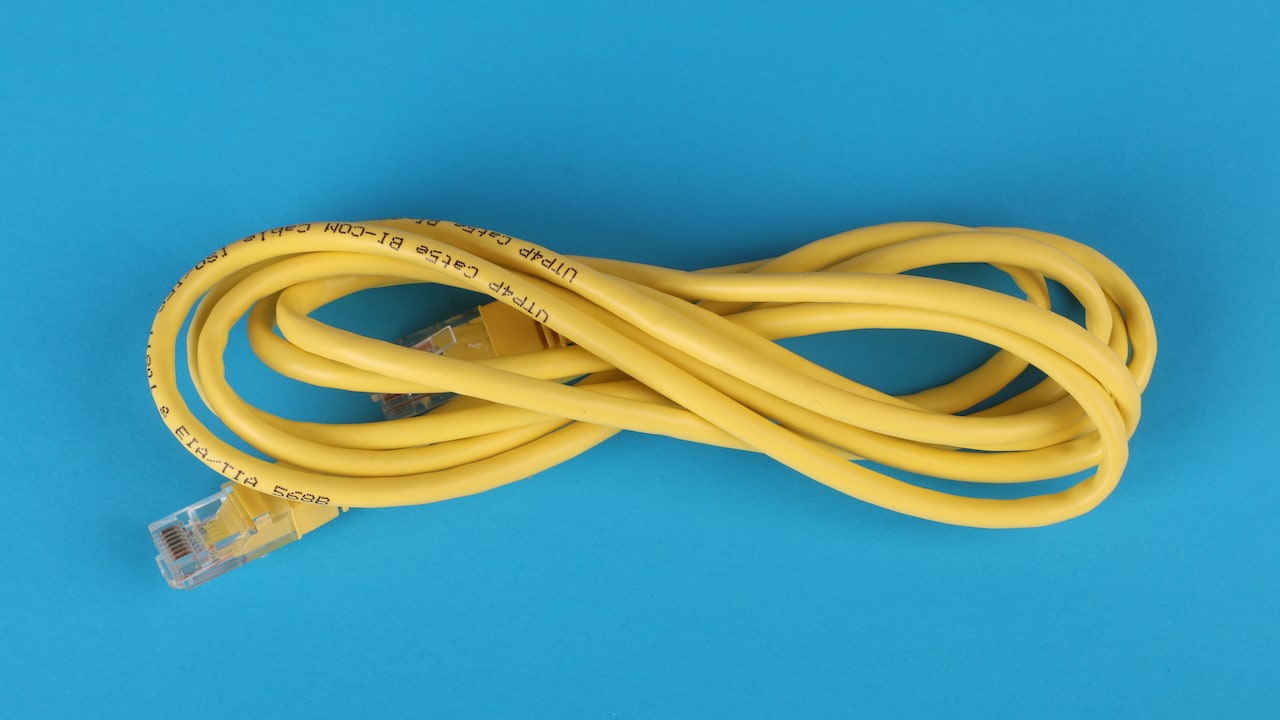
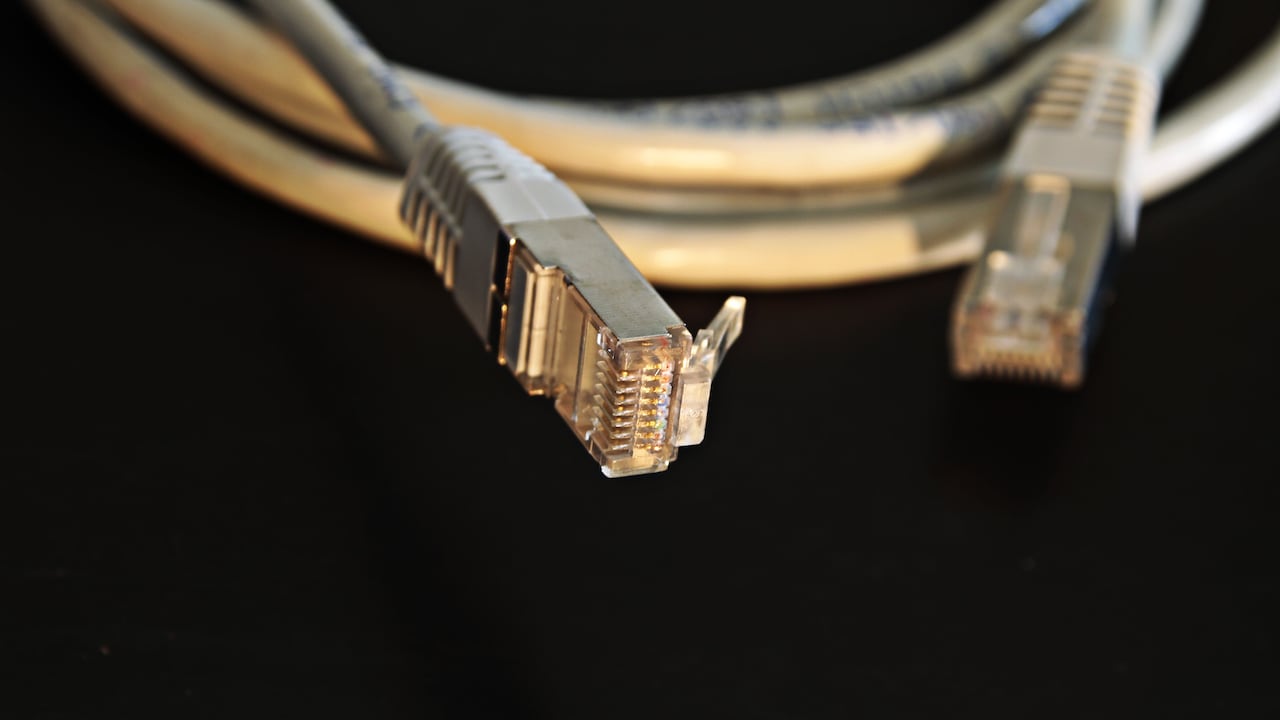
8. Inspect Ethernet Cables, Ports And Link Speeds
Ethernet may be dependable, but cables are not immortal.
A damaged connector, badly crimped cable or ageing port can reduce performance. Some faults cause obvious disconnections. Others quietly force the connection to negotiate at a lower link speed than expected.
Check what speed the computer reports for its Ethernet connection.
A gigabit-capable device, router and cable should normally establish the expected gigabit link when everything supports it. If the connection repeatedly settles at 100 Mbps, the cable or port may deserve inspection.
Cable category matters as well, although there is little value in buying exotic products simply because the packaging promises “gaming-grade” performance.
For ordinary home gigabit networking, a decent cable built to an appropriate recognised category is generally enough. Paying ₹3,000 for a shiny cable with dramatic branding will not persuade data packets to run with greater enthusiasm.
Look for physical damage, loose connectors and sharp bends. Try another known-good cable or router port when troubleshooting.
Ethernet's reputation for stability comes from simplicity, but that simplicity still depends on sound hardware. A reliable cable should disappear into the background, which is precisely what good networking equipment tends to do.
9. Check Device Drivers, Router Firmware And Hardware Limits
Sometimes neither Wi-Fi nor Ethernet deserves the blame. The device itself may be creating the bottleneck.
Network adapters rely on drivers and firmware to communicate properly with operating systems and routers. Bugs, outdated software or unusual power-saving settings can produce slow speeds, unstable connections and unpredictable latency.
Router firmware matters for similar reasons.
Manufacturers periodically fix security flaws, compatibility problems and performance issues. Keeping supported equipment reasonably current can improve stability, although updates should come from official sources rather than mysterious download websites promising miraculous speed boosts.
Hardware limits also deserve attention.
An older laptop may contain a basic wireless adapter that cannot take full advantage of a modern router. Likewise, an inexpensive USB-to-Ethernet adapter may cap performance below the speed supported by the rest of the network.
Check specifications before concluding that the broadband connection is failing.
A useful troubleshooting approach compares several devices. If every phone and laptop behaves poorly over Wi-Fi but Ethernet remains excellent, the router or wireless environment becomes more suspicious. If one laptop struggles while everything else works perfectly, that laptop deserves the spotlight.
Networks love shared blame, but systematic testing usually finds the guilty party.
10. Test Stability Over Time, Not Just For Thirty Seconds
A single speed test provides a snapshot. Stability reveals the whole film.
Many connection problems appear intermittently. Wi-Fi may perform perfectly for five minutes, become erratic during peak hours and recover without explanation. A loose cable may disconnect only when disturbed. Router temperatures, background downloads and changing interference can all create patterns that short tests fail to capture.
Observe the connection over a longer period.
Pay attention to latency, packet loss, disconnections and responsiveness at different times of day. Compare Wi-Fi and Ethernet under similar conditions.
This longer view is particularly valuable for people working from home. A connection that achieves 400 Mbps at 7 a.m. means little if every afternoon meeting develops audio problems.
Consistency matters more than an occasional record-breaking speed test.
Ethernet often wins this comparison because its physical path changes very little. Wi-Fi operates in an environment that can change from minute to minute as devices and neighbouring networks compete for airtime.
The goal should not be to prove that wired networking is universally superior. Good modern Wi-Fi can be extraordinarily fast.
The goal is to discover which connection remains dependable when ordinary life begins happening around it.
Ethernet Vs Wi-Fi: 10 Checks For Lower Latency And A More Stable Connection
Photo Credit: Pexels
Products Related To This Article
1. UGREEN CAT 8 Ethernet Cable 3M
2. UGREEN Cat 6 Ethernet Cable 1M, High Speed Braided 5Gbps LAN Wire
3. FEDUS Cat6 Ethernet Cable, 10M High Speed 550MHZ
4. UGREEN Cat 8 Ethernet Cable 0.5M, Flat Braided High Speed 40Gbps 2000MHz
5. Sounce Cat6 Ethernet Cable 10 Meter
6. ZEBRONICS Zeb-UTE101 USB to RJ45 Ethernet LAN Adapter
7. FEDUS 1M Cat6 Ethernet Cable,Flat RJ45 LAN Cable Wire High Speed 250MHZ
Ethernet feels more responsive because responsiveness depends on more than broadband speed.
A wired connection removes much of the uncertainty created by wireless distance, interference, congestion and changing signal conditions. That frequently means lower jitter, fewer retransmissions and more consistent latency.
Yet an Ethernet cable is not a universal cure. Bufferbloat, faulty hardware, overloaded routers, service-provider problems and poorly configured devices can affect wired connections too.
The smartest approach is comparison rather than assumption.
Check latency before becoming distracted by headline download figures. Watch for jitter and packet loss. Test wireless bands, examine signal strength and see what happens when the network becomes busy. Inspect cables and hardware, then measure performance over enough time to reveal patterns.
For streaming a film, a tiny delay may never matter. During a competitive game, online interview, remote presentation or family video call, those milliseconds suddenly acquire personality.
A good connection should not merely be fast when tested. It should feel calm, predictable and almost invisible in everyday use.
When Ethernet manages that while Wi-Fi keeps producing little moments of drama, the cable is not performing magic. It is simply giving the data fewer opportunities to get distracted along the way.
(Disclaimer: This article may include references to or features of products and services made available through affiliate marketing campaigns. NDTV Convergence Limited (“NDTV”) strives to maintain editorial independence while participating in such campaigns. NDTV does not assume responsibility for the performance or claims of any featured products or services.)