How To Fix Jerky Or Inconsistent Mouse Movement: 10 Checks For Sensor, Cable Drag And Surface
Is your mouse cursor jumping, freezing or moving unpredictably? Discover 10 practical checks for sensor problems, cable drag, mousepad surfaces and settings to restore smooth, accurate movement.

Mouse Cursor Jumping Or Stuttering? 10 Ways To Fix Inconsistent Movement
A mouse that suddenly starts behaving strangely can turn even the simplest computer task into an exercise in patience. One moment, the cursor moves smoothly across the screen. The next, it jumps several centimetres, freezes briefly or refuses to follow your hand. Whether you're editing a document, working through spreadsheets or playing a competitive game, inconsistent mouse movement can seriously disrupt your flow. The frustrating part? A jerky mouse doesn't always mean the device has reached the end of its life. Sometimes, a tiny strand of dust near the sensor causes trouble. Other times, the culprit is a rough desk surface, a tangled cable or an overly sensitive tracking setting. Wired and wireless mice can both develop movement problems, although the reasons may differ. Fortunately, most common issues don't require expensive repairs or technical expertise. A little observation and a few practical adjustments can make a surprising difference. Before replacing your mouse, try these ten checks to identify what's affecting its performance and bring back the smooth, predictable movement you expect.
Mouse Cursor Jumping Or Stuttering? 10 Ways To Fix Inconsistent Movement
Photo Credit: Pexels
10 Essential Checks To Fix Jerky Mouse Movement And Improve Cursor Accuracy
1. Check The Mouse Sensor For Dust And Debris
A mouse sensor performs a surprisingly demanding job. It constantly tracks movement across a surface and translates that information into cursor movement. Even a small amount of dust, hair or debris around the sensor opening can interfere with tracking.
Turn your mouse over and examine the sensor area under good lighting. You might notice tiny particles lodged around the opening, particularly if you regularly use the mouse on a dusty desk. Homes near busy roads or open windows can accumulate dust quickly, making this a common problem.
Use a clean, dry, soft-bristled brush to remove loose particles. A gentle puff from a manual air blower can also help. Avoid poking the sensor opening with sharp objects or applying cleaning liquids directly to it. Both can cause unnecessary damage.
Once you've cleaned the area, place the mouse back on a suitable surface and move it slowly in different directions. Watch whether the cursor follows consistently or continues making sudden jumps.
If the movement improves immediately, you've probably found the problem. Regular sensor cleaning takes very little time and can prevent irritating tracking issues.
However, if the cursor still behaves unpredictably after cleaning, the sensor might be struggling with the surface beneath it rather than dirt.
2. Test The Mouse On A Different Surface
Not every desk surface works equally well with a computer mouse. Glass tables, glossy laminates, reflective finishes and heavily patterned materials can confuse certain optical sensors. The result may look like a hardware fault, even when the mouse itself functions perfectly.
Start with a simple experiment. Move the mouse from its usual position onto a plain, matte mousepad. If you don't have one nearby, try a clean, non-reflective surface with a consistent texture.
Move the cursor slowly across the screen. Then repeat the test with faster movements and small circular motions.
Pay attention to sudden jumps, missed movements or hesitation. If the cursor behaves normally on the new surface, your original desk finish may be responsible.
This becomes particularly relevant for people working on polished dining tables or decorative office desks. A beautiful tabletop might look impressive, but your mouse sensor may disagree with your interior design choices.
Avoid assuming that all optical mice work reliably on glass. Some models support glass tracking, while others struggle considerably.
A decent mousepad doesn't need to cost much. The important qualities are consistent texture, adequate space and compatibility with your mouse sensor.
3. Examine The Mouse Cable For Drag And Tension
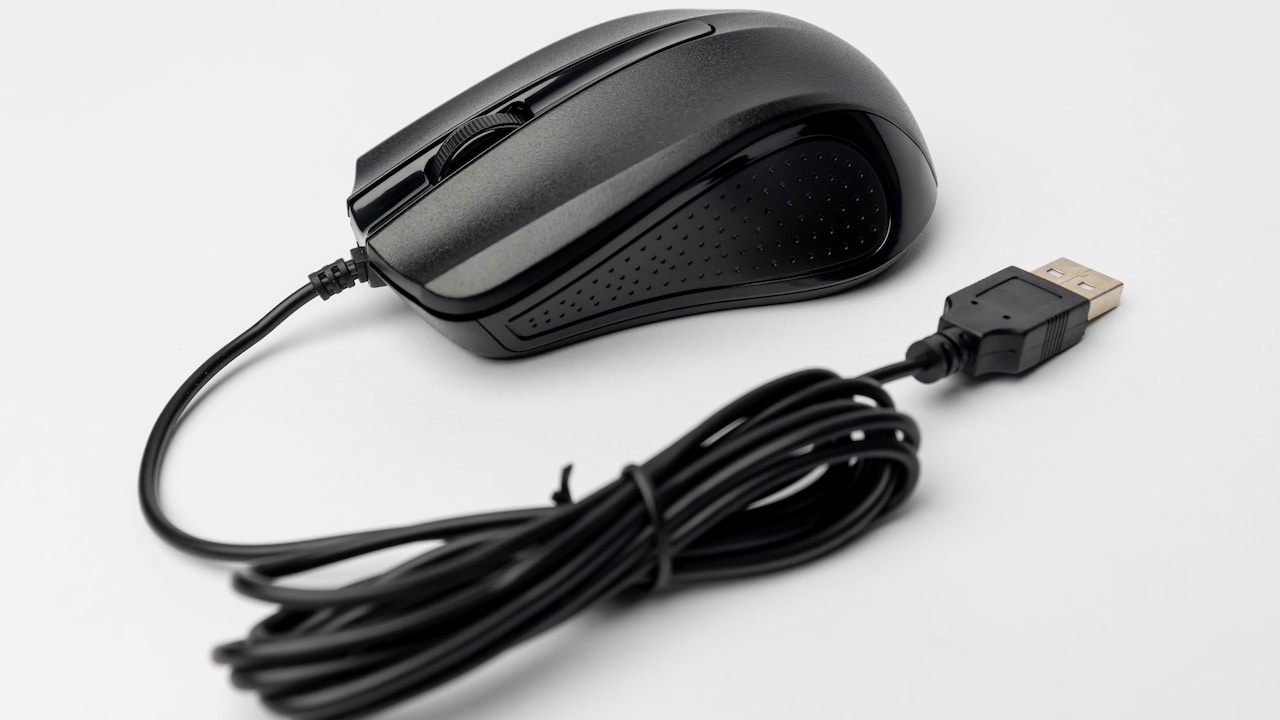
Wired mice introduce another possible source of inconsistent movement: cable drag. Even when the sensor tracks perfectly, a cable catching against the desk can make the mouse feel jerky or resistant.
Look at how the cable travels from the mouse towards your computer. Does it rub against a sharp desk edge? Has it become trapped beneath a monitor stand? Perhaps it catches against notebooks, charging cables or other accessories.
These small obstacles create uneven resistance as you move your hand. During slow movements, the problem might seem insignificant. Faster movements, however, can make the mouse suddenly stop or pull sideways.
Try creating a loose section of cable between the mouse and the desk edge. This gives your hand more freedom without pulling against the full cable length.
You can also reposition nearby objects or use a simple cable clip to keep the wire away from obstacles.
Check whether the cable has developed visible kinks, fraying or damage near the mouse body and USB connector. If moving the cable causes the cursor or connection to fail, the problem may involve internal wiring.
Avoid repeatedly bending a damaged cable. Replacing the mouse is generally safer than continuing to use one with exposed conductors.
Also Read: Wireless And Wired Mouse Options That Make Office Work Easier
4. Inspect The Mouse Feet For Uneven Wear
The small pads underneath your mouse rarely attract attention until something goes wrong. Known as mouse feet or skates, these components help the device glide smoothly across your desk or mousepad.
Over time, the feet can collect dust, adhesive residue and grime. Their edges may also wear unevenly, particularly when you use the mouse on rough surfaces.
Turn the mouse over and inspect each foot carefully. Look for scratches, peeling edges, missing pads or accumulated dirt.
If one foot sits lower than the others, the mouse may tilt slightly during movement. This can affect how smoothly it glides and sometimes influence sensor tracking.
Clean the feet gently with a soft cloth. For stubborn residue, follow the manufacturer's cleaning instructions and avoid soaking the adhesive areas.
Run the mouse across your usual surface and notice whether it scratches, catches or produces uneven friction.
Replacement mouse feet are available for several popular models. However, check compatibility before ordering, as their thickness and shape can influence tracking and stability.
Sometimes, what feels like an unreliable sensor is simply a mouse struggling to move smoothly across the desk.
Mouse Cursor Jumping Or Stuttering? 10 Ways To Fix Inconsistent Movement
Photo Credit: Pexels
5. Adjust DPI And Pointer Speed Settings
A cursor that moves too quickly or unpredictably doesn't necessarily indicate a defective mouse. Sometimes, the problem comes from sensitivity settings that don't match your hand movements or workspace.
DPI, or dots per inch, describes how sensitively a mouse reports physical movement. Higher DPI settings generally produce greater cursor movement for the same distance travelled across a surface.
Many gaming mice include a dedicated DPI button. Accidentally pressing it can make the cursor suddenly feel much faster or slower.
Check whether your mouse has this feature and experiment with its available sensitivity levels.
On Windows 11, open Settings, select Bluetooth & devices, then Mouse. Adjust the mouse pointer speed until movement feels comfortable and predictable.
For more detailed settings, open the additional mouse settings and inspect the Pointer Options tab. You can also experiment with the Enhance Pointer Precision option, which changes how pointer speed responds to physical movement.
Avoid adjusting several settings simultaneously. Change one option, test the result and continue only if necessary.
Sensitivity adjustments won't repair physical sensor failures, but they can eliminate the impression of jerky movement caused by unsuitable settings.
6. Check Wireless Batteries And Connection Stability
Wireless mice eliminate cable drag, but they introduce a different set of possible complications. Low batteries, unstable connections and wireless interference can all contribute to delayed or inconsistent cursor movement.
Start by checking the battery level. If your mouse uses replaceable batteries, install fresh ones. Rechargeable models should receive a full charge before further troubleshooting.
Next, examine the wireless connection. For mice using a USB receiver, try moving the receiver to another USB port. Ideally, position it closer to the mouse and away from crowded USB hubs or external storage devices.
Some USB 3.0 devices and nearby wireless equipment can create interference around the 2.4 GHz frequency range. This may interrupt communication between the mouse and its receiver.
Bluetooth mice can experience similar interruptions when connections become unstable.
Try disconnecting and reconnecting the mouse through your computer's Bluetooth settings. Remove unnecessary nearby interference sources where practical.
Also, check whether the mouse works smoothly on another computer. This helps distinguish connection problems from hardware faults.
A wireless mouse should offer comfortable freedom, not make your cursor behave as though it's receiving instructions several seconds late.
7. Inspect USB Ports And Mouse Connections
An unstable USB connection can create symptoms that resemble sensor problems. Your cursor may freeze briefly, disappear from its expected position or stop responding altogether.
For a wired mouse, disconnect the USB plug and examine it for visible damage, dirt or unusual looseness.
Reconnect it firmly to another USB port on your computer. Avoid forcing the connector into a port that feels obstructed.
If you're using a USB hub, docking station or extension cable, temporarily connect the mouse directly to the computer. Some connection problems originate from intermediate accessories rather than the mouse.
Laptop users with limited USB ports may find this particularly useful, especially when several accessories share one hub.
Watch for Windows notification sounds indicating repeated device disconnections. These can provide an important clue when mouse movement suddenly stops.
If the mouse consistently fails through one USB port but works elsewhere, investigate the affected port rather than immediately replacing the device.
For wireless mice with USB receivers, the same troubleshooting approach applies.
A reliable physical connection should remain stable even when you move the mouse normally. Frequent disconnections suggest a connection or hardware problem that sensitivity adjustments won't resolve.
8. Update Mouse Drivers And Software
Mouse drivers help your computer interpret movement, clicks and other commands. When drivers malfunction or become incompatible after a system update, cursor behaviour may become inconsistent.
Most standard mice use built-in Windows drivers and don't need separate installations. However, gaming and productivity mice sometimes rely on dedicated software for advanced settings.
Open Device Manager on Windows and expand Mice and other pointing devices. Locate the relevant device, right-click it and select Update driver.
You can also check Windows Update for available system and optional driver updates.
If your mouse uses dedicated software, visit the manufacturer's official support resources to check whether a newer compatible version exists.
Avoid downloading drivers from unfamiliar websites. Unofficial installation packages can introduce security risks or create additional system problems.
Before changing software settings, note your current DPI, polling rate and button configurations. This makes it easier to restore familiar controls afterwards.
Restart your computer after relevant updates and test cursor movement again.
If the problem began immediately after a software update, consider whether a driver rollback or clean reinstallation is appropriate.
Software fixes aren't always necessary, but they're worth checking when physical cleaning and connection tests produce no improvement.
9. Test Polling Rate And Computer Performance
A mouse can appear unreliable even when its sensor and connection work correctly. Sometimes, the computer struggles to process movement smoothly, particularly during demanding tasks.
Start by observing when the problem occurs. Does the cursor stutter while browsing ordinary webpages, or only when running games, editing videos or working with demanding software?
Open Task Manager on Windows and check CPU, memory and disk activity. Heavy background processes can contribute to delayed responses and temporary system slowdowns.
Gaming mice may also offer adjustable polling rates. This setting determines how frequently the mouse reports its position to the computer.
Higher polling rates can improve responsiveness, but extremely high settings may increase processing demands on certain systems.
If your mouse software supports polling rate adjustments, try a conventional setting such as 500 Hz or 1,000 Hz. Compare the results before experimenting further.
Also, distinguish between actual cursor tracking problems and screen stuttering. A game experiencing low frame rates can make mouse movement appear uneven despite accurate tracking.
Close unnecessary applications and restart the computer to eliminate temporary performance issues.
The mouse might be working perfectly while the rest of the system struggles to keep up.
10. Compare Mouse Performance On Another Computer
After checking the sensor, surface, cable and settings, the final step involves separating mouse problems from computer-related issues.
Connect the mouse to another compatible computer and test it under similar conditions. Use the same mousepad wherever possible and repeat the movements that originally caused trouble.
Try slow horizontal movement, quick directional changes and small circles. Watch whether the cursor tracks consistently or continues to jump.
If the same problem appears on multiple computers, the mouse itself becomes the more likely culprit.
Possible causes include a failing sensor, damaged internal wiring, worn switches affecting certain functions or unstable wireless hardware.
However, if the mouse works normally elsewhere, investigate the original computer's drivers, USB connections, system performance and configuration.
For an additional comparison, connect a different working mouse to your original computer. This helps identify whether the issue follows the device or remains with the system.
Keep your observations simple. There's no need for specialised testing equipment to notice repeated freezing, inconsistent tracking or sudden disconnections.
If the mouse remains unreliable despite careful troubleshooting, check its warranty before paying for repairs or ordering a replacement.
Sometimes, replacement makes more sense than spending another afternoon chasing a stubborn hardware fault.

Mouse Cursor Jumping Or Stuttering? 10 Ways To Fix Inconsistent Movement
Photo Credit: Pexels
Products Related To This Article
1. Acer Nitro Phantom X7 Wired Gaming Mouse
2. Corsair Katar Pro Ultra-Light Optical USB Gaming Mouse with Backlit RGB LED
3. ZEBRONICS-Transformer-M with a High-Performance Gold-Plated USB Mouse
4. Dell MS116 USB Optical Mouse
5. Portronics Vader Max Wireless Rechargeable Mouse
6. EvoFox New and Upgraded Spectre Wired Gaming Mouse with Up to 7200 DPI Gaming Sensor
7. Acer Nitro Phantom X12 Tri-Mode Gaming Mouse | 2.4GHz Wireless
Jerky mouse movement can interrupt productivity, but the cause isn't always complicated. Dust around the sensor, an unsuitable desk surface, uneven mouse feet or cable tension may explain why the cursor behaves unpredictably. Wireless interference, sensitivity settings and computer performance can create similar symptoms.
Start with the simplest checks before changing drivers or considering replacement. Clean the mouse, test another surface and inspect its connections. Most importantly, change one thing at a time so you can identify what actually helps.
A few careful adjustments may be enough to restore smooth tracking and make everyday computer work considerably less frustrating.
(Disclaimer: This article may include references to or features of products and services made available through affiliate marketing campaigns. NDTV Convergence Limited (“NDTV”) strives to maintain editorial independence while participating in such campaigns. NDTV does not assume responsibility for the performance or claims of any featured products or services.)