How To Improve Home Wi-Fi: 10 Checks For Placement, Interference And Connected Devices
Struggling with slow Wi-Fi, weak signals or frequent disconnections? Discover 10 practical checks for router placement, interference and connected devices to improve internet coverage and performance at home.
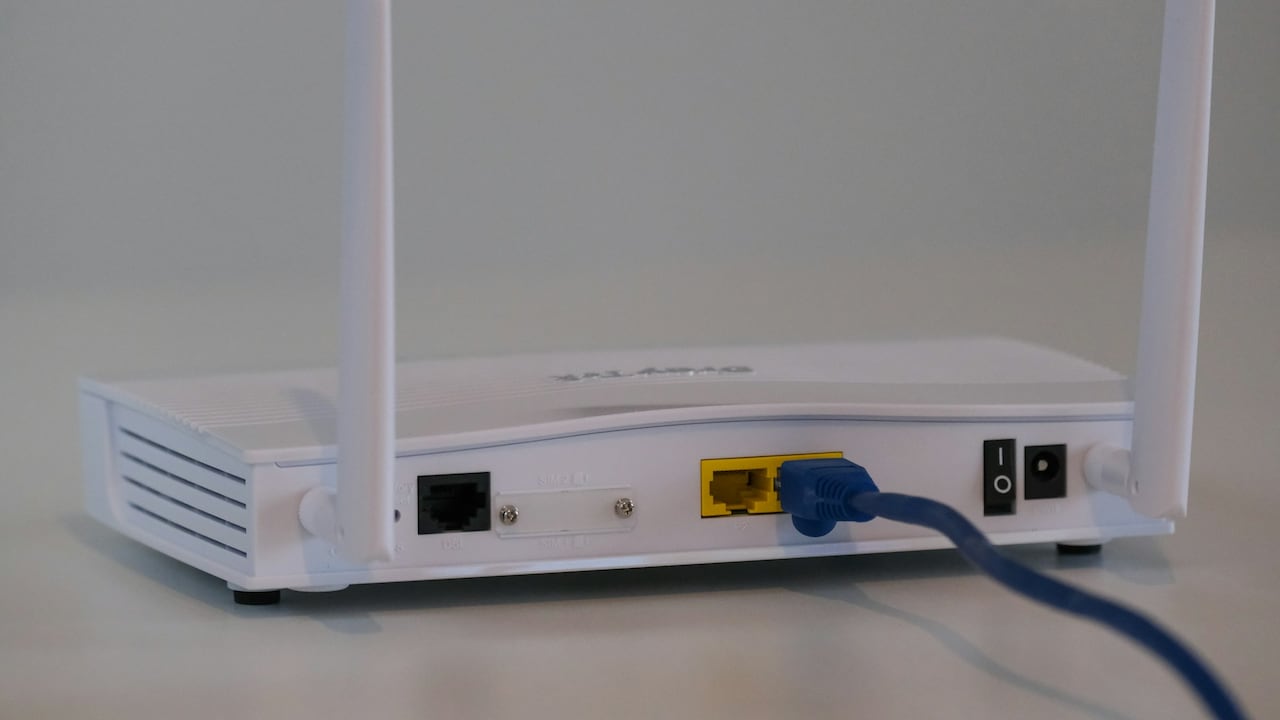
How to imrpove Wi-Fi speed easily
A video call freezes just as someone asks an important question. The television starts buffering during the most exciting scene of a film. Meanwhile, the Wi-Fi signal disappears the moment someone walks into the bedroom. These little frustrations can make even a high-speed broadband connection feel unreliable. Yet, the problem doesn't always lie with the internet service provider or the speed of the connection. Sometimes, the router's position, nearby electronic devices or the number of connected gadgets can affect how well Wi-Fi works throughout the house. Modern households depend on wireless internet for almost everything, from office meetings and online classes to streaming, gaming and managing smart home appliances. With several devices competing for bandwidth, maintaining a stable connection requires more than choosing an expensive broadband plan. Fortunately, a few practical checks can help identify common problems without immediately replacing the router or upgrading the internet package. Understanding how Wi-Fi signals travel and what interferes with them can make everyday connectivity considerably smoother.
Easy tips to improve wi-fi speed
Photo Credit: Pexels
10 Essential Checks To Improve Home Wi-Fi Speed, Coverage And Stability
1. Check Whether Your Router Sits In The Right Location
Router placement can make a surprising difference to Wi-Fi performance. Many households keep the router wherever the broadband technician installs it, usually near the entrance, behind a television or in a corner. While these locations may simplify cable management, they don't always provide the best wireless coverage.
Wi-Fi signals spread outward from the router, so a central location generally helps distribute connectivity more evenly. Placing the device in an open area, preferably on a shelf or table, allows signals to reach more rooms without encountering unnecessary obstacles.
For example, a router sitting inside a wooden cabinet near the front door may struggle to provide consistent coverage in a bedroom at the opposite end of the house. Moving it towards the centre could improve reception without changing the broadband plan.
Height also matters. Keeping the router above floor level helps reduce interference from furniture and other objects. However, placing it extremely high isn't automatically better.
Avoid hiding routers behind decorative objects or inside closed storage units. An attractive living room arrangement shouldn't come at the cost of daily internet frustration.
Before spending money on additional networking equipment, try changing the router's location and checking signal strength in different rooms.
2. Examine Walls, Furniture And Other Physical Obstacles
Not all walls treat Wi-Fi signals equally. A thin partition may allow wireless signals to pass through with relatively little difficulty, while thick concrete walls can weaken them considerably. Metal surfaces, reinforced concrete and certain building materials create additional challenges.
This explains why a router may provide excellent connectivity in the living room but struggle in a nearby bedroom. Even when two rooms appear close together, the materials separating them can influence signal quality.
Large wardrobes, metal cupboards, mirrors and heavy furniture may also affect wireless coverage. Mirrors can reflect radio waves, while metal objects can block or redirect signals. The result may be inconsistent reception or areas where connectivity suddenly drops.
Consider a household where the router sits behind a tall storage cabinet. Moving the cabinet or repositioning the router could improve signal distribution towards surrounding rooms.
Try identifying where the connection becomes unreliable. Walk through the house while checking Wi-Fi signal strength on a smartphone. Notice whether coverage declines near particular walls, cupboards or closed doors.
If thick walls create unavoidable barriers, a mesh Wi-Fi system or strategically positioned access point may provide better coverage. The goal is to create a clearer signal path rather than force one router to cover every corner.
Also Read: Upgrade Your Wi-Fi: Explore Top-Rated Wireless Routers For Home
3. Look For Interference From Nearby Electronic Devices
Sometimes, the biggest Wi-Fi troublemaker isn't the broadband connection but another household appliance. Microwave ovens, Bluetooth devices, wireless speakers and certain cordless phones can interfere with wireless networking, particularly on the 2.4 GHz frequency band.
Microwave ovens are a familiar example. Some can produce interference while operating, potentially affecting nearby Wi-Fi equipment. If a connection suddenly becomes unstable whenever someone heats lunch, the timing might offer a useful clue.
Bluetooth accessories also use the 2.4 GHz spectrum. Although modern wireless technologies have mechanisms to reduce interference, crowded environments can still affect performance.
The easiest solution involves keeping the router away from appliances and electronic equipment that may create interference. Avoid placing it directly beside a microwave, Bluetooth speaker or collection of wireless gadgets.
Another practical option involves switching compatible devices to the 5 GHz band. This frequency generally experiences less interference from common 2.4 GHz household equipment, although it doesn't travel as far through walls.
Pay attention to patterns. Does the connection weaken at particular times or while specific appliances operate? Such observations can help distinguish interference from other networking problems.
A little distance between devices may solve a problem that initially looks like inadequate broadband speed.
4. Check Whether Your Devices Use The Right Wi-Fi Band
Most modern dual-band routers offer 2.4 GHz and 5 GHz connections, while newer models may also support 6 GHz. Each frequency band serves a different purpose, and choosing the appropriate one can improve everyday connectivity.
The 2.4 GHz band generally provides better range and handles obstacles more effectively than higher-frequency alternatives. However, it often experiences congestion because many household devices share the same spectrum.
The 5 GHz band usually supports faster wireless connections at shorter distances, making it useful for video calls, streaming and gaming when devices remain relatively close to the router.
Meanwhile, 6 GHz offers additional spectrum for compatible Wi-Fi 6E and Wi-Fi 7 devices. It can reduce congestion where supported, although its coverage is generally more limited.
For instance, a laptop near the router may perform better on 5 GHz, while a smart plug in a distant room might maintain a more dependable connection on 2.4 GHz.
Some routers combine frequency bands under one network name and automatically guide compatible devices between them. Others allow separate network names.
Check your router's settings to understand which arrangement it uses. When separate bands are available, testing them individually can help identify the most reliable option for each location.
The fastest band isn't necessarily the best choice when distance and walls interfere with coverage.
5. Review How Many Devices Connect To Your Network
A household Wi-Fi network often supports far more devices than people realise. Alongside smartphones and laptops, there may be smart televisions, security cameras, speakers, printers, streaming devices and connected appliances.
Each device uses some network resources, although the amount varies considerably. An idle smart bulb typically creates little traffic, while a television streaming high-resolution content may consume substantial bandwidth.
Problems become more noticeable when several devices perform demanding tasks simultaneously. Imagine someone attending a video meeting while another person downloads a large game and the television streams a film. Even a reasonably fast broadband connection can experience congestion.
Open the router's administration interface or companion application and examine its connected-device list. Look for unfamiliar devices, old gadgets or equipment that no longer needs access.
Removing unnecessary connections can simplify network management. However, merely having many idle devices connected doesn't automatically explain slow internet.
Pay closer attention to devices actively transferring large amounts of data. Pause unnecessary downloads, cloud backups or automatic updates when important calls or online classes require stable connectivity.
For households with numerous smart devices, a router designed to manage multiple simultaneous connections may offer better performance.
Understanding network activity often proves more useful than simply counting connected gadgets.
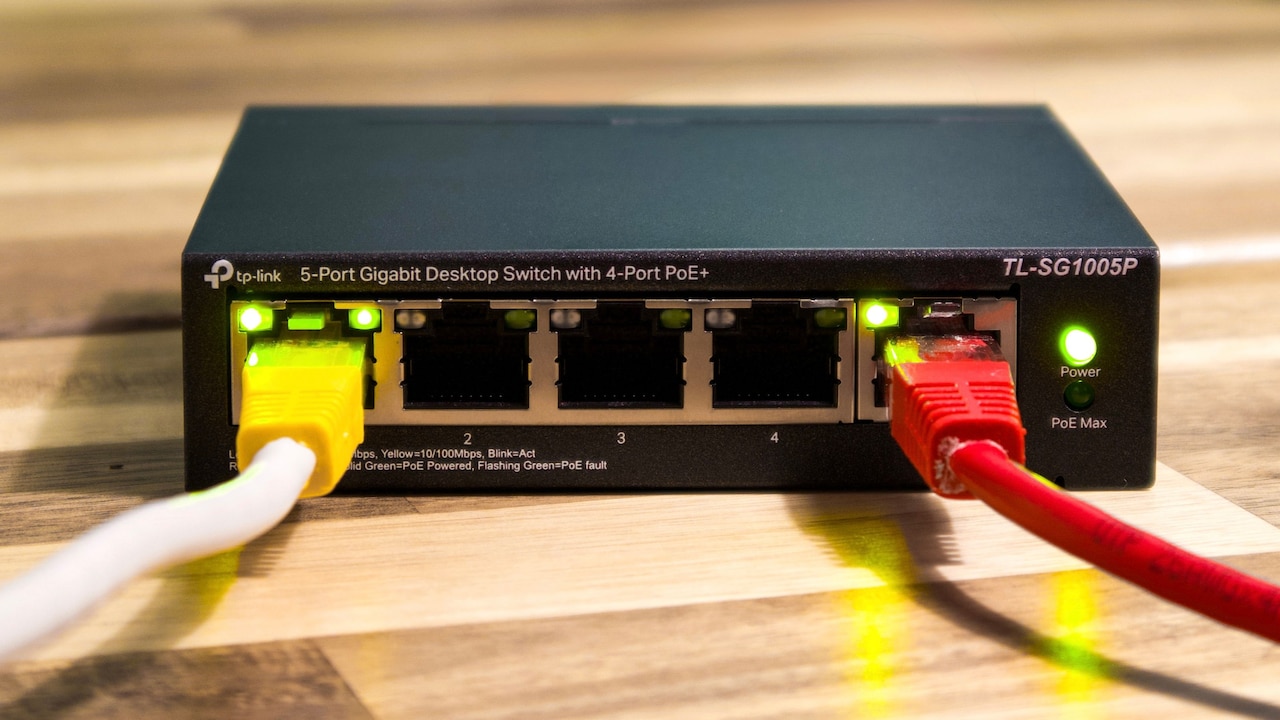
Tips you can try for improved Wi-Fi speed
Photo Credit: Pexels
6. Test Internet Speed In Different Rooms
A slow-loading website doesn't always mean the broadband service itself is slow. The problem could involve weak Wi-Fi reception, network congestion or an individual device.
Testing internet speed in several locations helps separate these possibilities. Start near the router and run a speed test using a reliable testing service. Then repeat the test in rooms where connectivity often becomes unreliable.
For more meaningful results, use the same device and testing service throughout the process. Perform tests at similar times and avoid large downloads running in the background.
Suppose a broadband plan offers speeds of up to 100 Mbps. A laptop might achieve close to that figure near the router but substantially less in a distant bedroom. Such a difference may point towards wireless coverage limitations.
However, speed tests measure more than Wi-Fi signal quality. Server conditions, broadband congestion and device capabilities can influence the results.
Where possible, connect a laptop directly to the router using an Ethernet cable and compare performance. If the wired connection works well while wireless speeds remain poor, investigate the Wi-Fi network.
If both connections consistently deliver disappointing results, contact the broadband provider.
Remember to check upload speeds and latency too. These can influence video calls and online gaming even when download speeds appear satisfactory.
7. Check For Outdated Router Firmware And Settings
Routers need occasional maintenance, much like smartphones and computers. Manufacturers release firmware updates to address security vulnerabilities, fix technical problems and sometimes improve performance or compatibility.
An outdated router may continue functioning for years, but it could miss important fixes. Some devices install firmware updates automatically, while others require users to check through the router's application or administration page.
Start by identifying the router's model number and current firmware version. Then check whether the manufacturer or broadband provider offers a newer approved version.
Avoid downloading firmware from unknown websites. Installing an incompatible file could make the router unusable.
Router settings also deserve attention. For example, outdated wireless security modes may create compatibility or security concerns. WPA3 provides stronger modern protection where supported, while WPA2-AES remains useful for older compatible equipment.
Wireless channel selection can also influence performance, particularly in apartment buildings with numerous nearby networks. Automatic channel selection often works well, but crowded environments may benefit from careful adjustments.
Before changing advanced settings, note the existing configuration so you can restore it if necessary.
If the router no longer receives security updates, replacement may be worth considering. A well-maintained router supports more dependable connectivity while helping protect household devices.
8. Identify Congestion From Neighbouring Wi-Fi Networks
Apartment buildings can create surprisingly crowded wireless environments. Every nearby flat may have its own router, and several networks could compete for overlapping Wi-Fi channels.
This congestion becomes particularly noticeable on the 2.4 GHz band, which has relatively limited non-overlapping channel options.
If multiple neighbouring routers use overlapping channels, wireless devices may experience slower performance or increased delays. Such problems can become more apparent during evenings when households stream entertainment, attend online sessions or play games.
A Wi-Fi analyser application can help identify nearby networks and their channels. Some router applications provide similar information without requiring additional software.
On 2.4 GHz networks, channels 1, 6 and 11 are commonly recommended in regions where these channels are permitted, because they don't overlap when using 20 MHz channel widths.
Choosing a less congested option may improve performance, although results depend on neighbouring networks and local conditions.
The 5 GHz band offers more channel choices and can help reduce congestion. However, not every device supports every available channel.
Avoid changing settings repeatedly without testing the results. Make one adjustment, observe performance and compare it with the previous configuration.
Sometimes, the connection struggles not because the router is weak, but because too many nearby networks compete for wireless space.
9. Examine Background Downloads And Bandwidth Usage
A device doesn't need to display a video or open a website to consume substantial internet bandwidth. Automatic software updates, cloud synchronisation, online backups and application downloads can continue quietly in the background.
This becomes particularly frustrating when someone needs a stable connection for work. A laptop may suddenly upload hundreds of photographs to cloud storage while another family member attends an important video conference.
The resulting congestion can affect upload speeds, response times and overall network performance.
Check active downloads and background applications on computers, smartphones and gaming consoles. Pause non-essential transfers when the household needs consistent connectivity.
Some routers include Quality of Service, commonly called QoS, settings. These features can help prioritise certain applications or devices when internet bandwidth becomes limited.
For instance, a properly configured QoS feature may help maintain smoother video calls while another device downloads a large file. However, its effectiveness varies by router and configuration.
Scheduling large backups and downloads for quieter hours can also reduce competition for bandwidth.
Don't assume that every slow connection requires a higher-speed broadband plan. First, identify whether existing bandwidth is being consumed inefficiently.
A little coordination between household devices can make the network feel noticeably more responsive without increasing monthly expenses.
10. Decide Whether Your Home Needs A Wi-Fi Extender Or Mesh System
Sometimes, careful placement and sensible settings still can't provide reliable coverage throughout a house. Large floor plans, multiple storeys and thick concrete walls may exceed the practical range of a single router.
In such situations, additional networking equipment could help.
A Wi-Fi extender receives an existing wireless signal and retransmits it to improve coverage in another area. It can work well for a specific weak-signal location, provided it sits where the original router still provides a dependable connection.
However, some extenders reduce available throughput because they use the same wireless connection to communicate with both the router and connected devices.
A mesh Wi-Fi system offers a different approach. It uses multiple coordinated units to distribute wireless coverage across the home. Compatible systems can also help devices move between coverage areas more smoothly.
For example, a two-storey house may benefit from mesh units positioned on different floors rather than relying on a single router downstairs.
Where practical, connecting access points or mesh units using Ethernet cables can improve stability and performance.
Before purchasing equipment, consider the size of the house, wall materials and existing router capabilities. Adding more wireless devices isn't always the best answer.
The aim is consistent coverage, not simply filling every room with additional networking hardware.
Products Related To This Article
1. Oakter Mini UPS Basic for WiFi Router Broadband Modem
2. TP-link N300 WiFi Wireless Router TL-WR845N
3. D-Link DIR-825 |High Speed 1200Mbps Dual Band Wi-Fi Router
4. Tenda F3 300Mbps Wi-Fi Router, Easy Setup
5. Dark Woof Router UPS 12V Mini WiFi UPS Power Backup Up to 8 Hours
6. D-Link M30 |WiFi 6 Speed 3000 Mbps
7. Conbre CPE MT-300H 4G SIM WiFi Router
Improving home Wi-Fi doesn't always require an expensive router or a faster broadband subscription. Often, the most useful changes involve repositioning equipment, reducing interference, checking connected devices and identifying where performance begins to decline.
Start with simple observations before adjusting advanced settings or purchasing additional hardware. Compare wired and wireless speeds, examine network activity and test coverage across different rooms.
Every household has a slightly different layout and combination of connected devices, so one solution won't work everywhere. With a few thoughtful adjustments, however, everyday browsing, streaming and video calls can become far less frustrating.
(Disclaimer: This article may include references to or features of products and services made available through affiliate marketing campaigns. NDTV Convergence Limited (“NDTV”) strives to maintain editorial independence while participating in such campaigns. NDTV does not assume responsibility for the performance or claims of any featured products or services.)