Why Laptops Feel Slow Even With SSD And What To Check First
An SSD should make a laptop fast, yet many still lag. The issue often lies elsewhere, such as RAM, overheating, startup clutter, or background apps. Here’s what actually slows laptops down and what to check first.
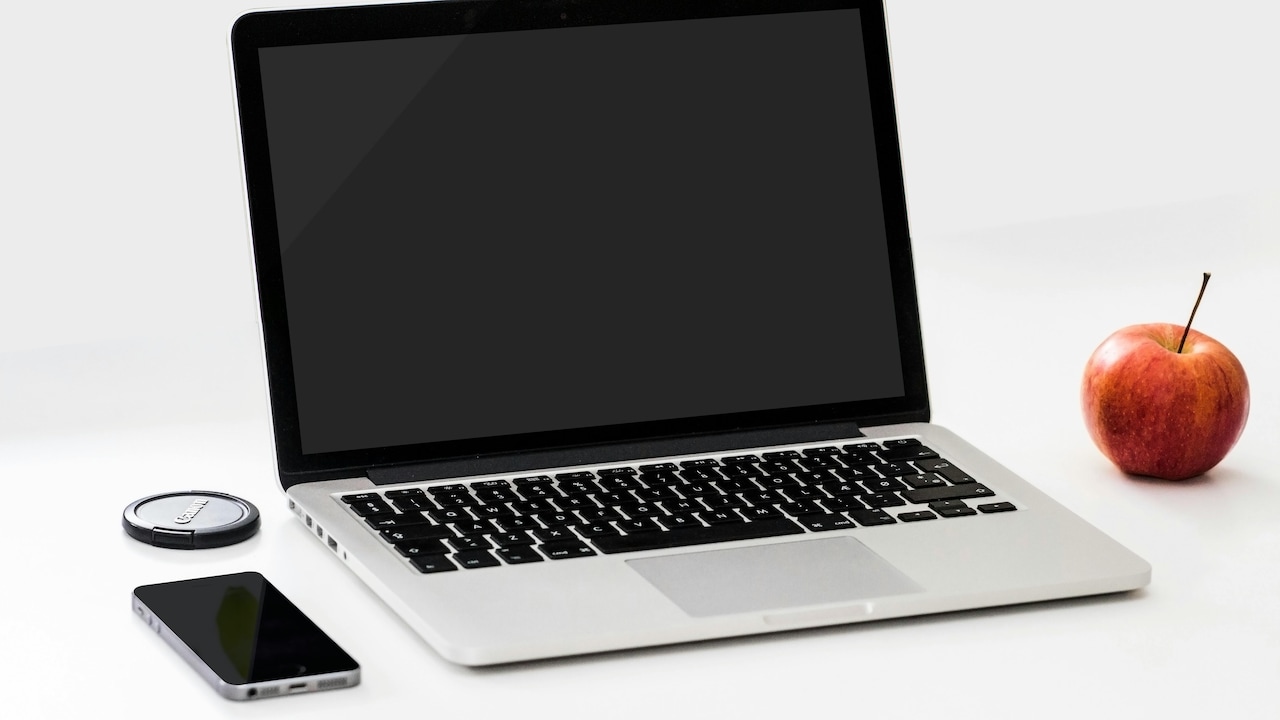
SSD Installed But Laptop Still Lagging? Common Causes And Quick Solutions.
Buying a laptop with an SSD often feels like a guaranteed ticket to speed. Shops promise quick boot times. Ads show smooth multitasking. Friends swear by the upgrade. Yet reality sometimes disappoints. The laptop boots quickly, yes, but soon begins to lag during video calls, stutter while editing photos, or hang when too many Chrome tabs sit open.
An SSD improves storage speed. It does not magically fix every performance issue. A laptop behaves like a small ecosystem where memory, processor, software, heat, and even dust play crucial roles. One weak link slows everything down.
Before rushing to spend ₹20,000 or more on a new device, it helps to pause and check a few common factors. Many slowdowns come from simple issues that can be resolved with careful tweaking. Let us explore the most common reasons laptops feel sluggish even with SSDs and what deserves attention first.
SSD Installed But Laptop Still Lagging? Common Causes And Quick Solutions
Photo Credit: Pexels
The Real Reasons Your SSD Laptop Still Feels Sluggish
Insufficient RAM And Memory Pressure
An SSD loads files quickly, but RAM keeps applications running smoothly. When RAM runs out, the system shifts data back to storage. Even the fastest SSD cannot match the speed of actual memory. This constant swapping makes the laptop feel tired and unresponsive.
Many budget laptops still ship with 4GB or 8GB RAM. That might handle basic browsing, but open a spreadsheet, a few PDFs, a music app, and a dozen browser tabs, and the machine starts gasping for air. Students preparing assignments or professionals juggling video meetings and Excel sheets often experience this slow creep.
Upgrading RAM often costs far less than buying a new laptop. Spending ₹2,500 to ₹4,000 can transform daily performance. Checking Task Manager helps reveal whether memory usage frequently crosses 80 per cent. If it does, RAM likely acts as the bottleneck.
A quick test works well. Close unused apps and notice if the laptop suddenly behaves better. If it does, memory pressure stands out as the main culprit rather than the SSD.
Too Many Startup Programmes
Many laptops behave well right after purchase. Over time, boot-up becomes painfully slow. The desktop loads, but everything feels stuck for several minutes. Startup programmes often cause this hidden drag.
Software loves to add itself to a startup. Cloud storage tools, chat apps, printer utilities, music launchers, and even random update services quietly queue up at boot. Each one demands memory and processing power before real work begins.
Disabling unnecessary startup apps often brings immediate improvement. Task Manager shows which programmes launch at startup and how much impact they create. Many users feel surprised at the long list waiting there.
There is no need for a music app or photo editor to start automatically. Keeping the startup clean reduces background strain and shortens boot time. Think of it like decluttering a crowded wardrobe. Remove the items not needed every morning, and getting ready becomes smoother.
An SSD speeds up booting, but if ten apps compete for attention at once, even solid-state storage cannot rescue the situation.
Background Updates And Hidden Processes
Modern operating systems constantly check for updates. Antivirus scans run quietly. Browser extensions track activity. Cloud backups sync files in the background. These processes consume resources even when no visible task appears demanding.
A laptop might feel slow during the afternoon simply because an update downloads in the background. Many users notice lag during online classes or meetings without realising a system update runs silently.
Checking system settings reveals if updates or sync services remain active. Scheduling updates for late-night hours can prevent daytime slowdowns. Reducing unnecessary browser extensions also helps.
Some laptops ship with heavy pre-installed software that runs continuously. Removing unused applications reduces background clutter. A machine does not need three different security tools fighting each other.
An SSD ensures quick file access. It does not reduce CPU load created by hidden processes. Keeping background activity under control often restores lost speed without spending a rupee.
Overheating And Thermal Throttling
Heat acts as a silent performance killer. When laptops overheat, processors slow themselves down to prevent damage. This process, called thermal throttling, makes even powerful machines feel sluggish.
Dust often builds up inside vents and fans. In cities with heavy traffic pollution or during summer months, laptops struggle to stay cool. Placing the device on soft surfaces like beds blocks airflow further.
When overheating occurs, the laptop may feel warm near the keyboard or bottom panel. The fan might spin loudly. Performance drops noticeably during gaming or video editing.
Cleaning vents and ensuring proper airflow often helps. A cooling pad, which costs around ₹1,000, can also reduce temperature. For older machines, replacing thermal paste at a service centre may bring surprising improvement.
Heat forces the processor to slow down. An SSD cannot compensate for reduced CPU speed. Keeping temperatures in check ensures the rest of the hardware performs at its full potential.
Ageing Or Underpowered Processor
An SSD handles storage speed. The processor manages thinking. If the processor struggles, everything feels slow regardless of storage type.
Many entry-level laptops rely on basic processors designed for light tasks. They handle browsing and typing well, but falter with heavy multitasking. Over time, software becomes more demanding. What felt fast three years ago may now feel outdated.
Opening high-resolution images, running data analysis tools, or joining HD video calls places stress on the CPU. If usage frequently hits near 100 per cent, the processor limits performance.
There is little room for upgrading the processor in most laptops. In such cases, optimising software becomes crucial. Use lighter applications. Close unnecessary tabs. Consider web versions of heavy software.
Sometimes expectations need adjustment. A machine bought for ₹30,000 cannot deliver workstation-level performance. Understanding hardware limits helps set realistic usage patterns.
Storage Nearly Full
An SSD performs best when it has free space. When storage approaches full capacity, performance drops. Temporary files pile up. The system struggles to manage data efficiently.
Many users fill drives with movies, large WhatsApp backups, and old downloads. Screenshots multiply silently. Over time, only a few gigabytes remain free.
Keeping at least 20 per cent of storage free helps maintain speed. Deleting unnecessary files or moving them to an external drive often makes a noticeable difference.
Using built-in cleanup tools removes temporary files and system clutter. It feels satisfying too, like clearing old cupboards before a festival.
A packed SSD slows file operations and increases system strain. Regular housekeeping ensures smoother performance and longer storage life.
Malware Or Heavy Antivirus Software
Not all slowdowns come from hardware. Malware quietly consumes resources. Strange pop-ups, unexpected browser redirects, or sudden CPU spikes hint at infection.
Ironically, heavy antivirus programmes can also cause lag. Some security suites run constant deep scans and real-time monitoring that overwhelm modest hardware.
Running a reliable but lightweight security tool keeps protection balanced with performance. Avoid installing multiple antivirus programmes at once. They compete with each other and create chaos.
If the laptop behaves unusually slowly without a clear reason, performing a full system scan makes sense. Removing malicious software often restores lost responsiveness.
A secure system should not feel suffocated. Choose protection wisely and keep software updated. Safety matters, but so does smooth performance.
Outdated Drivers And Operating System Issues
Drivers act as translators between hardware and software. Outdated drivers create compatibility issues and performance hiccups.
Graphics drivers, in particular, influence visual smoothness. If videos stutter or screen animations lag, updating drivers may solve the issue.
Operating systems also accumulate glitches over time. Major updates sometimes introduce temporary bugs. Restarting regularly helps clear memory and reset processes.
If problems persist, a clean operating system reinstall can dramatically improve performance. Back up data first, then reset the system. Many users describe the experience as similar to buying a new laptop.
Software health matters as much as hardware strength. Keeping everything updated ensures all components work in harmony.
Browser Overload And Extension Chaos
Browsers often consume the most memory. Each open tab uses resources. Streaming platforms, shopping sites, and social media pages run scripts continuously.
It feels harmless to keep twenty tabs open. Yet each tab quietly drains RAM and CPU power. Add multiple extensions, and the browser becomes heavy.
Disabling unnecessary extensions reduces load instantly. Using a single browser rather than switching between several also helps.
Students attending online classes often notice lag when several tabs remain open. Closing unused ones improves responsiveness immediately.
An SSD speeds up loading pages from storage. It does not reduce the strain of active web scripts. Managing browser habits makes daily usage smoother and less frustrating.
SSD Installed But Laptop Still Lagging? Common Causes And Quick Solutions
Photo Credit: Pexels
Battery Health And Power Settings
Battery condition influences performance more than many realise. When battery health declines, the system may reduce performance to conserve power.
Using power-saving mode limits CPU speed. This makes the laptop feel slow even when plugged in. Checking power settings ensures the device runs in balanced or high-performance mode when needed.
Older batteries sometimes fail to deliver stable power. Replacing a worn-out battery can restore steady performance. While it may cost ₹3,000 to ₹5,000, the improvement often feels worthwhile.
Keeping the charger connected during heavy tasks helps maintain a consistent speed. Power fluctuations affect performance subtly but significantly.
A healthy battery and correct power settings allow the processor and SSD to function without restriction.
Products Related To This Article
1. HP OmniBook 5 OLED (Previously Pavilion)
2. Lenovo V15 G4 AMD Ryzen 5 7520U 15.6 inch FHD Laptop
3. Primebook 2 Max 2025 (New Launch) | 8GB RAM
4. ASUS TUF A15 (2025), AMD Ryzen 7 7445HS
5. Dell 15, 13th Gen Intel Core i5-1334U (16GB RAM, 1TB SSD) FHD
An SSD brings speed, but it does not solve every performance issue. Laptops slow down for many reasons. Memory pressure, overheating, cluttered startup lists, ageing processors, and background processes all contribute to frustration.
Before assuming the device has reached the end of its life, check these areas patiently. Many improvements cost little or nothing. Cleaning up storage, disabling startup apps, upgrading RAM, or adjusting power settings often breathe new life into an ageing machine.
Technology should support daily work, not test patience during important meetings or late-night assignments. With careful attention and small tweaks, even a modest laptop can feel reliable again.
Speed does not depend on one component alone. It emerges from balance. When hardware, software, and habits align, the laptop finally behaves the way it promised on day one.
(Disclaimer: This article may include references to or features of products and services made available through affiliate marketing campaigns. NDTV Convergence Limited (“NDTV”) strives to maintain editorial independence while participating in such campaigns. NDTV does not assume responsibility for the performance or claims of any featured products or services.)