Does A Strong Bluetooth Signal Guarantee Smooth Typing? 10 Keyboard Myths Explained
Does a strong Bluetooth connection guarantee lag-free typing? Discover 10 common wireless keyboard myths, what causes typing delays, and how to improve everyday performance.

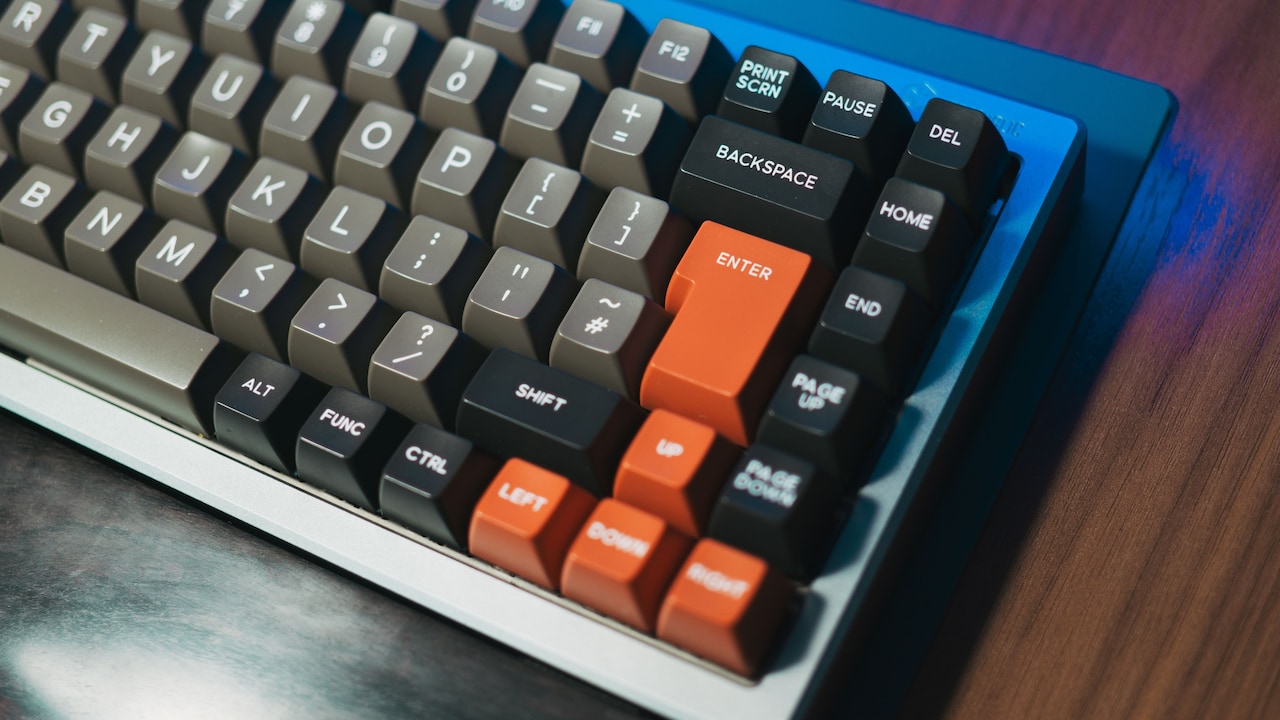
The truth about bluetooth keyboards and common myths associated with them
A wireless keyboard can make a work desk look wonderfully organised. No tangled cables, fewer distractions, and enough space for a cup of chai beside the laptop. Everything seems perfect until the keyboard starts behaving strangely. A letter appears a second late, a sentence suddenly repeats a character, or the connection disappears halfway through an important email. The Bluetooth indicator still shows a strong connection, though. So, what's going wrong? Many people assume that a strong Bluetooth signal automatically means smooth typing. That sounds reasonable, but wireless keyboard performance involves more than signal strength. Battery health, software settings, interference, typing habits, and device compatibility can all affect how quickly characters appear on the screen. Some popular keyboard beliefs also create unnecessary confusion. Does Bluetooth always cause noticeable delays? Can nearby wireless devices interfere with typing? Will an expensive keyboard eliminate every connection problem? Understanding these everyday misconceptions can save considerable frustration. Before replacing a perfectly functional keyboard or blaming the laptop, consider these ten common myths and the practical reasons they don't always hold true.
Popular myths about bluetooth keyboards
Photo Credit: Pexels
10 Common Bluetooth Keyboard Myths And The Facts Behind Them
1. A Strong Bluetooth Signal Always Means Lag-Free Typing
A strong Bluetooth signal sounds like the ultimate guarantee of reliable keyboard performance. After all, if the laptop and keyboard communicate without trouble, why should typing feel sluggish? The catch is that signal strength only tells part of the story.
Bluetooth keyboards send information in small packets, and the receiving device must process that information before displaying characters. A strong connection generally helps communication, but it doesn't guarantee immediate responses. Software delays, temporary interference, and power management settings can still interrupt the experience.
Consider someone typing a lengthy office report while several applications run in the background. The keyboard may maintain a reliable connection, yet the laptop could struggle to process inputs promptly. In this situation, replacing the keyboard won't necessarily solve the problem.
Some devices also reduce Bluetooth activity to conserve energy. Their power-saving behaviour can introduce brief delays, particularly after periods of inactivity.
The useful lesson is simple. Signal strength matters, but consistency matters more. A keyboard that responds predictably with a moderate connection can feel better than one showing excellent signal strength while the computer struggles to keep up.
2. Bluetooth Keyboards Are Always Slower Than Wired Keyboards
Wired keyboards have a reputation for speed, while Bluetooth models often carry the unfortunate label of being slow. There's some technical reasoning behind this belief, but everyday typing tells a more interesting story.
A wired keyboard communicates through a physical connection, which can reduce potential wireless delays. Bluetooth keyboards introduce additional communication steps. However, modern models generally handle ordinary typing tasks quickly enough that most users won't notice a meaningful difference.
Writing emails, preparing spreadsheets, browsing websites, or completing college assignments rarely requires extremely low input latency. A decent Bluetooth keyboard can handle these activities comfortably when the connection remains stable.
Competitive gaming presents a different situation. Fast-paced games demand precise responses, and small delays may influence performance. Some specialised wired keyboards and low-latency wireless models offer advantages here.
Still, the connection type alone doesn't determine speed. Keyboard firmware, internal processing, polling behaviour, and the receiving device all play important roles.
Choosing a keyboard solely because it has a cable could mean sacrificing a more comfortable setup without gaining any noticeable typing improvement. For regular office work, responsiveness and reliability deserve more attention than the wired-versus-wireless debate.
Also Read: Save Big On These 5 Best-Selling Vacuum Cleaners With Amazon
3. Keeping The Keyboard Closer Always Improves Performance
Moving a Bluetooth keyboard closer to the laptop seems like an obvious solution when characters start appearing late. Sometimes, reducing the distance genuinely helps. However, positioning the keyboard a few centimetres nearer doesn't automatically eliminate every connection issue.
Bluetooth works through short-range radio communication. Physical obstacles, metal surfaces, and competing wireless signals can affect that communication. Distance contributes to connection quality, but the surrounding environment also matters.
Imagine a desk crowded with a laptop stand, wireless mouse, external monitor, and several accessories. The keyboard might sit directly in front of the laptop, yet nearby equipment could still contribute to interference or signal obstruction.
A keyboard positioned slightly farther away in a clearer environment may perform more consistently than one surrounded by electronic clutter.
The practical approach involves checking the complete workspace rather than obsessing over distance. Remove unnecessary obstacles, avoid placing wireless receivers behind large metal objects, and test different positions if typing becomes unreliable.
Also, remember that most Bluetooth keyboards already operate comfortably across normal desk distances. Unless the connection approaches its practical range limit, moving the keyboard closer may achieve very little.
4. A Fully Charged Keyboard Cannot Experience Connection Problems
Battery anxiety usually disappears once a wireless keyboard reaches full charge. Unfortunately, a healthy battery indicator doesn't promise flawless Bluetooth performance.
Battery power supports the keyboard's electronic components, but several other factors influence connectivity. Firmware glitches, operating system issues, nearby interference, and temporary communication failures can occur regardless of the charge level.
Rechargeable keyboards can also develop battery-related problems over time. An ageing battery might behave differently under load, even when its charge indicator appears reassuring. That doesn't mean every delayed keystroke signals battery failure, though.
Some keyboards also enter energy-saving modes after remaining idle. When typing resumes, the device may take a moment to wake and communicate with the computer. Users sometimes interpret this brief pause as a connectivity fault.
Before blaming the battery, check whether the delay occurs continuously or only after inactivity. Restarting the keyboard, reconnecting Bluetooth, and checking available software updates may help identify the cause.
A full battery removes one possible explanation, not every explanation. Treat charging as part of routine maintenance rather than a magical cure for unpredictable typing.
5. Bluetooth Interference Only Happens When Several Keyboards Are Nearby
A desk doesn't need five wireless keyboards to experience Bluetooth interference. In fact, the devices causing trouble might have nothing to do with typing.
Bluetooth operates within the crowded 2.4 GHz radio band. Many wireless accessories and some Wi-Fi connections also use this frequency range. Bluetooth employs techniques such as adaptive frequency hopping to reduce interference, but challenging environments can still affect communication.
Consider a typical home workspace. A laptop connects to Wi-Fi, wireless earbuds play music, and a Bluetooth mouse sits beside the keyboard. Individually, these devices may function perfectly. Together, their radio activity can sometimes create conditions that affect connection stability.
However, multiple wireless devices don't automatically cause problems. Modern systems often manage simultaneous connections successfully.
If keyboard delays appear unexpectedly, try temporarily disconnecting nearby wireless accessories or moving compatible Wi-Fi devices to a 5 GHz network. Observe whether typing becomes more consistent.
The important distinction is that interference depends on radio conditions, not simply the number of Bluetooth keyboards present. Even a single keyboard can struggle in an unfavourable environment, while several wireless accessories may work smoothly in another.

Bluetooth interference can happen even if no other keyboard is nearby
Photo Credit: Pexels
6. An Expensive Bluetooth Keyboard Guarantees Better Connectivity
A premium keyboard can look impressive on a desk, particularly with attractive lighting, sturdy construction, and satisfying key movement. But a higher price tag doesn't automatically deliver a stronger or more reliable Bluetooth connection.
Premium models often justify their prices through materials, ergonomics, mechanical switches, customisation options, and advanced features. Connectivity quality may improve too, but that depends on the actual hardware and software rather than the price alone.
A ₹12,000 mechanical keyboard, for example, might offer an excellent typing feel while still encountering occasional wireless interference. Meanwhile, a carefully designed ₹2,000 keyboard could perform consistently during everyday office tasks.
Compatibility also deserves attention. Some keyboards work particularly well with certain operating systems but offer fewer features or less convenient switching on others.
Before spending more, consider the intended workload. Someone preparing articles and spreadsheets may value dependable connectivity, comfortable key spacing, and long battery life more than elaborate lighting effects.
Reviews that discuss missed keystrokes, reconnection behaviour, and device switching can offer useful clues. A premium finish might make typing more enjoyable, but reliable wireless performance requires sound engineering, not merely an impressive price.
7. Bluetooth Version Alone Determines How Smoothly A Keyboard Types
Bluetooth specifications can make keyboard shopping unnecessarily complicated. Product descriptions highlight different versions, tempting buyers to assume that the newest number guarantees the fastest typing experience.
Newer Bluetooth versions can introduce improvements in supported features, efficiency, and communication capabilities. However, a keyboard doesn't automatically benefit from every feature associated with a particular Bluetooth specification.
Actual performance depends on which features the manufacturer implements and how the keyboard communicates with the computer. The keyboard's firmware, internal controller, power management, and operating system support all contribute to the experience.
For instance, a well-designed keyboard using an older Bluetooth version may respond more consistently than a poorly optimised model advertising a newer one.
It's also worth remembering that Bluetooth keyboards can use different communication approaches, including Bluetooth Low Energy. Their performance characteristics depend on implementation details rather than version numbers alone.
Instead of treating the newest Bluetooth label as a decisive advantage, examine compatibility information and independent performance observations.
For most everyday users, stable pairing, predictable reconnection, and accurate keystroke registration matter considerably more than having the latest specification printed prominently on the packaging.
8. Delayed Characters Always Mean The Keyboard Is Faulty
Few things interrupt concentration faster than typing a sentence and watching the words appear several moments later. Naturally, the keyboard becomes the first suspect. Yet delayed characters can originate from the computer itself.
Applications sometimes struggle when the system runs low on available memory or processing resources. A browser with numerous tabs, background updates, and demanding software can make the entire computer feel unresponsive.
Input processing problems may also arise from operating system glitches, accessibility settings, or particular applications. In such cases, the keyboard could transmit every keystroke correctly while the screen displays the results late.
A simple comparison helps narrow down the cause. Open a basic text editor and type several sentences. If the keyboard responds normally there but lags inside a particular application, the software deserves closer attention.
Testing another keyboard can provide additional clues. If both devices experience similar delays, investigating the computer becomes more sensible than purchasing a replacement.
It's frustrating when an important message turns into a delayed parade of letters. Still, identifying where the delay originates prevents unnecessary spending and makes troubleshooting much more effective.
9. Bluetooth Keyboards Never Need Software Or Firmware Updates
Keyboards look like straightforward devices. Press a key, produce a character, and continue working. This simplicity encourages the belief that wireless keyboards need no software attention after their initial setup.
In reality, many Bluetooth keyboards contain firmware that manages communication, key behaviour, power consumption, and additional features. Manufacturers may release updates to correct bugs, improve compatibility, or address specific connection problems.
Not every keyboard supports user-installed firmware updates. Some basic models operate with fixed firmware, while more advanced devices offer updates through manufacturer software.
The computer's Bluetooth drivers and operating system also influence performance. An outdated or faulty driver can contribute to disconnections, unsuccessful pairing, or inconsistent input behaviour.
If a keyboard begins behaving strangely after a major system update, checking manufacturer support information can be worthwhile. Sometimes, a compatible driver or firmware revision resolves the issue.
However, avoid downloading random keyboard utilities from unfamiliar websites. Use official manufacturer resources and follow the recommended instructions carefully.
Updates won't transform every keyboard into a faster device, but they can resolve genuine compatibility problems. Ignoring software entirely may mean overlooking a relatively simple solution.
10. Replacing The Keyboard Is The Best Solution To Frequent Typing Lag
When wireless typing becomes unpredictable, buying another keyboard feels tempting. A fresh device promises the satisfying return of instant responses and uninterrupted work. Unfortunately, replacement isn't always the most effective first step.
Frequent typing lag can result from several causes beyond the keyboard. Interference, outdated drivers, background software activity, low power, and problematic Bluetooth connections can produce similar symptoms.
Start by observing when the issue occurs. Does typing slow down after the keyboard remains idle? Does the problem disappear when wireless earbuds disconnect? Does it affect every application or only one?
These small observations can reveal useful patterns. Restarting the keyboard and computer, removing and pairing the device again, or testing another application may help isolate the problem.
If possible, connect the keyboard to another compatible device. Smooth performance there suggests that the original computer or its wireless environment deserves investigation.
Of course, hardware sometimes fails. Damaged switches, faulty internal electronics, or persistent connection problems across multiple devices can justify replacement.
The goal isn't to keep an unreliable keyboard forever. It's to avoid spending money before identifying the actual cause. A few careful checks might restore smooth typing without requiring another delivery at the doorstep.
Products Related To This Article
1. Portronics Bubble 3.0 Wireless Keyboard with Bluetooth
2. Logitech K250 Bluetooth Keyboard with Numpad, Easy Connectivity
3. Logitech K250 Bluetooth Keyboard with Numpad
4. FRONTECH Wireless Mini Keyboard - 78 Keys, Bluetooth Connectivity
5. Acer FoldTouch Pro Folding Keyboard with Touch Pad | 64 Keys
6. Portronics Bubble 3.0 Wireless Keyboard with Bluetooth
7. HP 460 Multi-Device Bluetooth Keyboard,Multi-OS,Slim Design
A strong Bluetooth signal helps maintain communication, but it doesn't guarantee smooth typing. Wireless performance depends on several factors working together, including hardware quality, software behaviour, interference, and power management.
Many familiar keyboard myths persist because connection problems often look identical despite having different causes. A delayed character might indicate wireless interference, an overloaded application, or a device waking from sleep.
Before replacing a keyboard, examine the surrounding setup and test the most likely explanations. Reliable typing isn't about chasing the strongest signal or the highest price tag. It's about finding a keyboard and computer combination that responds consistently, so the words can flow without unexpected interruptions.
(Disclaimer: This article may include references to or features of products and services made available through affiliate marketing campaigns. NDTV Convergence Limited (“NDTV”) strives to maintain editorial independence while participating in such campaigns. NDTV does not assume responsibility for the performance or claims of any featured products or services.)