Laptop Heating Up? Causes of Thermal Throttling, Overheating and Long-Term Damage Explained
Laptop slowing down, fans getting louder, or sudden shutdowns? Excessive heat may be the culprit. Learn what causes thermal throttling, how daily habits worsen overheating, and simple ways to protect performance and hardware. Discover common culprits behind your laptop overheating and how to fix it.
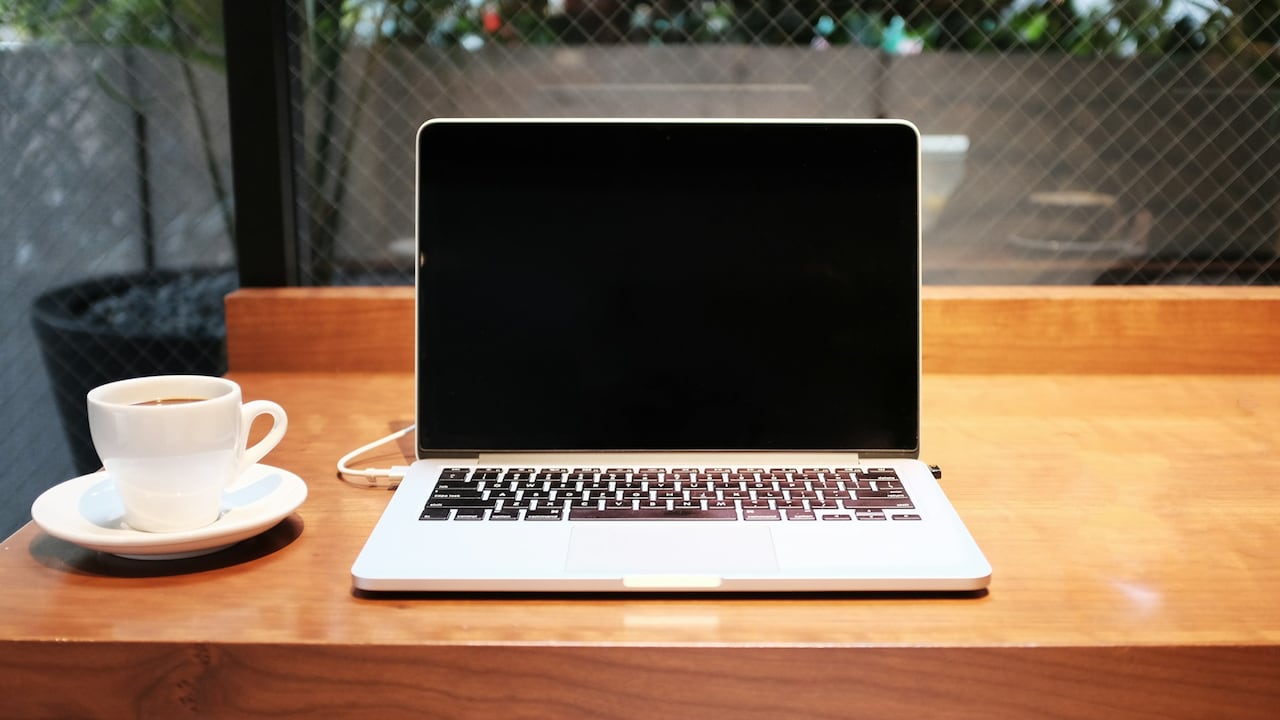
Laptop Heating Up? Know What Causes Thermal Throttling and Damage, From Habits To Ventilation.
Almost everyone has faced it. A laptop placed on the lap during a late-night movie, slowly turning uncomfortably warm. The fan starts sounding like a small ceiling fan. The system slows down at the worst possible moment, maybe during an online meeting or while submitting an assignment. Many brush it off as normal behaviour. After all, electronics heat up, right?

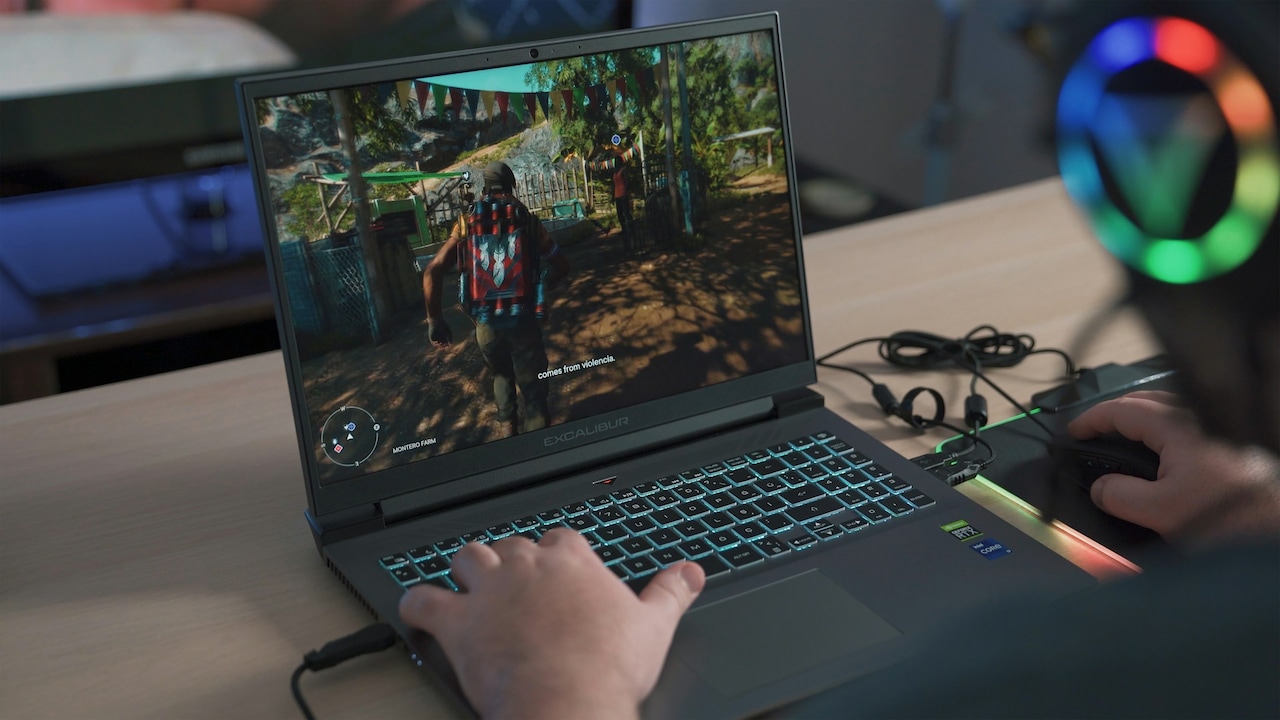
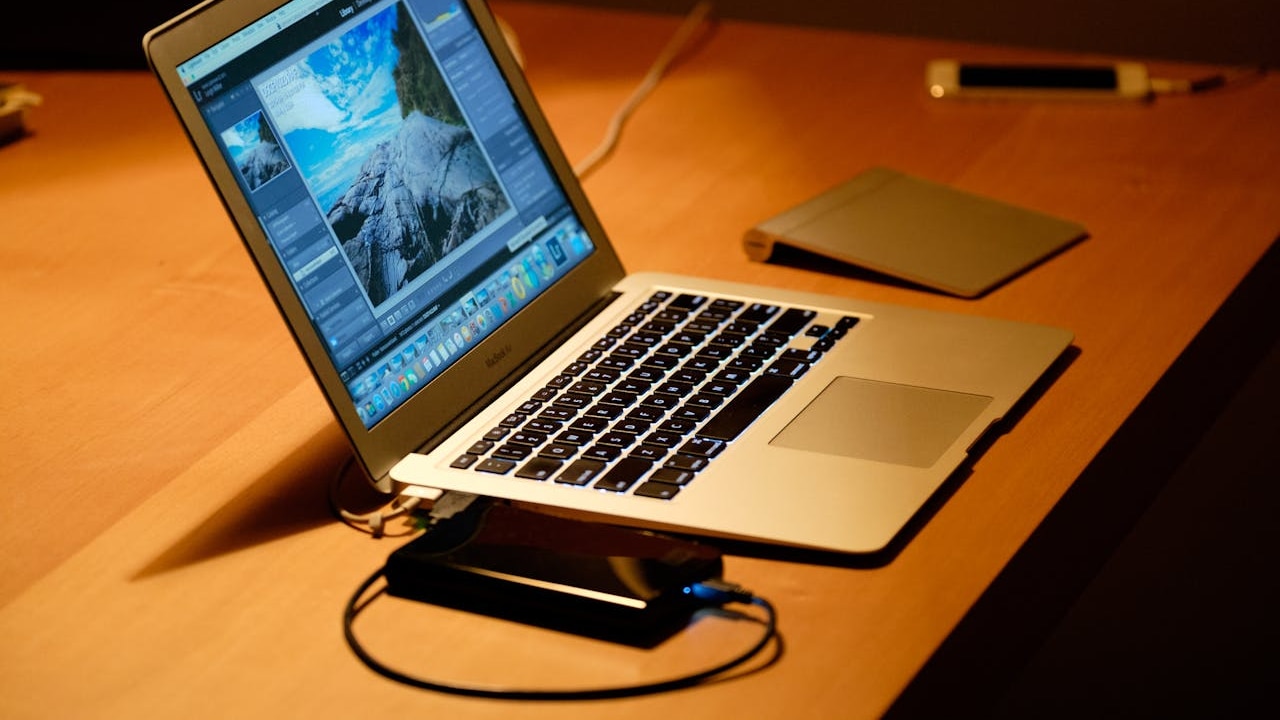
What makes a laptop overheat and how to fix it easily; Photo Credit: Unsplash
Heat is normal, but excessive heat is not. Modern laptops are powerful yet compact, which makes heat management a delicate balancing act. When that balance breaks, the system protects itself by reducing performance. This process, known as thermal throttling, saves the hardware but punishes speed. Over time, constant overheating damages internal components and shortens the device's lifespan.
Understanding why laptops heat up helps prevent frustration, data loss and costly repairs. More importantly, it helps build habits that keep performance smooth and dependable. From airflow and dust to usage patterns and charging habits, heat has many triggers. Each one deserves attention.
From Slowdowns To Shutdowns: The Real Reasons Laptops Overheat
1. What Exactly Is Thermal Throttling and Why It Feels So Annoying
Thermal throttling sounds technical, but the experience feels painfully familiar. The laptop works fine at first, then suddenly becomes slow, unresponsive or laggy. Apps take longer to open, videos stutter, and even simple tasks feel heavy. This slowdown happens when the processor detects unsafe temperatures.
Processors and graphics chips generate heat while working. When temperatures cross a safe limit, the system lowers clock speeds to cool down. This self-defence mechanism prevents permanent damage, but performance takes a hit. It feels like the laptop has lost motivation halfway through the day.
The frustration peaks during demanding tasks such as video editing, gaming or even multiple browser tabs. Many users mistake throttling for ageing hardware or software bugs. In reality, heat often plays the villain. Repeated throttling also reduces productivity and makes even premium laptops feel underpowered.
Ignoring thermal throttling invites long-term trouble. Constant high temperatures strain components and degrade thermal materials. Performance dips become frequent, and recovery takes longer. Understanding this mechanism helps shift focus from blaming the machine to correcting the conditions that force it to slow down.
2. Poor Ventilation: When Laptops Struggle to Breathe
Every laptop needs to breathe. Tiny vents along the sides or bottom pull in cool air and push hot air out. Block these vents, and heat has nowhere to go. Sadly, daily usage often ignores this basic requirement.
Using a laptop on a bed, sofa or cushion ranks among the most common mistakes. Soft surfaces sink around the base and block airflow. Heat builds up quickly, even during light tasks like browsing or watching shows. Placing the device directly on the lap creates a similar problem, along with discomfort.
Ventilation also suffers in cramped spaces. Keeping a laptop inside a drawer, tight shelf or cluttered desk traps hot air. Over time, this habit raises internal temperatures and stresses cooling components. Even stylish laptop sleeves cause trouble when used during charging.
A simple flat surface makes a huge difference. A table, desk or dedicated laptop stand improves airflow instantly. Some stands lift the device slightly, allowing better cooling without extra cost. Giving laptops room to breathe keeps temperatures stable and performance consistent.
3. Dust: The Silent Heat Trap Inside the Machine
Dust feels harmless until it settles where it does not belong. Inside a laptop, dust acts like a blanket, trapping heat and blocking airflow. Over months and years, this slow build-up chokes fans and heat sinks.
Fans spin faster to compensate, creating more noise but less cooling. Heat sinks lose efficiency as dust coats their fins. The system works harder yet cools less effectively. Temperatures rise, throttling kicks in and performance drops.
Homes with open windows, nearby roads or frequent construction see faster dust accumulation. Even clean-looking rooms hide fine particles that sneak into vents. Pets add another layer of fur and dander.
Regular cleaning prevents this issue. External vents benefit from gentle brushing or compressed air. Internal cleaning needs professional help unless technical confidence exists. A service visit once a year often costs far less than replacing a damaged motherboard.
Dust never announces its arrival. By the time overheating becomes obvious, the damage has often begun. Staying ahead of this silent enemy keeps cooling systems efficient and laptops running smoothly.
4. Heavy Workloads and Multitasking Overload
Modern laptops promise multitasking, but every task adds heat. Running multiple apps, browser tabs and background processes pushes the processor harder. Add video calls, streaming and downloads, and temperatures climb fast.
Many users underestimate how demanding everyday activities have become. A single browser tab can use more resources than older software combined. Auto-start apps load quietly at boot, consuming power without notice. Cloud sync services and antivirus scans also run in the background.
The problem worsens on older or thinner laptops with limited cooling capacity. Continuous high workloads leave little time for cooling breaks. Heat accumulates, fans stay loud and throttling appears more often.
Managing workloads helps control heat. Closing unused tabs, disabling unnecessary startup apps and taking short breaks reduce thermal stress. Task managers reveal resource-hungry processes and allow quick adjustments.
Treating a laptop like a marathon runner instead of a sprinter improves longevity. Balanced usage keeps temperatures reasonable and ensures consistent performance throughout the day.
5. Charging Habits That Add Unwanted Heat
Charging generates heat, especially during fast charging or heavy usage. Using a laptop while charging pushes internal temperatures higher, as power flows in and components work simultaneously.
Leaving the device plugged in all the time creates another issue. Batteries generate heat when held at full charge for long periods. Over months, this habit degrades battery health and increases internal temperatures.
Using low-quality chargers worsens the situation. Inconsistent power delivery causes inefficiency and extra heat. Cheap adapters often lack proper regulation, forcing internal components to work harder.
Smart charging habits reduce heat. Unplugging once fully charged, avoiding heavy tasks during charging and using original adapters make a difference. Some laptops offer charging limits to protect battery health.
Heat from charging feels subtle but adds up over time. Small adjustments in daily routines protect both performance and battery life, saving money and frustration in the long run.
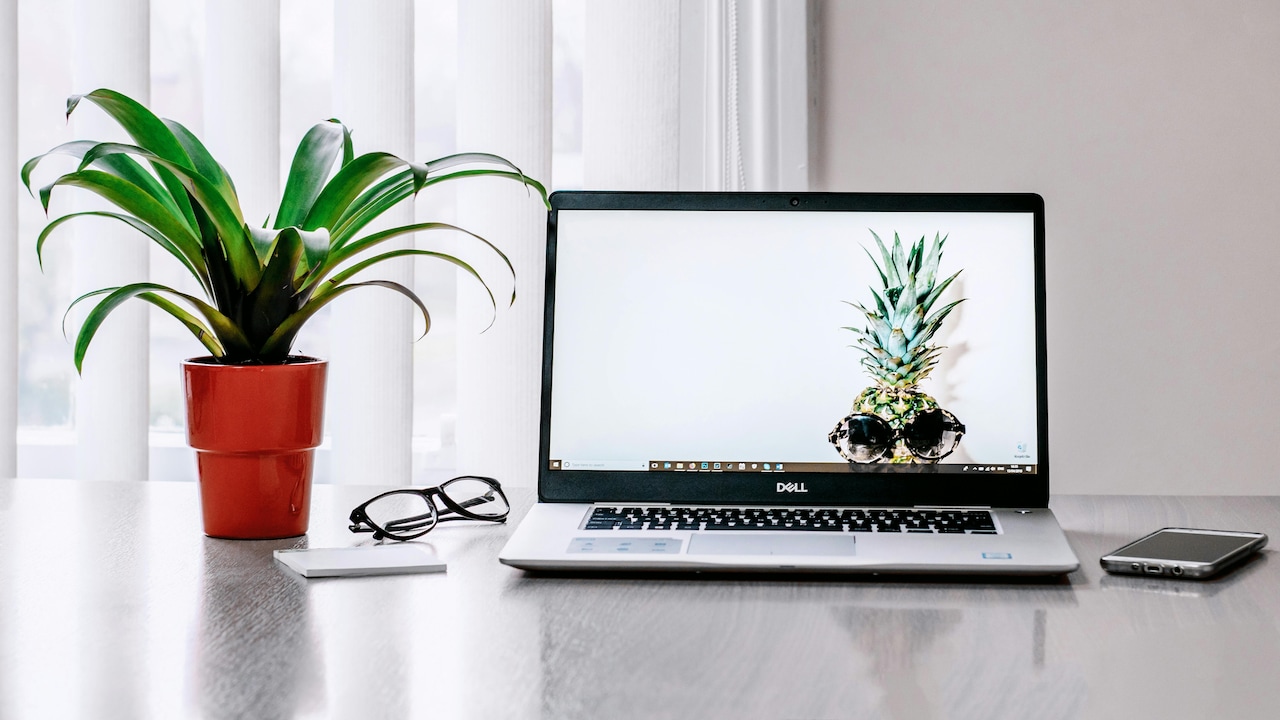
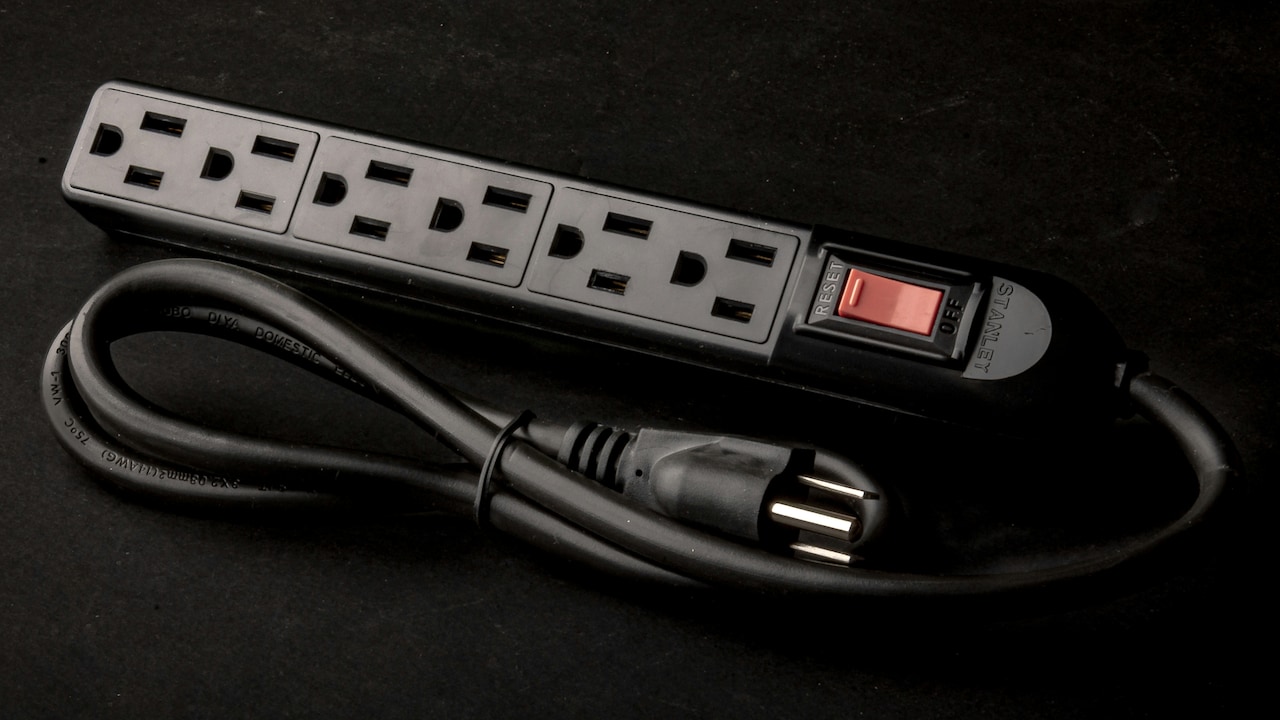
Leaving the device plugged in for hours can cause overheating; Photo Credit: Pexels
6. Outdated Thermal Paste and Ageing Components
Inside every laptop, thermal paste sits between the processor and heat sink. This paste transfers heat efficiently, keeping temperatures under control. Over time, it dries out and loses effectiveness.
As thermal paste degrades, heat transfer weakens. The processor heats up faster, fans work harder, and throttling appears sooner. Many laptops show noticeable temperature increases after three to four years of use.
Ageing fans also lose efficiency. Bearings wear out, speeds drop and noise increases. Combined with old thermal paste, the cooling performance suffers significantly.
Replacing thermal paste and worn fans restores cooling efficiency. This maintenance task often surprises users with dramatic temperature improvements. Performance feels smoother, and fan noise reduces.
Neglecting ageing components shortens a laptop's useful life. Regular servicing keeps internal cooling systems in good shape, ensuring reliable performance even as hardware grows older.
7. Software Issues and Hidden Background Activity
Heat does not always come from hardware alone. Software problems often push systems harder than necessary. Buggy updates, poorly optimised apps and malware can cause constant high CPU usage.
A laptop running hot while idle signals trouble. Background processes may be stuck in loops, using resources without visible activity. Crypto-mining malware, though less common, still exists and generates intense heat.
Outdated drivers also contribute. They fail to manage power efficiently, causing components to run at higher speeds than required. Operating system updates sometimes introduce temporary issues that spike temperatures.
Regular software maintenance helps. Updating the operating system, drivers and applications ensures better power management. Scanning for malware protects against hidden threats. Restarting the system occasionally clears stuck processes.
Software hygiene matters as much as physical care. Clean systems run cooler, faster and more reliably, proving that not all heat problems require a screwdriver.
8. Environmental Factors: Heat From the Outside In
Room temperature plays a bigger role than many realise. Using laptops in hot, poorly ventilated rooms raises baseline temperatures. Cooling systems struggle when the surrounding air already feels warm.
Summer months amplify the problem. Long hours without proper airflow turn rooms into heat traps. Using laptops near windows with direct sunlight adds another layer of thermal stress.
Placing laptops near other electronics also increases heat exposure. Routers, monitors and chargers emit warmth that affects nearby devices.
Improving room ventilation helps. Fans, open windows and air circulation reduce ambient temperatures. Simple changes like moving the laptop away from sunlight or heat sources make a noticeable difference.
Heat from the environment compounds internal heat. Controlling surroundings creates a friendlier operating space, allowing cooling systems to work effectively and maintain performance.
9. Gaming and Creative Work: Pushing Limits Without Preparation
Gaming, video editing and design tasks push laptops to their limits. Graphics chips and processors run at high speeds for extended periods, producing intense heat. Thin laptops struggle the most under such pressure.
Many users jump into demanding tasks without preparation. Default settings maximise visuals and performance, ignoring thermal constraints. Fans ramp up, temperatures spike and throttling kicks in mid-session.
Cooling accessories help manage this load. External cooling pads improve airflow and reduce surface temperatures. Adjusting graphics settings lowers heat without ruining the experience.
Taking breaks during long sessions allows internal temperatures to stabilise. Monitoring tools provide insight into thermal behaviour, helping identify safe limits.
Pushing hardware without support leads to disappointment and damage. Smart adjustments keep creative and gaming sessions enjoyable without turning the laptop into a portable heater.
10. Everyday Habits That Quietly Damage Over Time
Small habits shape long-term outcomes. Carrying a laptop while it remains warm traps heat in tight bags. Shutting the lid immediately after heavy use prevents proper cooling.
Ignoring early warning signs also causes trouble. Frequent fan noise, warm keyboards and slowdowns signal heat issues. Dismissing them allows damage to accumulate.
Using laptops on uneven surfaces bends the chassis slightly, affecting internal alignment and airflow. Eating near devices invites crumbs and dust into vents. Even placing heavy items on closed laptops restricts ventilation.
Mindful usage prevents these issues. Allowing laptops to cool before packing, cleaning surfaces regularly and paying attention to warning signs preserve internal health.
Technology rewards care. Respectful habits extend lifespan, maintain performance and reduce repair costs, proving that prevention beats cure every time.
Products Related To This Article
1. Dell 15 Laptop, 14th Gen Intel Core 3 100U Processor
2. Lenovo IdeaPad 1 AMD Ryzen 5 5500U 15.6" HD Thin and Light Laptop
3. HP 15, 13th Gen Intel Core i3-1315U
4. MSI Thin 15, Intel 12th Gen. i7-12650H
5. ASUS Vivobook 14, Intel Core i3 13th Gen 1315U
Laptop heating feels inevitable, but most causes remain within control. From ventilation and dust to workloads and charging habits, small choices influence temperature more than expected. Thermal throttling protects hardware, yet it also signals distress.
Understanding these signals empowers better decisions. Simple changes improve cooling, performance and comfort. Maintenance and awareness transform laptops from fragile machines into dependable tools.
Heat does not have to dictate performance. With thoughtful habits and timely care, laptops stay cool, fast and reliable for years, even through demanding days and long nights.
(Disclaimer: This article may include references to or features of products and services made available through affiliate marketing campaigns. NDTV Convergence Limited (“NDTV”) strives to maintain editorial independence while participating in such campaigns. NDTV does not assume responsibility for the performance or claims of any featured products or services.)